


Make a new Image, RGB Mode, white background, 200*100 px.
Make a new Channel clicking on the New Channel icon (Channels palette).
The image changes from with to black. Use the Rectangular Marquee Tool and apply: Style = Fixed Size - Width = 160 px - Height = 60
Fill the selection with white color.
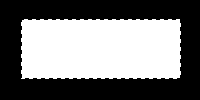
Deselect. Select > Deselect
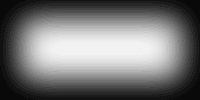
Then: Filter > Blur > Gaussian Blur - Radius = 15
The result is something like this:
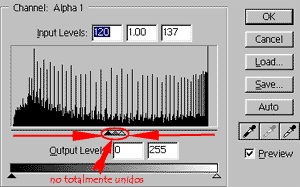
Now define the figure: Image > Adjust > Levels
Go to layers Palette and make a new one:Layer > New > Layer
Get the Alpha Channel 1 Selection - Select > Load Selection - Channel = Alpha 1
Take de Gradient tool y chose the gradient you want to use with your button. I used this.
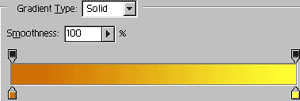
Apply the gradient in the selection. Now you have the button 1.
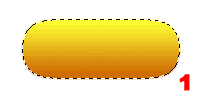
Now the second. - Select > Modify > Contract - Contract By = 4 px - Select > Feather - Radius = 2 px
Apply the gradient again, but this time in opposite direction.
Button 2
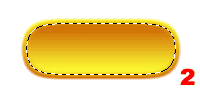
Here the Button looks really great, but lets make it better. Select > Modify > Contract - Contract By = 4 px - Select > Feather - Radius = 2 px
Apply the gradient last time (i hope), this time in the first direction.
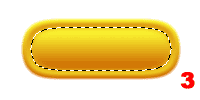
Finally deselect, and Ready. Select > Deselect
Really easy.

