Type your text using a nice font..

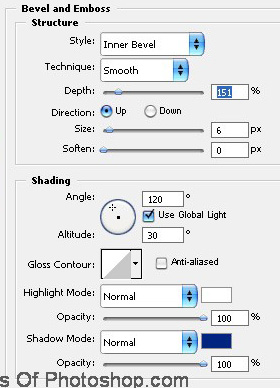
Double click the layer to open layer style window. Apply settings as shown.
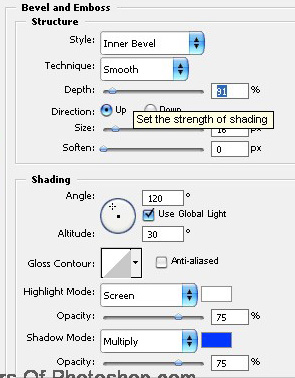
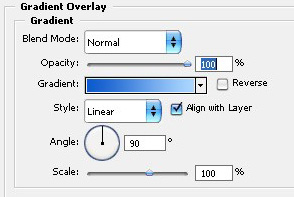
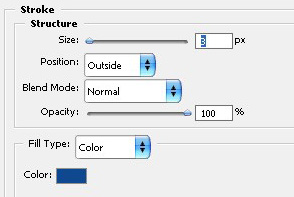

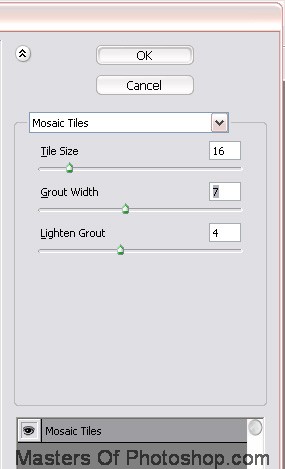
Ctrl+Click the text layer thumbnail to get the selection. From filter menu select "Texture>>Mosaic Tiles ". Apply settings as shown.

Press Q again to disable quick mask.

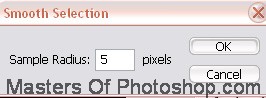
From select menu click modify>>smooth. Apply settings as shown.

Create a new layer and fill it with white color.

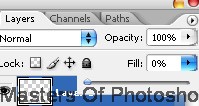
Reduce the fill value to 0%.
Double click the layer to open layer style window. Apply settings as shown.