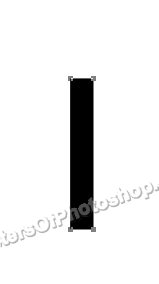
Create a rectangle using rectangular shape tool.
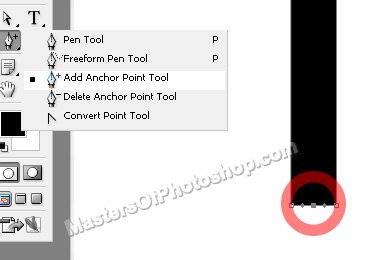
Select add anchor point tool and click on the middle of the bottom edge of the rectangle.
Move it a few pixels downwards.
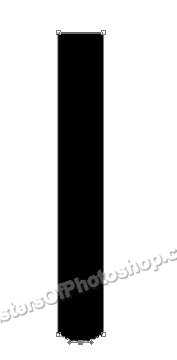
Similarly create a point for the upper edge too. Select Convert point tool and click over the point. This will covert the smooth tangents to the linear ones.
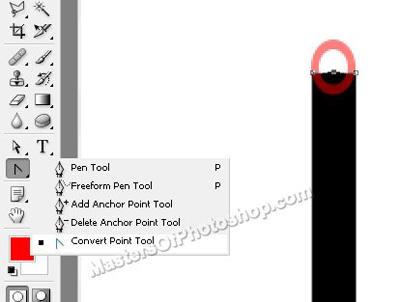
Move it this point a few pixels upwards .
Create a rectangle using rectangular shape tool.
Select add anchor point tool and click on the middle of the bottom edge of the rectangle.
Move it a few pixels downwards.
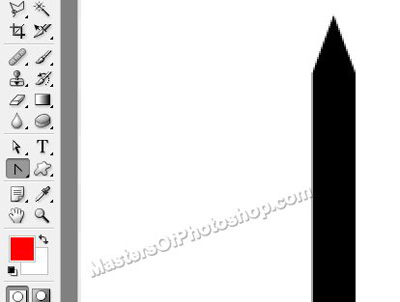
Similarly create a point for the upper edge too. Select Convert point tool and click over the point. This will covert the smooth tangents to the linear ones.
Move it this point a few pixels upwards .
Create a new layer and fill it with gradient as shown in the image below.
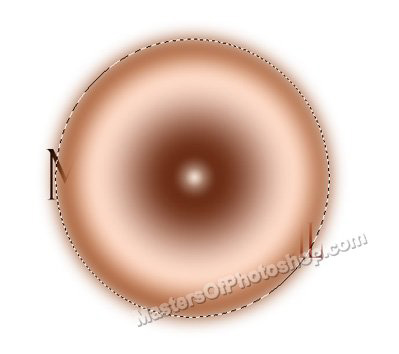
From select menu apply modify>>contract. Contract the selection by 30 pixels. Press Shift+Ctrl+D to feather the selection. Press Delete to remove the selected portion.

Change the layer mode to "Dissolve" from top of the layer palette.
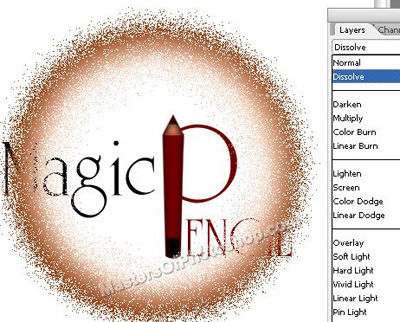
Select eraser tool and remove the bottom left areas.

Similarly create another dissolve gradient.