

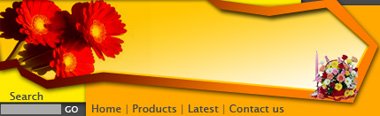
Creating a navigation header for a gift gallery
Start by creating a rounded rectangle using rounded rectangle shape tool.

Double click the layer to open layer style window. Apply layer style with the settings shown.
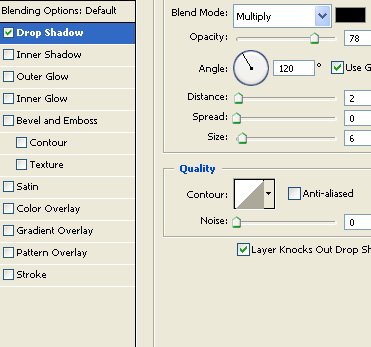

Duplicate the layer. Place it on the other side. Change the color.
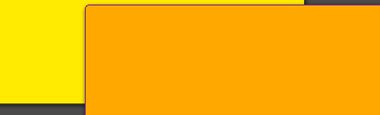
Create a shape as shown using pen tool.
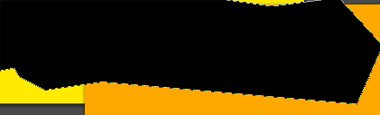
Double click the layer to open layer style window. Apply layer style with the settings shown.
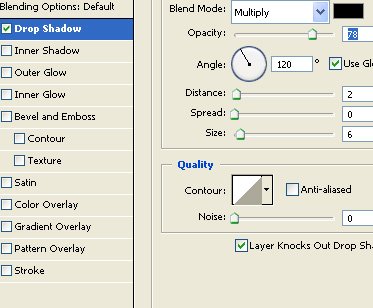
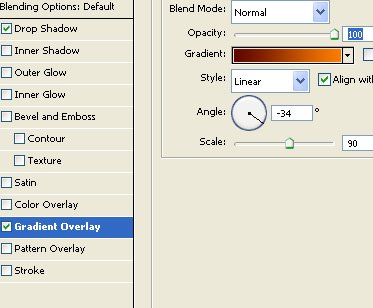

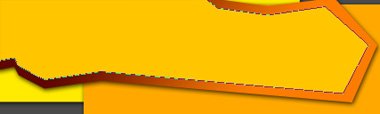
Duplicate the layer. Scale down and remove the layer style.
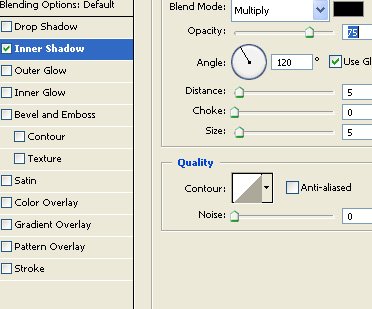
Double click the layer to open layer style window. Apply layer style with the settings shown.

Ctrl+Click the layer thumbnail to get the selection. From select menu apply modify>>contract. Contract the selection by 2 pixels. Create a new layer and apply a black to white gradient in linear mode.
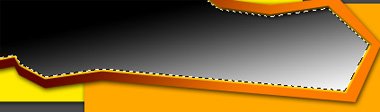
Change the layer mode to screen.

Insert a few relevant images.

Create a search bar on the bottom left.

Type navigation links on the bottom of the header.
Place the gallery logo in the center.
