1. Create a new document (800*600).
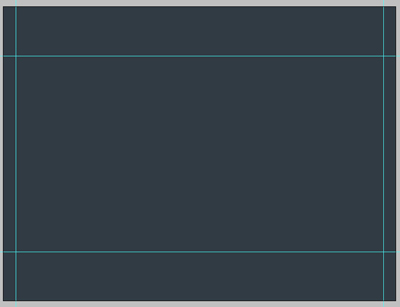
2. Fill the background with #313b44 and look at the guides I've created in the screenshot below.
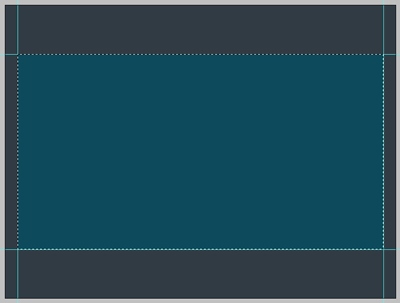
3. Now create a new layer (layer - new layer) and select a rectangle like shown and fill it with #0d4a5c.
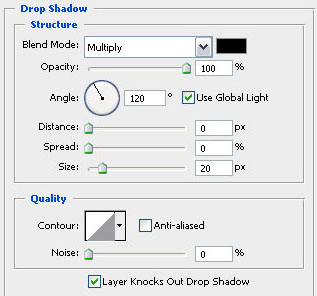
4. Adjust the blending options of the previous layer like shown!
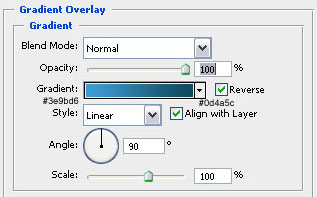
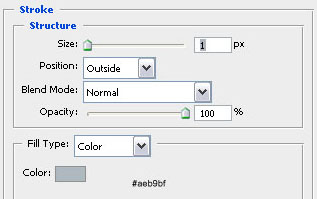
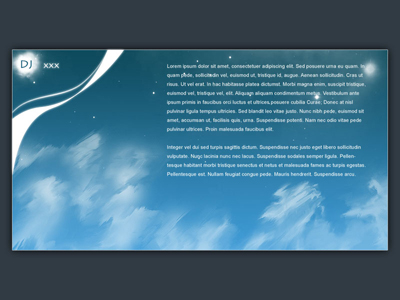
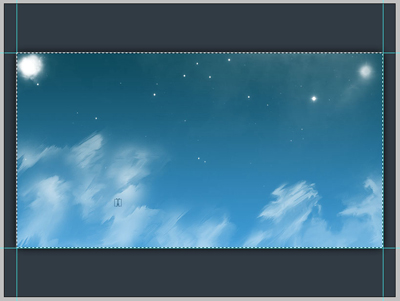
5. Now create 2 new layers and select your brush tool… Make sure your foreground color is white #fffff. On the first layers you should brush with this brush (clouds) and on the second layer with this one (stars)! Make sure you select your working area (the box we've created earlier) using the magic wand tool… This way we don't add stars to our background but only to our box! Your layout should look like this, of course you might have used different stars and clouds on different places!
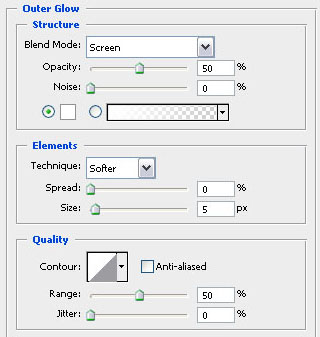
6. Create another new layer (layer - new layer) because we're going to use our brush tool again! Use it to brush something like this (I used one of these brushes from deviantart)… Then adjust the blending options to add an outer glow… You can find the settings for it in the second screenshot!
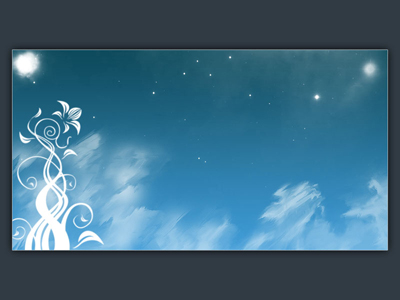
7. In this last step I've just added some text and content… The title font is litho's pro 16px and the text is arial 10px! The color is white, except for the title which is in #1f6481!
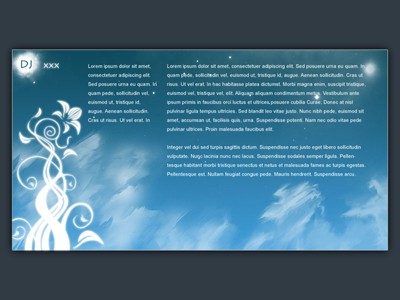
8. Of course you can adjust everything, this is a screenshot of another outcome with a few differences… A menu can be added under the content box! I realize this is not easy to slice but that isn't needed if you add text in flash… And there you go, you have a dj site or actually… A store that sells bedrooms could make better use of this design!