1. First, we must create new document . Turn on Smart Guide on View menu
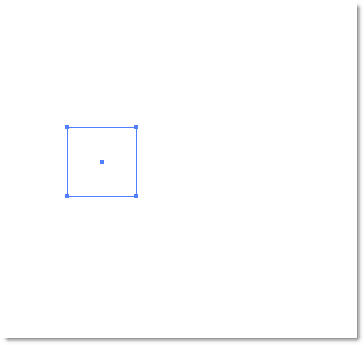
2. And create new small square shape
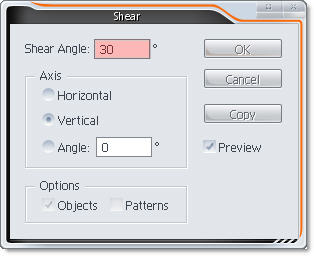
3. Use Shear Tool
 to transform this square
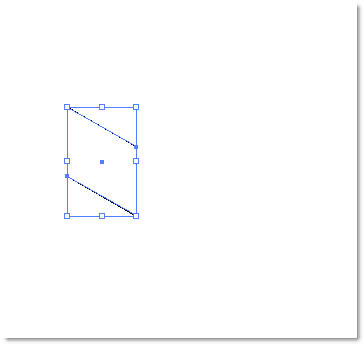
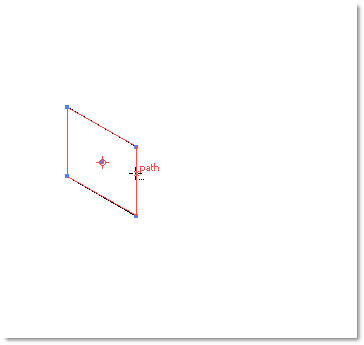
4. Next, pick Reflect Tool
 , Hold Alt and click on the path ( if u have right click, you'll see "path" red text ) to create a copy of this shape
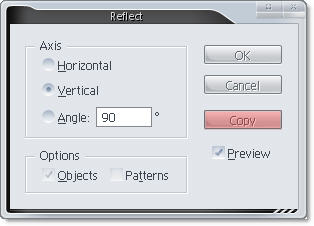
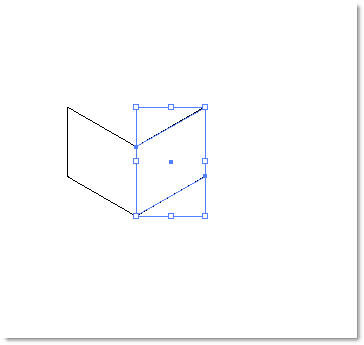
5. Create new square shape, pickdouble-click in Rotate Toot on Tool pallet

rotate 45 degree
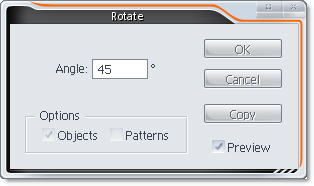
we have it
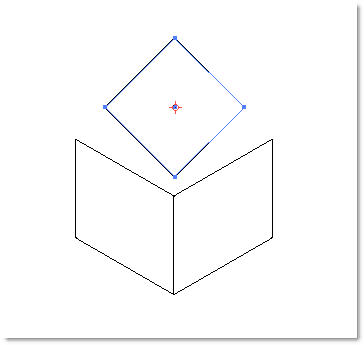
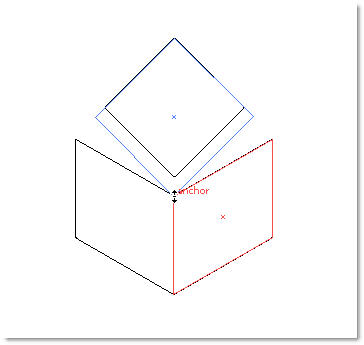
6. Click on bottom anchor point of this shape ( it'll show anchor red text ) and move it down like this
7. Use Scale Tool
 pick a center , and transform
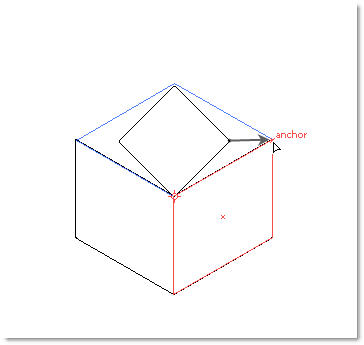
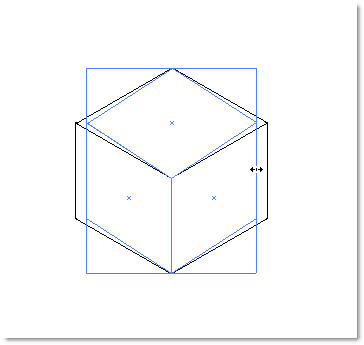
okay !! perfect Cube
.jpg)
8. Hit Ctrl + C to copy, and Ctrl + F to Paste in Front.
Dual Click on Scale tool
Set that I did
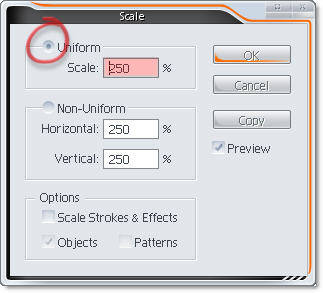
go to View >> Guide >> Make Guide ( your shape now become guide )
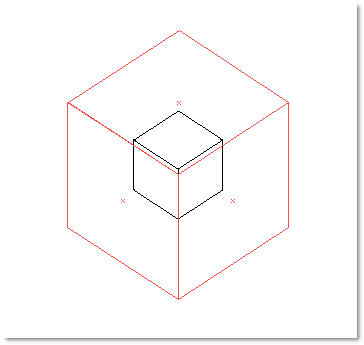
9. Move and copy cubes.
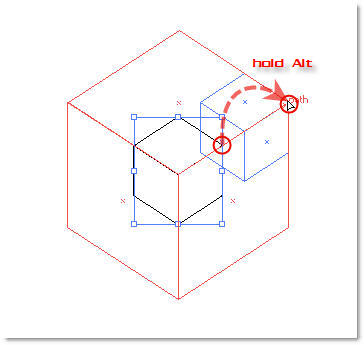
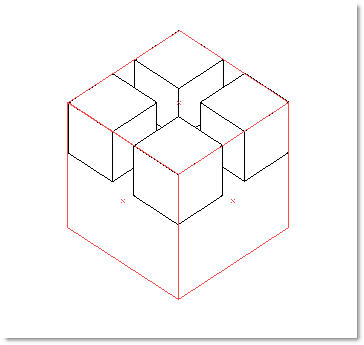
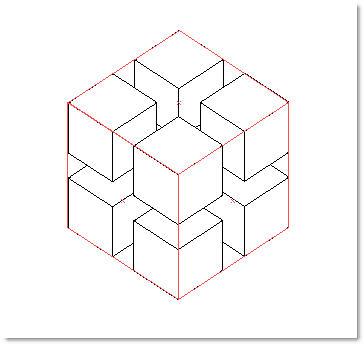
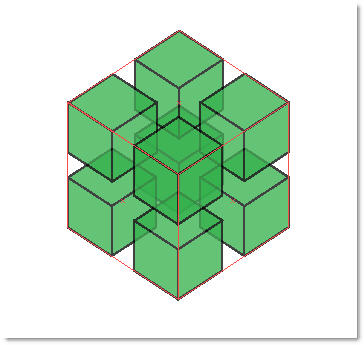
Fill color >>

Opacity

10. Select center cube, change it color to blue. select and set opacity for 3 face of this cube
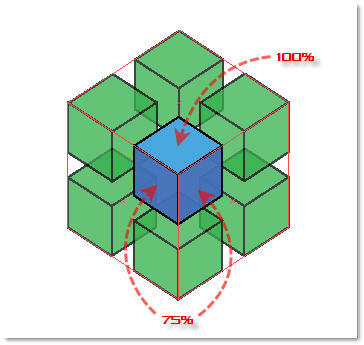
11. Add text >> it a logo of SmartData Storage