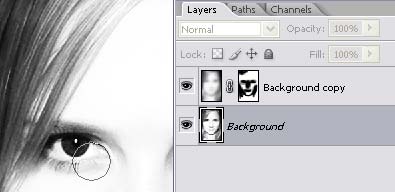
Our tutorial this time will show you how you can achieve high-key effect in a Black and White portrait with only 4 easy steps in photoshop.
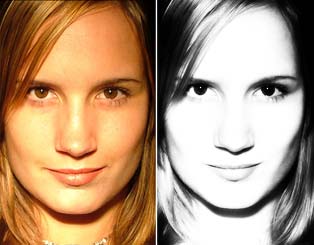
Here are our before and after portraits..
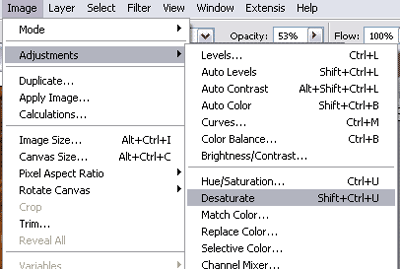
Step 1: Desaturate your portrait with image>adjustment>desaturate or simply by pressing shift+ctrl+u
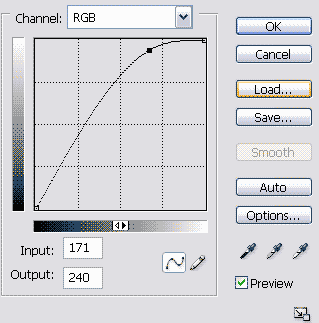
Step 2: Apply image adjustment curve to your portrait
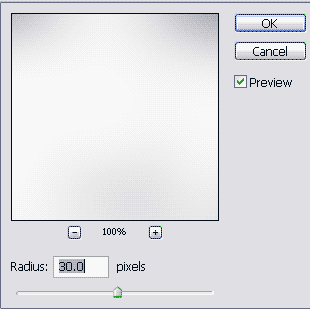
Step 3: Duplicate the layer, and add gaussian blur (Filter > Blur > Gaussian Blur), change the layer blend mode to overlay
Step 4: Add layer mask, Set your foreground color to black, and start brushing over the eyes, nose, and lips. You might want to use the burn tool to burn the background layer around the eyes, nose, and lips.