


In this tutorial I'm going to show you how to make borders easily using quick mask and filters in photoshop. Here's a sample that I did using quick mask and fragment filter;
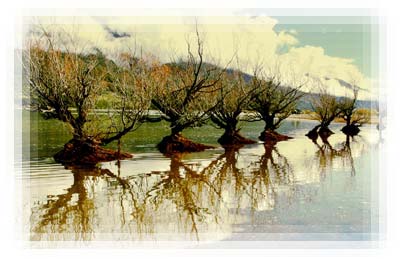
Let's get started!
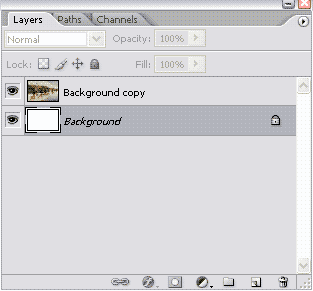
Step 1: Open your image, and duplicate your background layer. Choose your background layer and fill it with whatever color you want for your border. Mine is white.
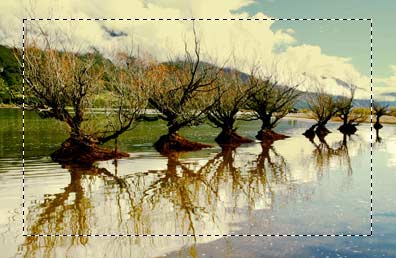
Step 2: Now make a rectangular selection just like when you want to crop the picture. The area outside is where the border effect will happen.
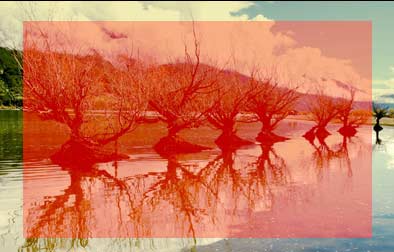
Step 3: Inverse your selection (ctrl+shift+i) and press 'q' to apply the quick mask.
Step 4: It's time to play around with your filters. I'll get mine done with the fragment filter. So, go to Filter > Pixelate > Fragment, and apply the same filter 5 times by pressing 'ctrl +f' 4 times.
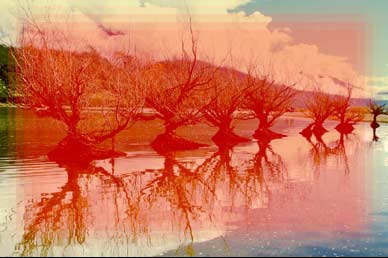
Step 5: After you apply the effect, press 'q' to turn the quick mask into selection, and delete the selection. You should get something like this..
Experiment with the different filters and colors to get your cool borders effects.
