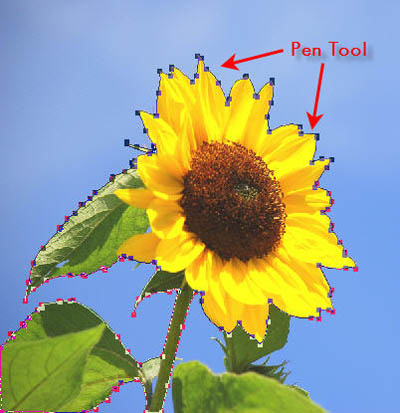
Get this sunflower stock, use Pen and get this flower out of the background
New file 1000 x 600 px, fill background color = #001060

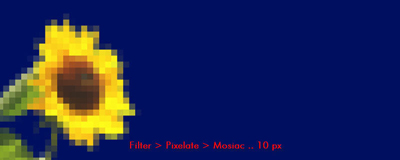
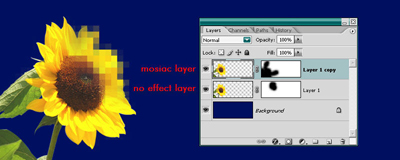
duplicate layer, using Mosaic Filter for top layer
Create Masks like this
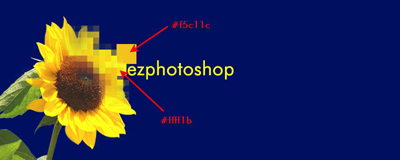
Type text with #ffff1b color. Font = Future ( classical font )

draw more square shape, fill these color like this
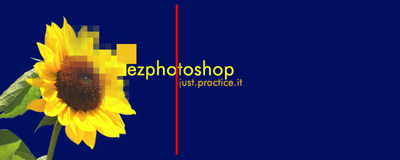
align text follow the red line
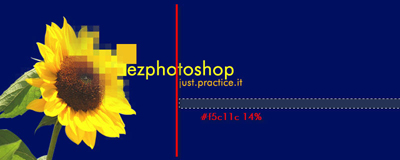
Create a rectangular selection, align with the red line too, fill #f511c, 14 % opacity ( on new layer )
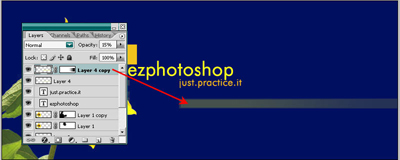
Duplicate this layer, Transform it smaller, fill same color and opacity, then create a gradient mask
Draw this Path with Pen tool
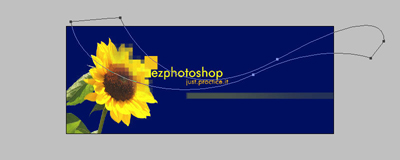
In this tut, I only used two color pick on sunflower stock, one orange and one yellow
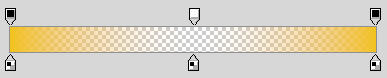
Use this gradient, with orange color
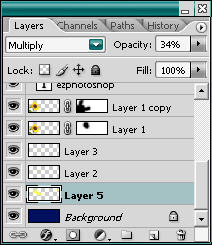
change mode = Multiply, 34 % opacity

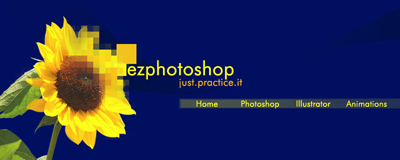
Add text , and we have finish the banner, you can create a border and put it in your web