Now, create new document random size, landscape
Use Bold and Circular font and type any word you like

Rasterize type layer, use Rectangular Marquee Tool to bring 1 character to 1layer
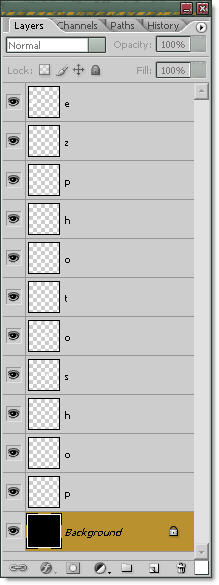
when you complete it, Pick on "Auto Select Layer" on Control palette of Move tool, you can transform character easily
We have this

add some layer style
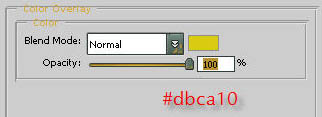
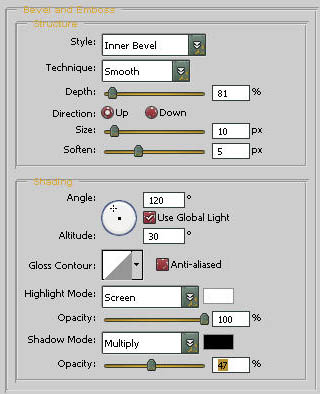
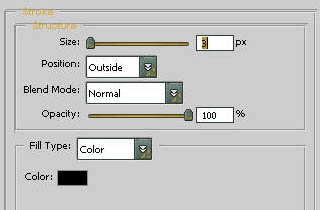
Duplicate layer and change blending mode to Multiply, use Linear black and white Gradient Tool to create shadows for text
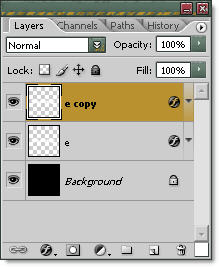
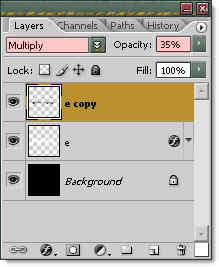
we have

now, merge all text layer,hold Ctrl then click on layer thumbnail of this layer, go to Select >> Modify >> Expand
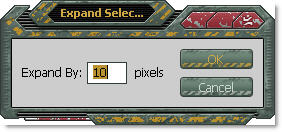

make new layer, fill #42991b color

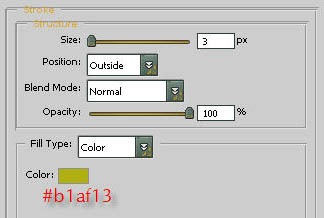
add layer style
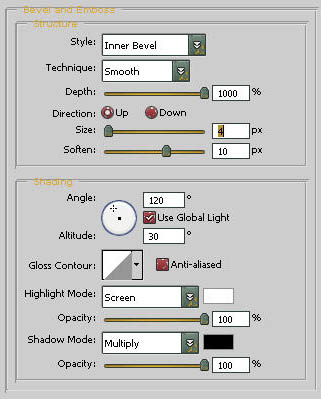

and now, add some detail, use Hard Brush tool and pick some point on layer green
Finally....we have a smoothy text :)