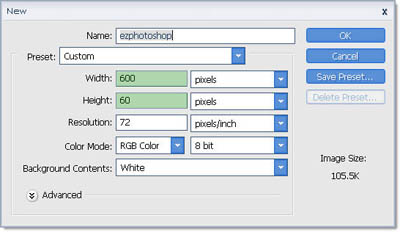
1. Create new document, size 600 x 60
2. Ctrl + A to select all layer
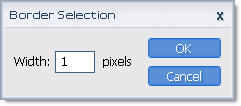
Select >> Modify >> Border

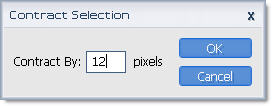
Select >> Modify >> Contract

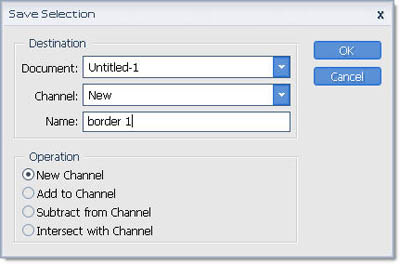
Save Selection
3. Select this selection

Transform it

Save Selection
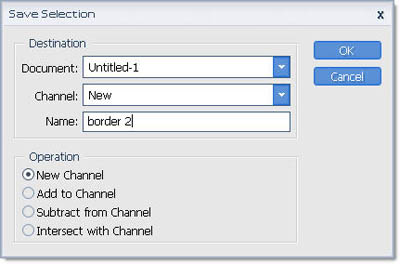
Transform again, move to the right a little...

Load Selection
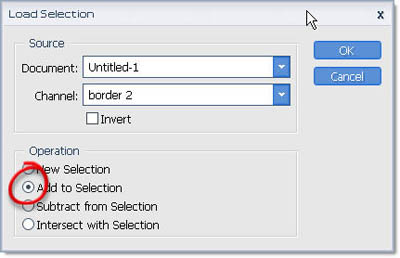

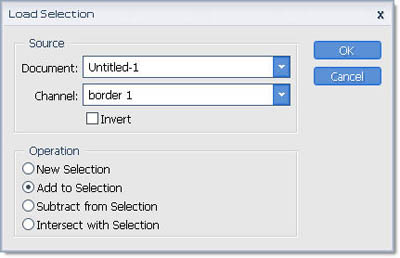

4. Ctrl + J to bring it to new layer, set these Layer Style
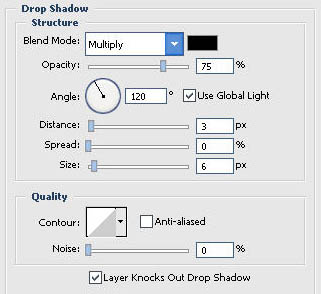
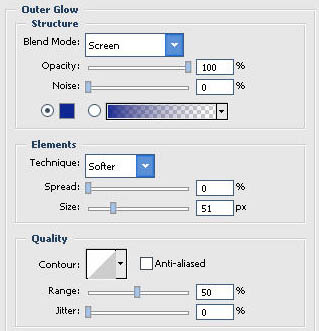
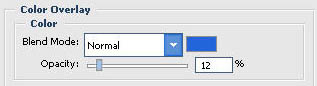
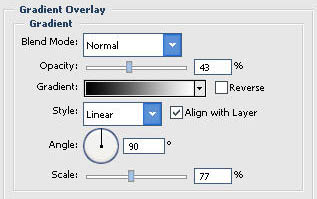
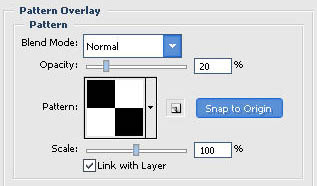
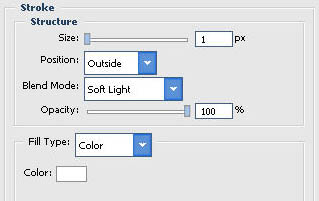
We have

5. Select selections like this

Transform it

Fill light blue color and new gradient layer like this,then move it down a little...;

Add layer Style for new layer
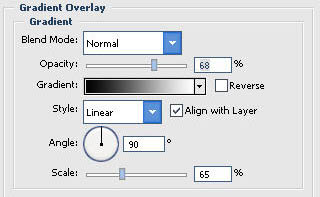
Change the background layer to layer 0
Set this Layer Style for this
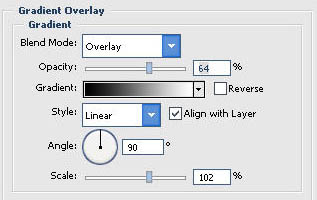
add some curve and text, we have a nice user bar :)
Done !!! Our Result

