

There are lots of different ways of creating glow or dreamy effect with Photoshop. This tutorial will use the Gaussian Glow and layer mode. It's pretty easy and straight forward stuff.
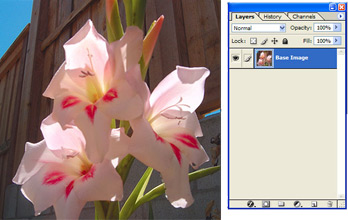
1. Open your photograph, call it "base image" or something
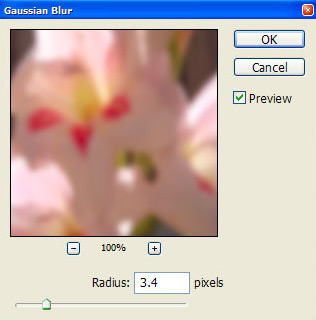
2. Duplicate the layer, and name it "Glow", go to Filter > Blur > Gaussian Blur > and enter value range from 2 to 4 into the box
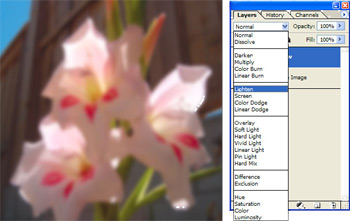
3. Make sure your "glow" layer is selected. Go Change the layer mode it Lighten
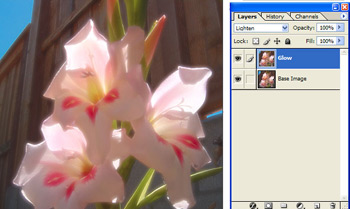
4. That's it !
