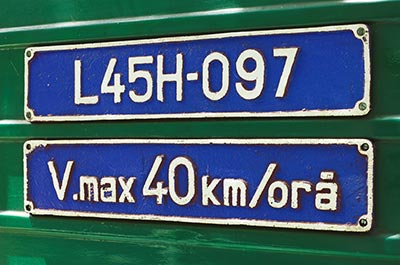
In this tutorial I'll explain you how to very easy change color on some part of your picture.
First step is to open image on which we'll work. In this case we'll be using this photo:
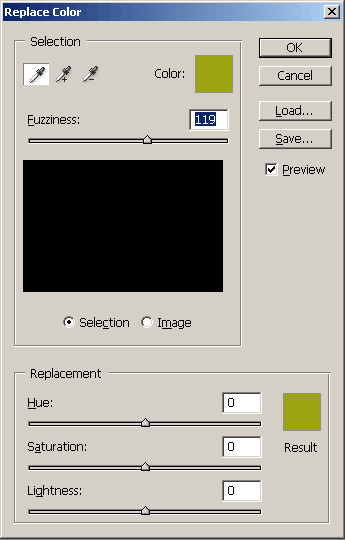
Now, we'll go to the Image - Adjustment - Replace Color. You'll get this screen.
Now go to this icon in the screen
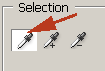
and click on the color you want to replace. Next it's important to select this icon
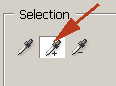
and click on similar color on the picture until the final picture looks fine.
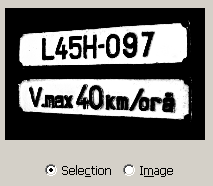
You can fix selection with fuzziness slider.
Now with the sliders in replacement select the color you want on your picture.
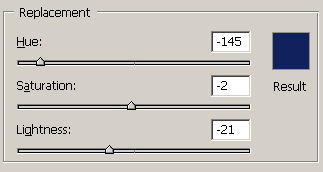
And that's it.
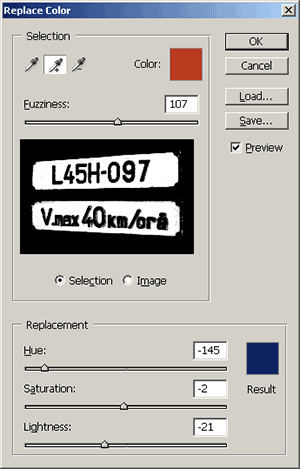
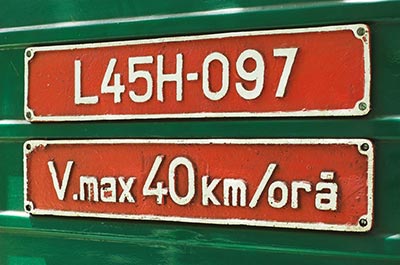
Our final picture looks like this