Step 1
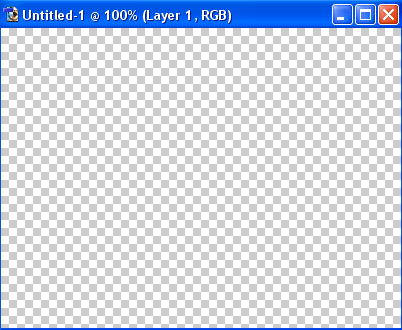
We will start by creating a Transparent document 400 by 300 pixels.
Step 2
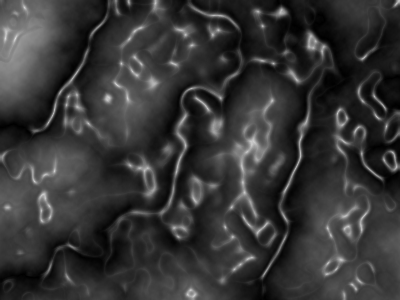
Press "D" key to set the default colors (black and white). Choose Filter > Render > Clouds. Then, choose Filter>Render>Difference Clouds and after that Filter>Artistic>Plastic Wrap. Use the default settings. Now, you'll need to get something like this:
Step 3
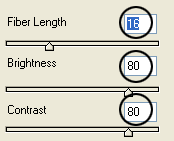
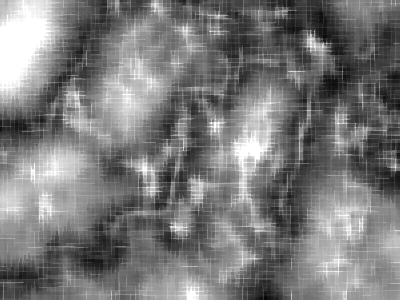
Next choose Filter>Sketch>Water Paper and choose the following options:
Now, you have this:
Step 4
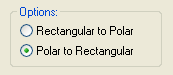
Go to Filter>Distort>Polar Coordinates and select Polar to Rectangular. See the picture below.
Step 5
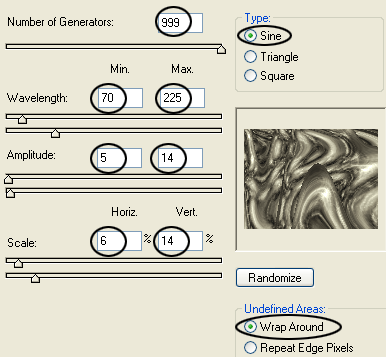
Choose Filter>Distort>Wave and choose the following options:
Step 6
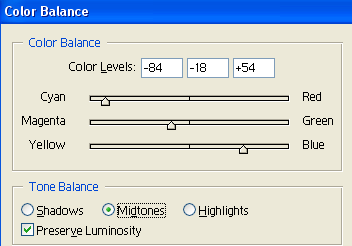
Press Ctrl+B key and choose the following options:
Step 7
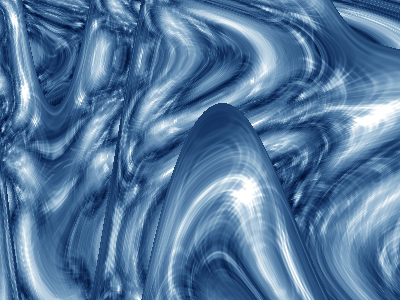
Finally, you'll need to get this:
Enjoy!
