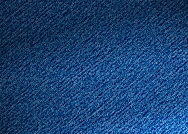
Step 1
Create a new Photoshop document and paint the background in this color: #02356B

Step 2
Now, we will apply the filter texturizer, so choose Filter > Texture > Texturizer.
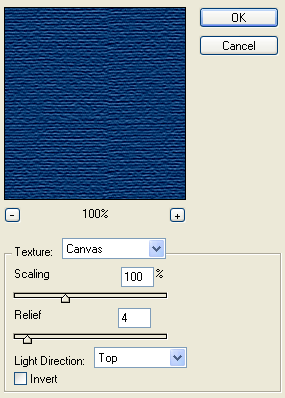
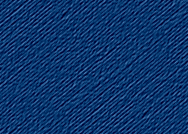
Our denim now looks like this:

Step 3
Press Ctrl+T key and rotate all for 45 degrees. Look at the picture below!
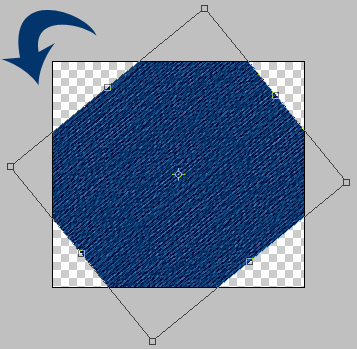
Step 4
Cut the mid part using the Crop Tool.
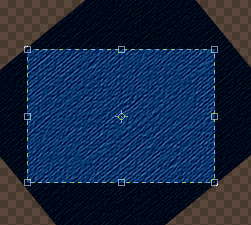
Our denim now looks like this:
Step 5
Create a new layer and paint it in #02356B.
Step 6
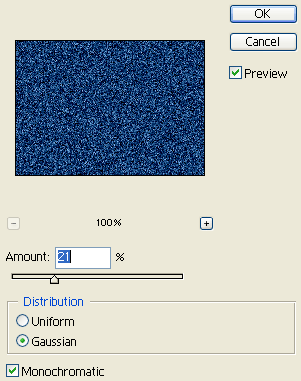
On a new made layer apply the add noise filter
Filter > Noise > Add noise
Step 7
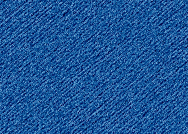
Then, under blending mode choose screen and set opacity to 70%. See the picture below.

Step 8
Click on channels tab and create a new alpha channel.
Step 9
Take the Brush Tool, decrease the opacity and try to get something like it is shown on the picture below.

Step 10
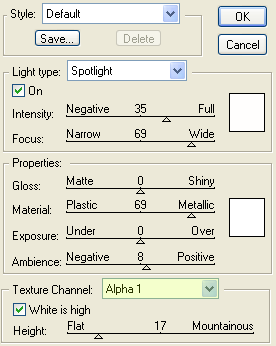
Go back on layers and apply the Lighting Effects filter with the following settings:
Step 11
Finally, our denim should look like this: