

Step 1
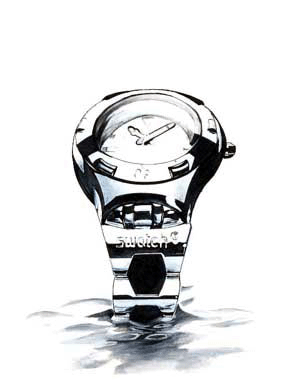
Open the picture on which you want to apply the shine effect in photoshop.
Step 2
Under foreground set white color.

Step 3
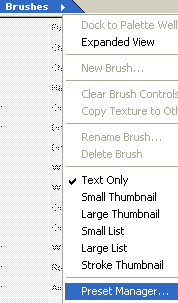
Choose Window > Brushes > Presset Manager.
Step 4
Then, in Preset Manager window, click on right arrow and choose Assorted Brushes.
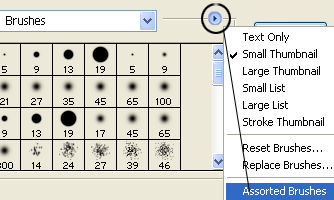
After that, click Append.
Step 5
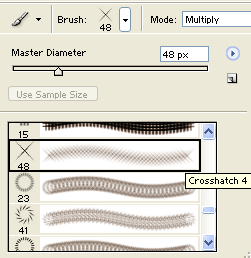
Select the Brush Tool (B) and from Brush Preset picket, choose Crosshatch 4. See the picture below.
Step 6
Create a new layer, and after that click somewhere on the picture, where you want to be your effect.

Step 7
Create again a new layer.
Step 8
Open the Brush Tip Shape Panel , and set the options from the picture below.
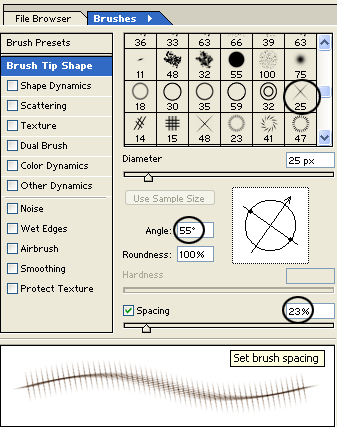
Then, click on the center of shine effect.
Step 9
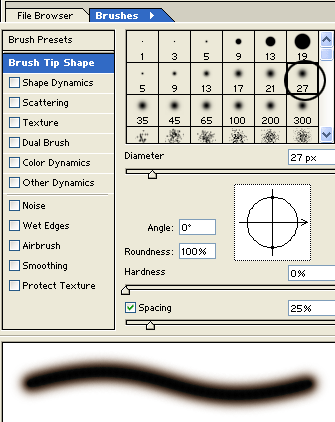
Choose after that from Brush Tip Shape Panel Soft Round 27, and then, click on the center of shine effect. Look at the picture below.

Step 10
Press Ctrl, and click on layer 1 from layers palette, to select the source effect (shine).
Step 11
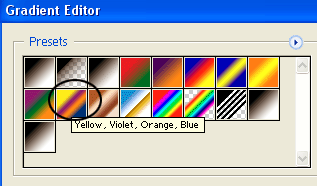
Select the Gradient Tool (G), and from Gradient Editor Panel choose Yellow - Violet- Orange - Blue. Look at the picture below.
Step 12
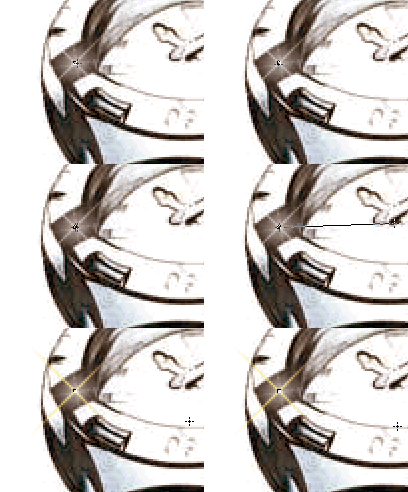
After that, do like it is shown on the picture below.
Step 13
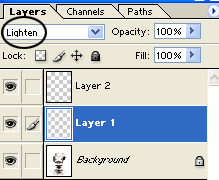
In layers palette, under blending mode choose Lighten.
Step 14
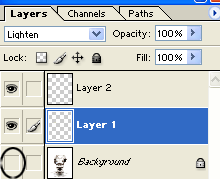
Make your background layer invisible, and after that choose Layer > Merge Visible (Shift+Ctrl+E). See the picture below.
Step 15
Make you background visible.
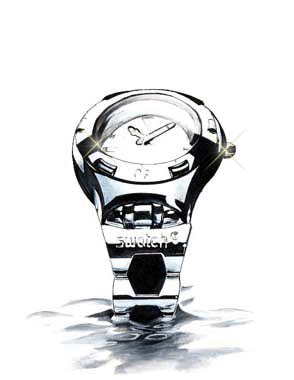
Finally, our work looks like this:
Have a nice day!
