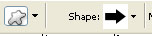
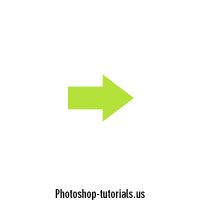
Step 1. Make a new document sized 200x200 with a white background. Create a new layer and using the shape tool select the arrow and with a green color make a small one. Check below for example :
Step 2. Now add the following layer styles:
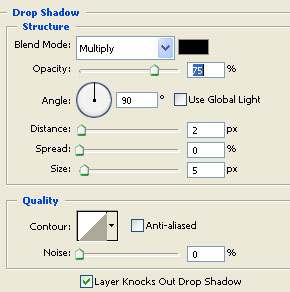
Drop Shadow:
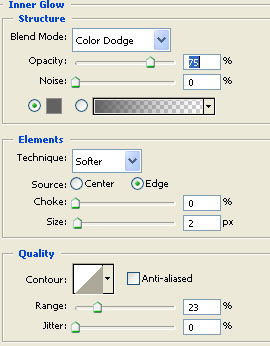
Inner Glow:
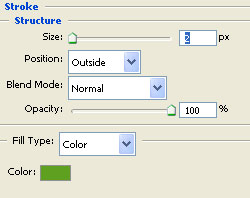
Stroke:
Step 3. Grab the dodge tool with the settings below :

And dodge the bottom a bit.
Now make a new layer , and using the rectangle marquee tool create a shape like below and fill it white:
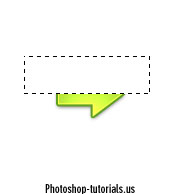
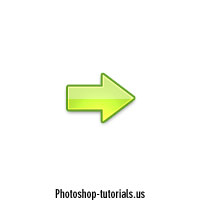
Now lower this layer opacity to 13% or so until it looks like below:
 This post was written by owner of