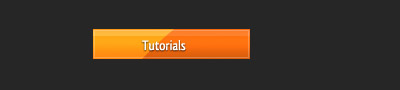
Step 1. Make a new document with any size you want. Grab the Rectangular marquee tool and on a new layer make a shape like below and fill it with any bright color. I choosed orange.
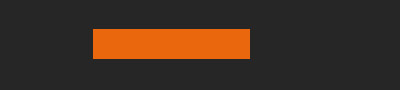
Step 2. Now create a new layer and with the same rectangular marquee tool create a smaller shape like below and go to Edit-Stroke and choose 1 Px white.
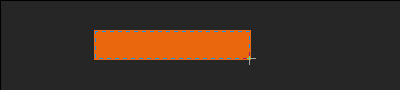
Lower the opacity of the layer to around 30%
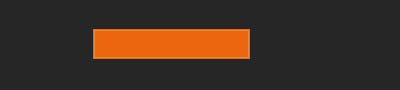
Step 3. Use the burn and dodge tool to get a result like below:
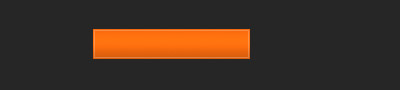
Step 4. Grab the pen tool and on another new layer make a shape like below, right click on it- make selection and fill it with a gray color.
Now right click on the top layer and select Create Clipping Mask.

This is what you should have :
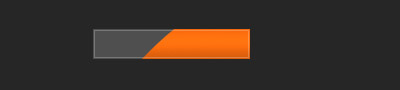
Step 5. Set the top layer blending mode to color dodge and on a new layer add your text:
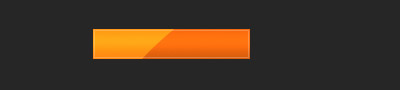
This is my final result: