


To begin, create a new document and fill it with a background colour.
Next, grab your Rounded Rectangle tool. Change the radius to something that you think looks good. I used 8 pixels.
While holding Shift, drag the shape onto your document.

Next, begin to add the effects by clicking on the "fx" icon at the bottom of your layers list.
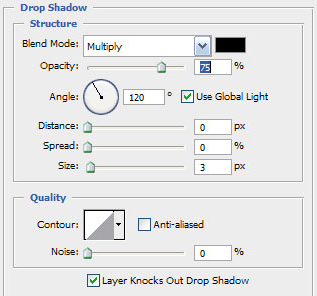
Drop Shadow
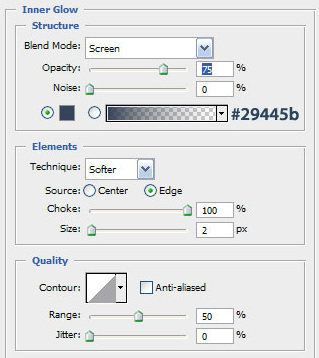
Inner Glow
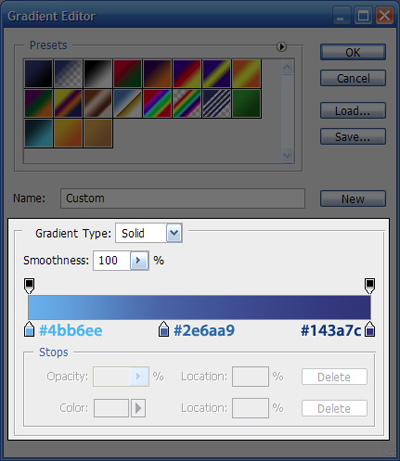
Gradient Overlay
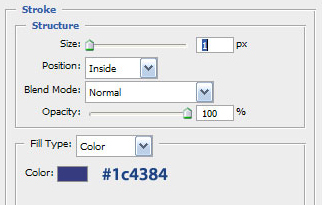
Stroke
At this stage, your icon should look something like this:

To finish it off, add some text (and maybe a shine if you feel necessary) and you're done!


