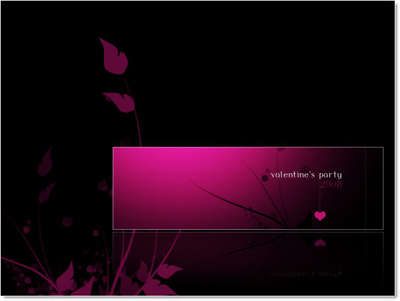
Start in new file, black background
Pick Rectangle Marquee Tool to draw the selection 410 x 125 px
Create new layer ( Ctrl + Shift + Alt + N )
Choose Gradient Tool an create a gradient like this

Fill follow the direction
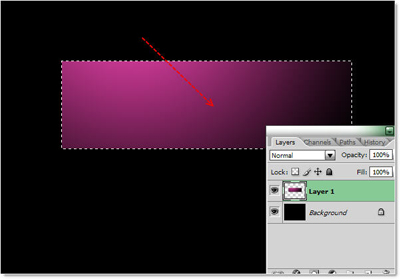
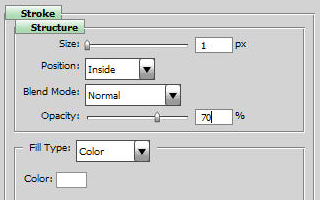
Add Stroke
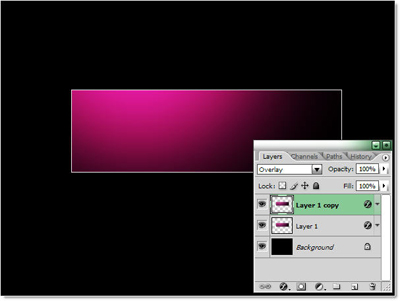
Duplicate layer 1
Change blending mode in new layer to "Overlay"
Draw selection and fill to create this shape
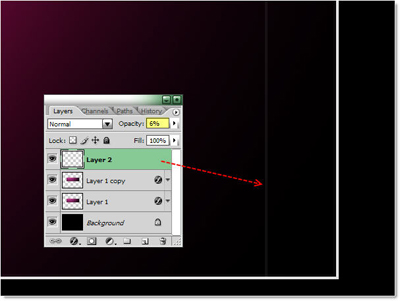
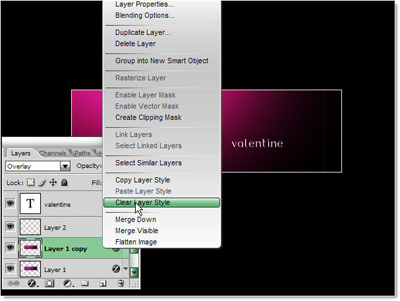
Stand on "Layer 1 copy" , Right-click >> Clear Layer Style
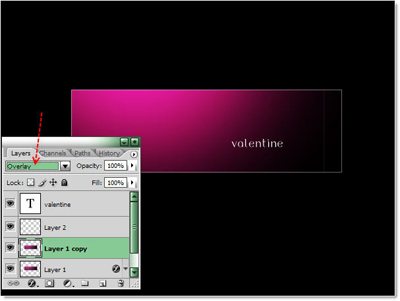
Set blending mode again
Ctrl + Click on Layer 1 copy's thumbnail to Load Selection
Create new blank layer
Download and use this brush
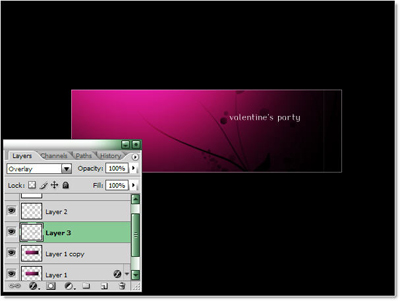
Create and fill this line with Rectangle Tool, you should zoom out the screen for perfect shape
Opacity = 20%
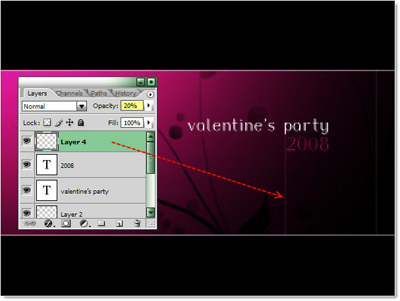
Pick Custom Shape Tool, choose this Heart Shape
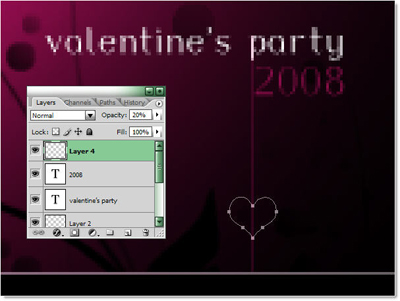
Create selection from path ( Ctrl + Enter )
Filled pink color
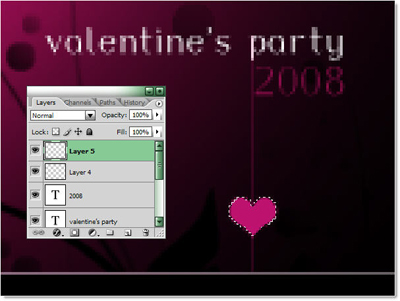
we have
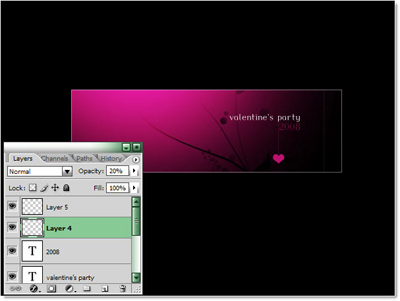
Group all element layer into 1 Group
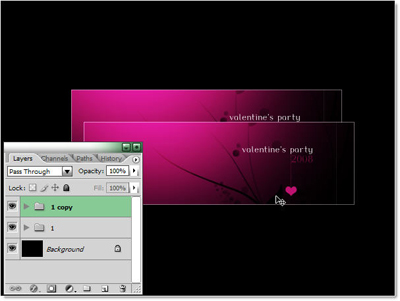
Duplicate this group
Ctrl + T ( Transform )
Right-click >> Flip Vertical
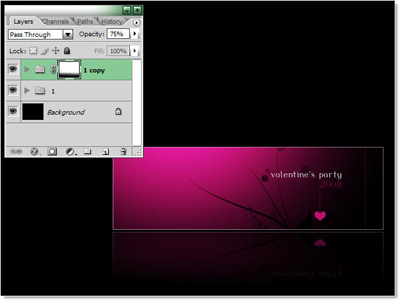
Create an opacity mask
use Brush on the background
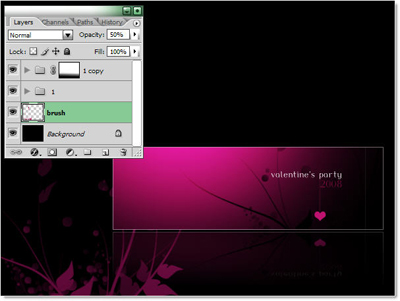
and here is it .. simple things for best result !!