As usual let's start with a new document.
Size 760x770 pixels
background color : white
Select rounded rectangle tool, Set the radius to 8 pixels and create some shapes. Place your shape like me
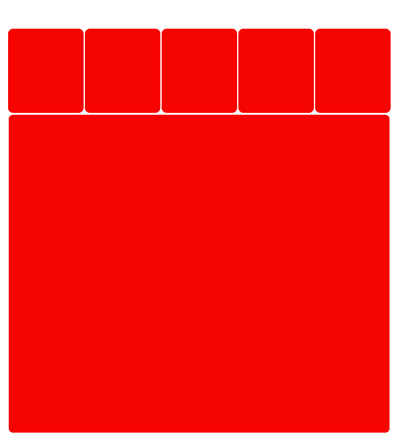
Then duplicate the big shape ( press Ctrl+J ) and with move tool ( V ) place the shape like me
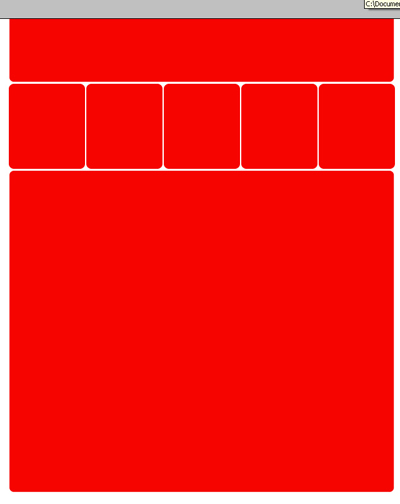
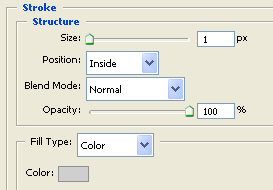
For all this shapes ( except the top one ) please add the following layer styles ( this layer style is included in Talk-Mania Big Pack )
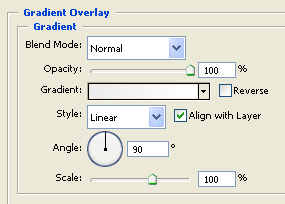
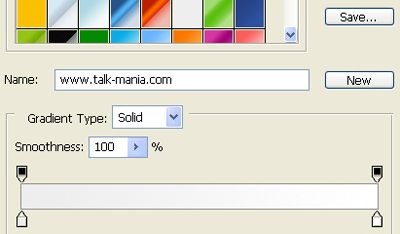
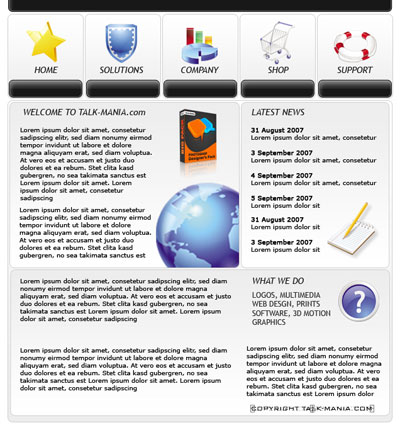
This is my result
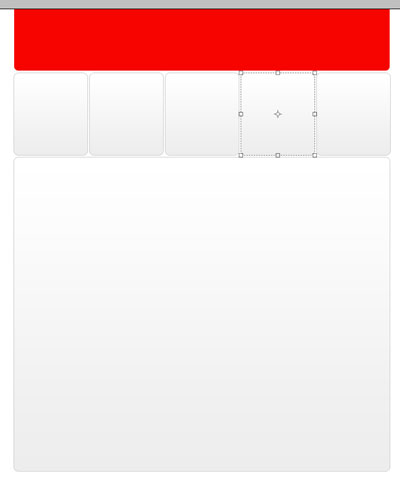
Now with the same tool ( rounded rectangle tool ) create another rectangles and place them like me
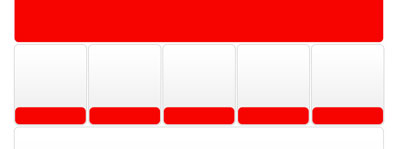
The easy way is to create one single button then duplicate it a few times, and move it with Move tool
For all this buttons please add the following layer styles
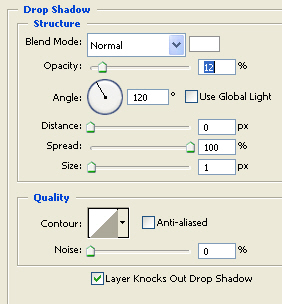
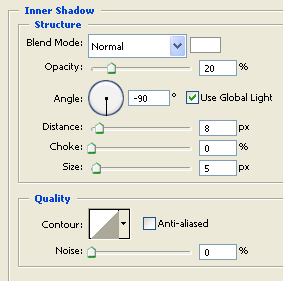
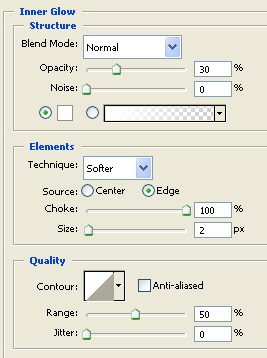
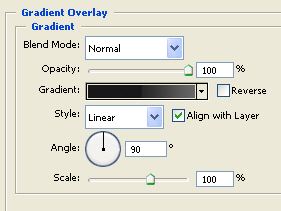
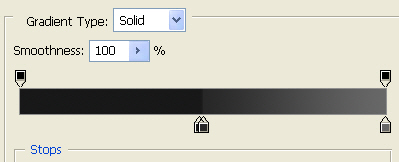
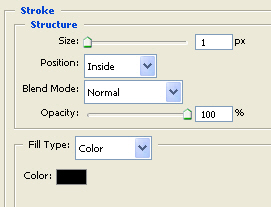
With the same layer styles you can add also for the top shape
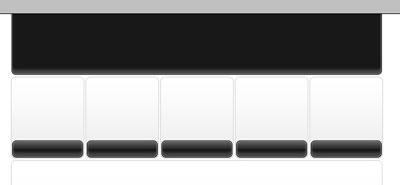
Add some icons on your layout

Then with rounded rectangle tool, create another shapes
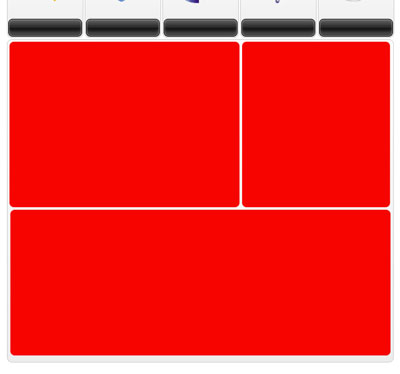
Then add the following layer styles
This is my result
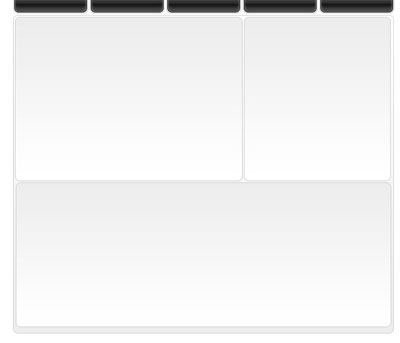
Now add some text on your layout, and some images
Then create a text logo

Duplicate this text logo, then go to Edit > Transform > Flip Vertically
With Move tool place the duplicated layers under the first one

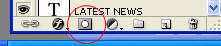
Then press on " add layer mask " button
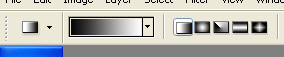
Select gradient tool ( use the following colors )
Then draw a vertical line ( follow my arrow )

Now you can see a nice mirror effect for our text logo
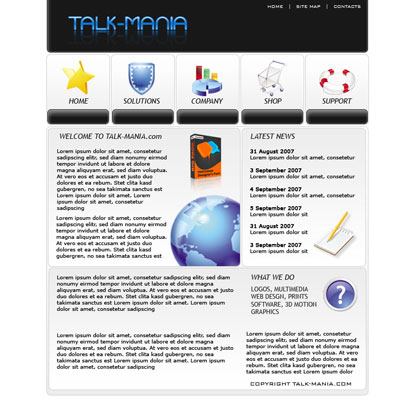
This is my final layout
I hope you like it.
