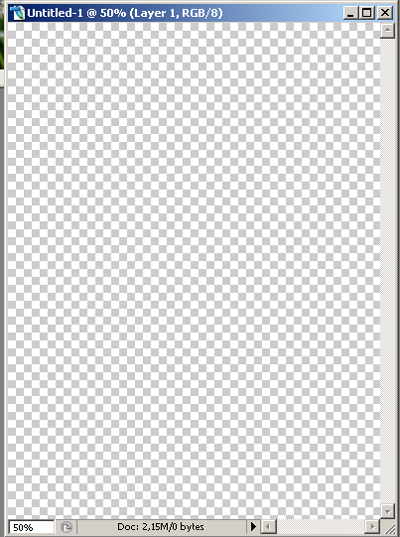
1. Create a new document. I made it a 1000 to 750 px, 300 ppi with transparent background.
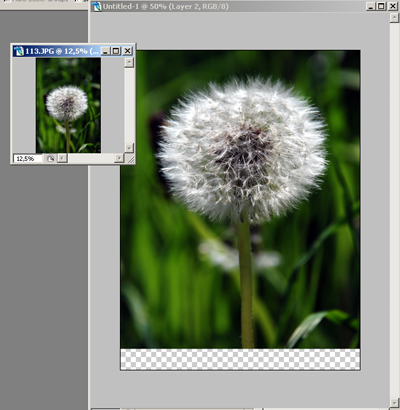
2. Open an image that will be the main subject matter of your ad. Here we have a dandelion in the grass. Drag and drop the image into the transparent background document and place it so that you have some space below. You can free transform (Ctrl+T) the inserted image if needed.
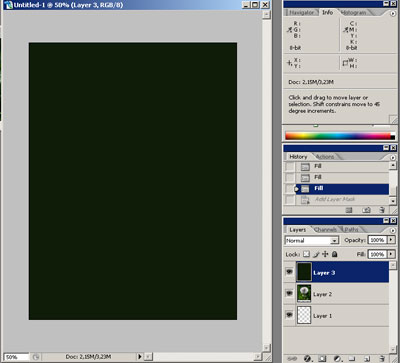
3. Create a new layer (Ctrl.+J) and fill it with dark green color (I used 0f1c08, but you can simply choose it with an eyedropper from the dandelion image).
4. Add a layer mask to the color filled layer.
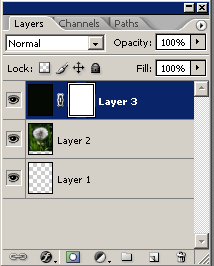
5. Choose Gradient tool with a black to transparent gradient.

6. Use gradient tool as shown in the image below:
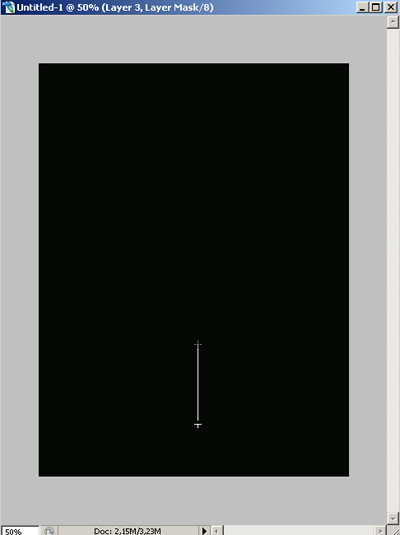
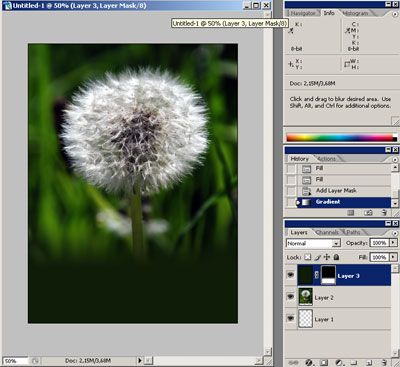
The green color should completely cover the bottom of the image and blend into the dandelion image a little.
7. Lets add some lettering. Choose Type tool and write whatever you need with white or slightly greyish letters.
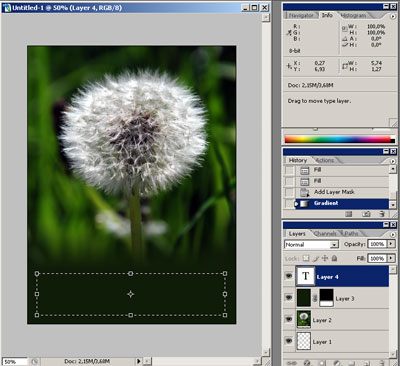
Your ad is complete: