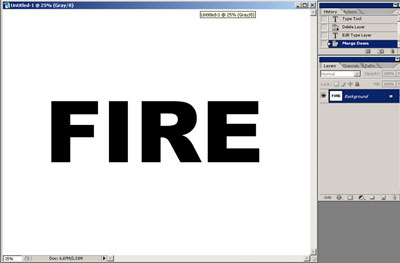
1. Create a new document, change its mode to grey-scale, and type your text in black. Merge the text layer with the background.
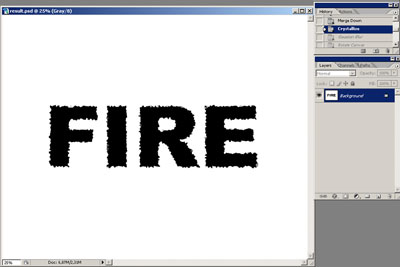
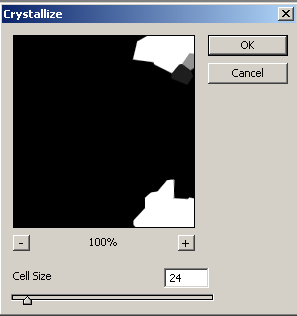
2. Go to Filter > Pixelate > Crystallize and move the glider till the edge is coarse enough (different size and resolution of the image will require different cell size).
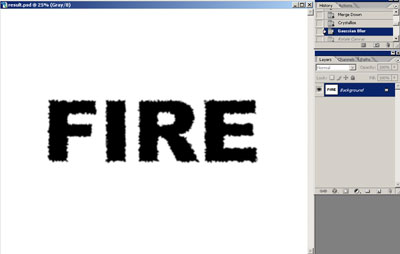
3. Apply Filter > Blur > Gaussian blur.
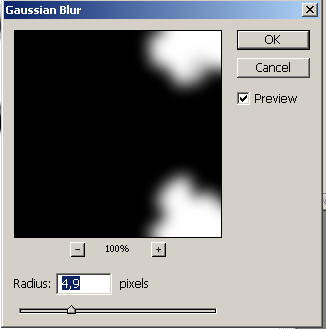
4. Press Ctrl+I to invert the colors.
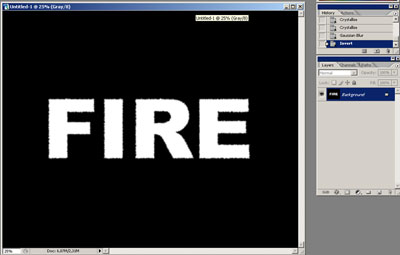
5. Rotate canvas 90 degrees clockwise. We'll need it to use the next filter.
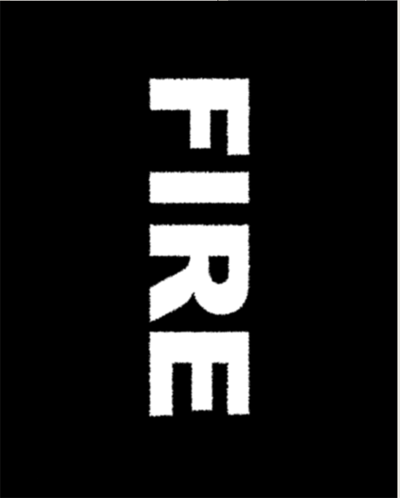
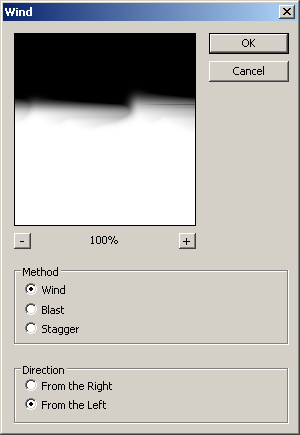
6. Go to Filter > Stylize > Wind. Apply wind from the left. With the document of a big size use Wind several times.
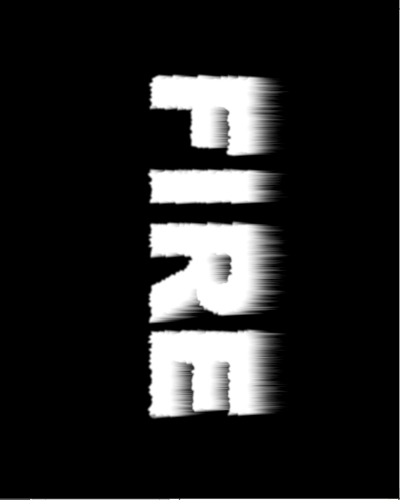
7. Go to Filter > Distort > Ripple and use it with average settings. Make the ripples to look more or less natural.
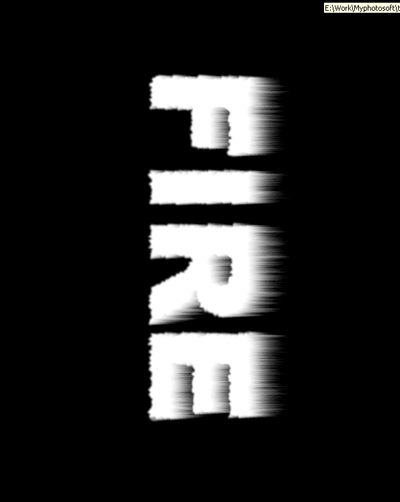
8. Rotate canvas back to horizontal position
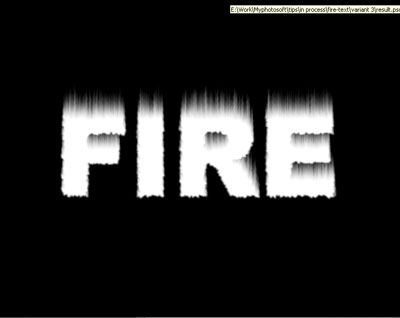
9. Change image mode to Indexed color.
10. Go to Image > Mode > Color Table and choose Black Body.
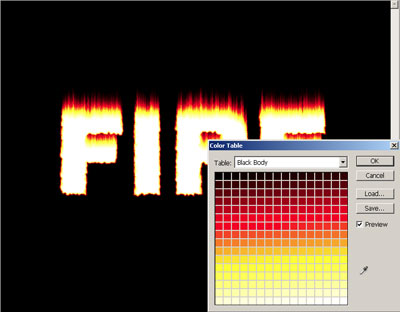
11. Your text is ready: