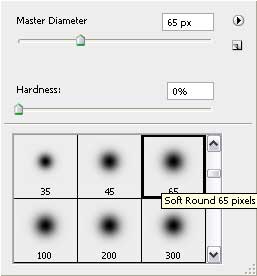
Create a new file (File>New), having 1024x768 px and 72 dpi.
Using the Rectangle Tool (U), make the background of the picture we want to have.
Use the next demonstrated parameters on the made layer by making a mouse click on the layer we work with on the layers' palette. Blending Options>Gradient Overlay
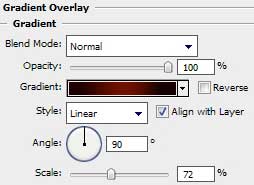
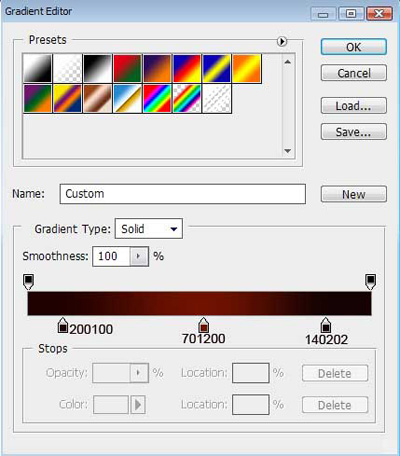
Gradient's parameters:

Create a new file (File>New) of 2x1 px and select the Pencil Tool (B) (brush 1 px) of black color to make a kind of pattern, like the next one:
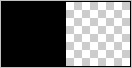
Edit>Define Pattern
Use again the Rectangle Tool (U) and continue representing the background of the picture.
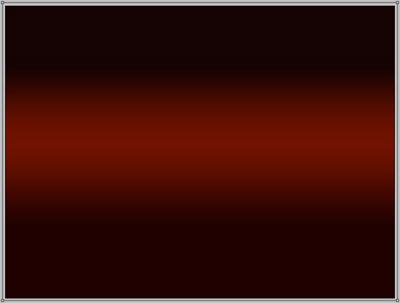
The layer's parameters: Fill 0%
Blending Options>Pattern Overlay
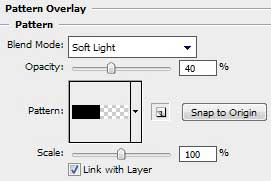

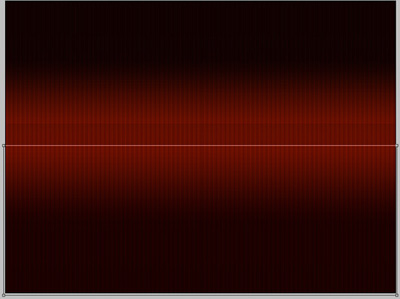
Using the same Rectangle Tool (U), it's time to illuminate the central part of the picture.
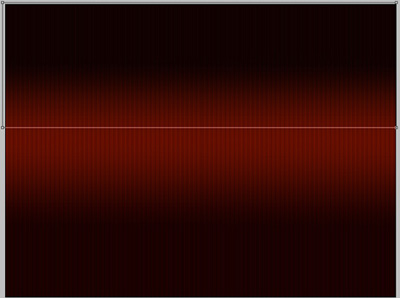
The layer's parameters: Fill 0%
Blending Options>Gradient Overlay
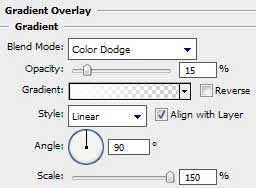
Gradient's parameters:
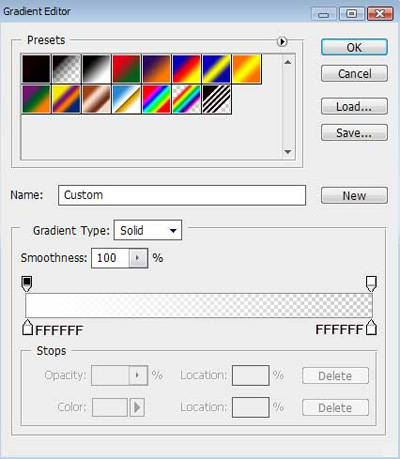

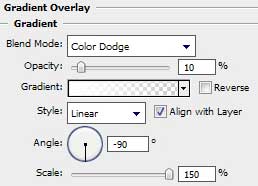
Make a copy of the last made layer and select the Free Transform option to turn over the copy, changing its parameters too: Blending Options>Gradient Overlay

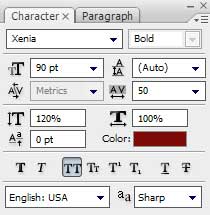
Write the next demonstrated word, keeping the demands from the next table:

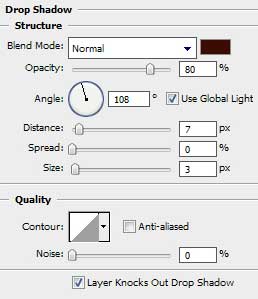
The layer's parameters: Blending Options>Drop Shadow
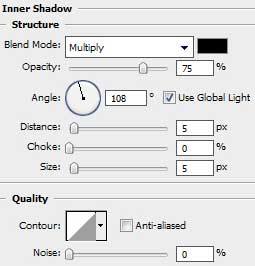
Blending Options>Inner Shadow
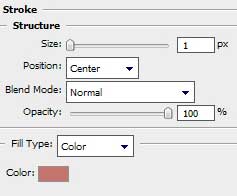
Blending Options>Stroke

Create a new layer again and use on it the earlier applied instrument, Pencil Tool (B) (brush 1 px).
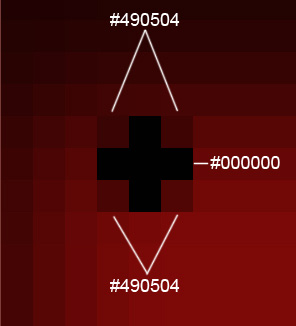

Make several copies of the last created layer, placing them the same way indicated next image:

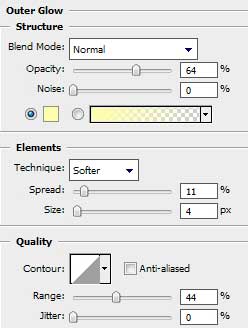
The majority of the copies have the same parameters of the layers, demonstrated below: Blending Options>Outer Glow
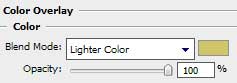
Blending Options>Color Overlay
Blending Options>Gradient Overlay
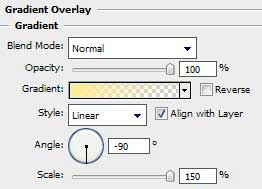
Gradient's parameters:
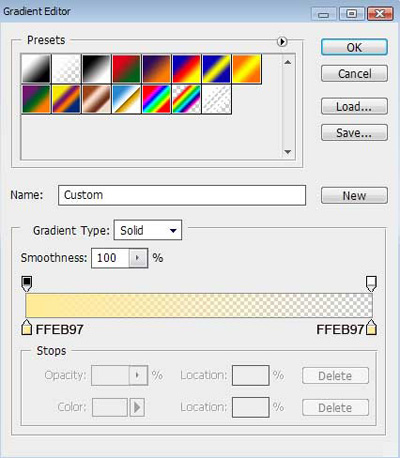

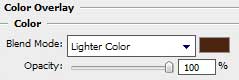
The rest of the layers have the next indicated parameters: Blending Options>Color Overlay

Create a new layer and use on it this time the Brush Tool (B) (Opacity of 30%) of the color #FFF799 to introduce the illuminating effect on the text's letters.