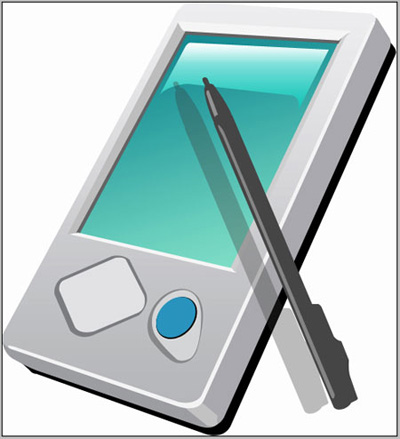
Create a new file with 485x533 px and 120 dpi.

Take the instrument
 to represent a figure that would have the parameters from below.
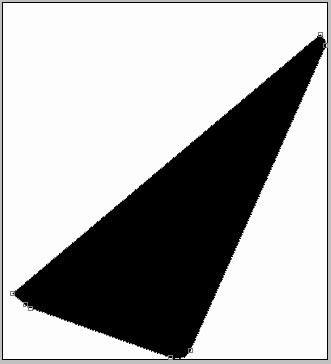
The same instrument will draw a figure with the color ACAEB1, like in the next picture.
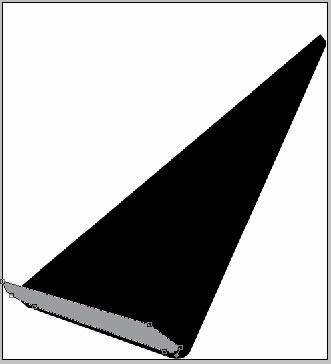
Take the same instrument for the next figure with the color – CECECE.
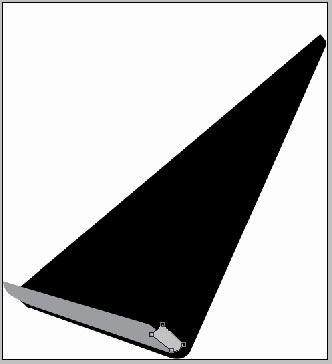
The same instrument and a new figure with the next color – B8B9BC and the parameters from the next image.
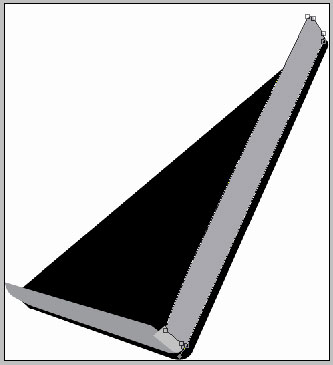
Using the same instrument create another figure. The sizes are shown.
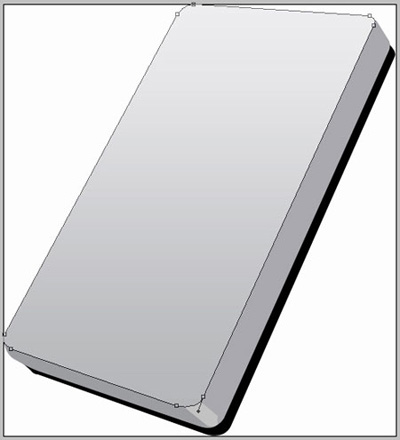
Blending Options-Gradient Overlay
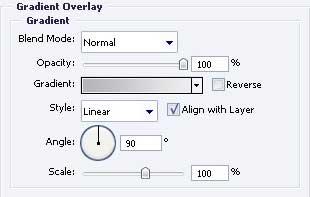
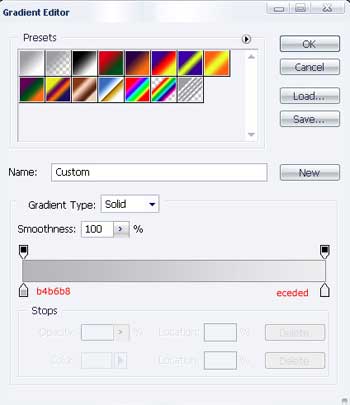
Gradient's parameters.
Take the previous instrument to represent a figure of white color.
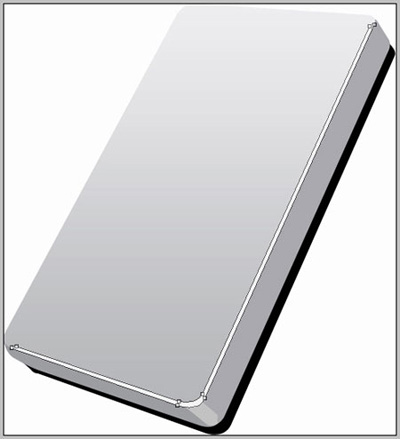
The instrument must be the next
in picturing a figure of the color 8E9092, like in the picture below.
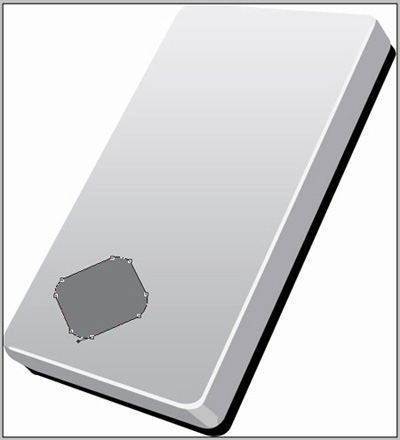
Above the recently created figure add one more with the old instrument. The color should be E8E8EA.
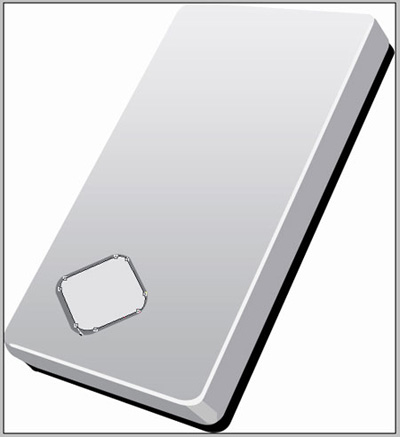
One more figure that would have the color 999B9D, like in the next image.
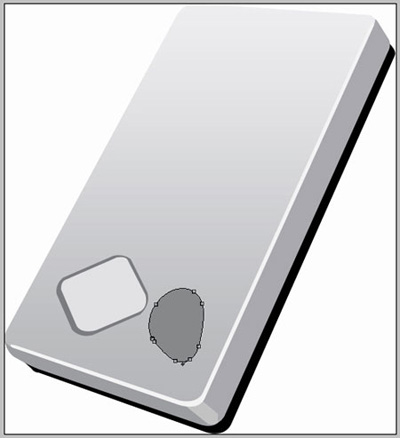
Draw one more figure above the recently created one. The new one must have the color DDDEDF.
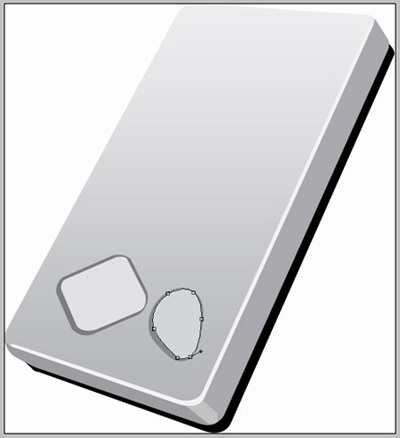
Take a new instrument
 to represent an ellipse of black color, like in the picture below.
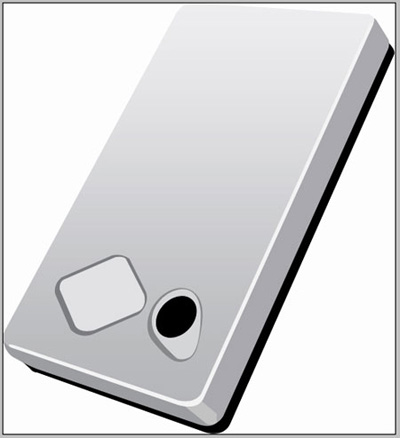
One more figure with the previous instrument. The parameters are shown next step.
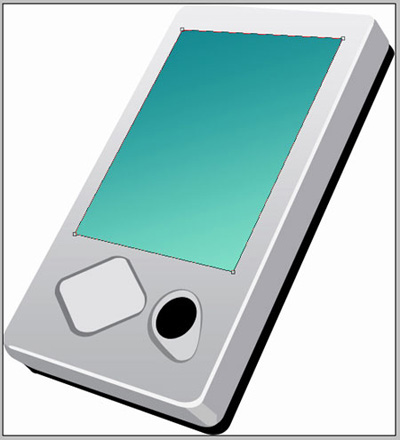
Blending Options-Gradient Overlay
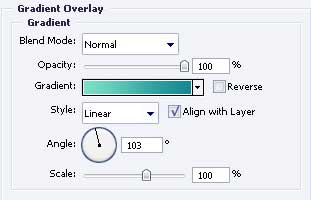
Gradient's parameters.
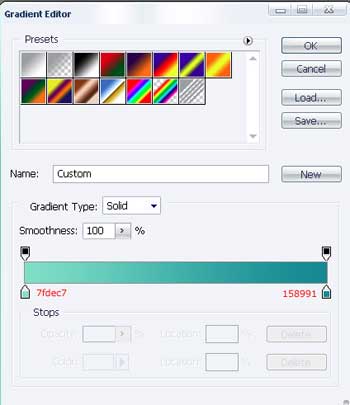
Take the same instrument to represent a figure with the color D8D8D8, like in the next picture.
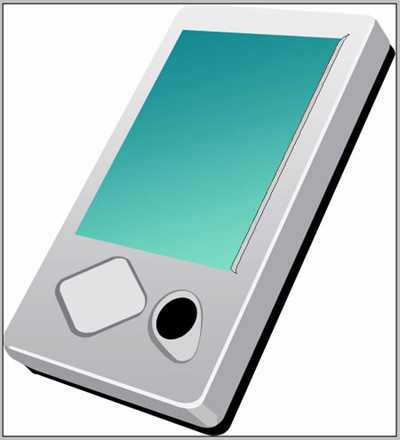
Take the instrument
to draw an ellipse with the color 22A9CC above the black ellipse, like in the next picture.
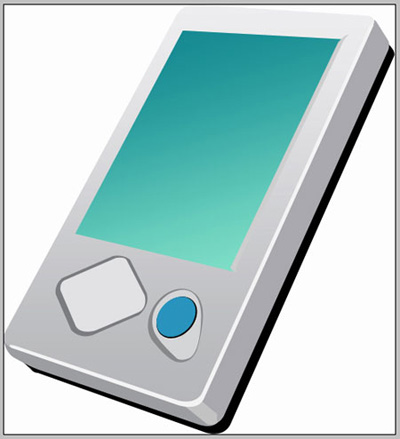
Take the instrument
to represent a figure with the color 767879, like the next image.
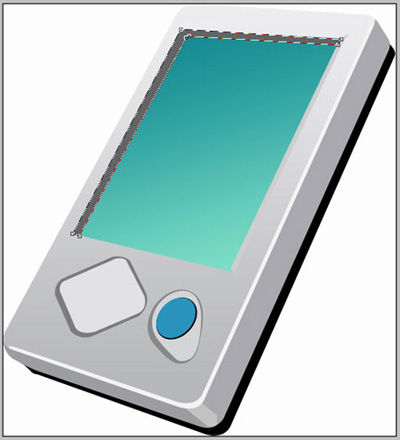
Make one more picture with the same instrument with the color cacaca, like the next picture shows.
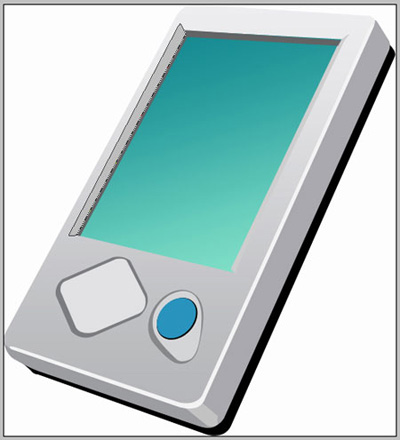
Take the old instrument to insert a new picture of the white color.
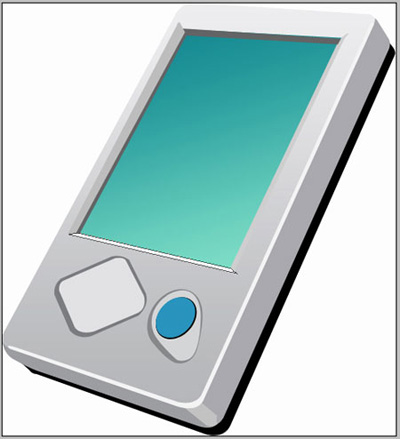
One more figure. The color – F8F8F8.
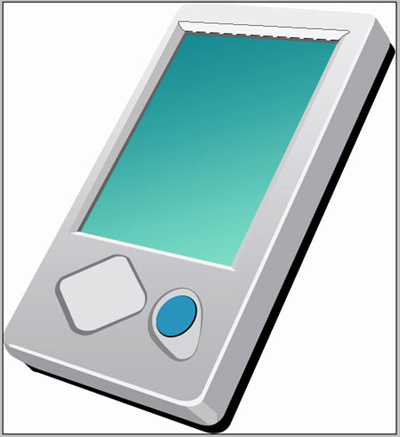
The previous instrument is helpful in representing the next figure that would have the parameters shown below.
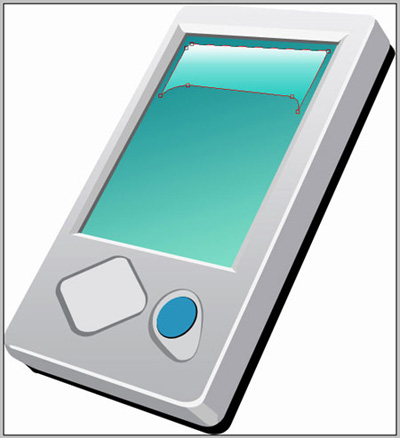
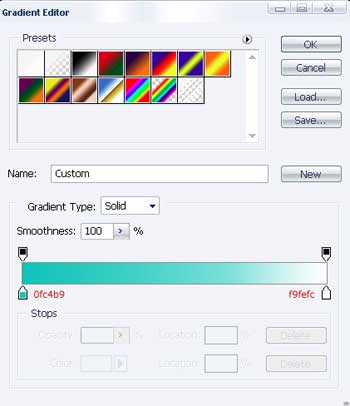
Blending Options-Gradient Overlay
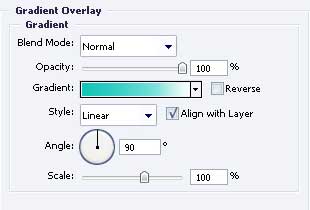
Gradient's parameters
The previous instrument will represent the next figure of black color. Then Fill 30% on the layers.
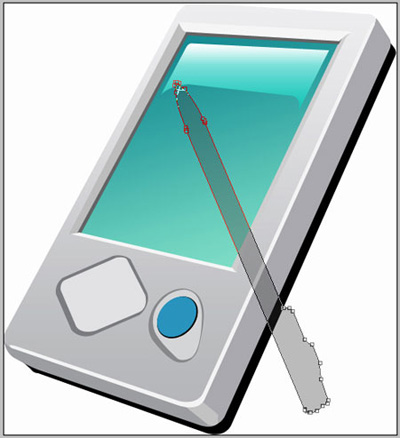
Copy the recently created layer, placing it like in the picture. Fill 100% on the layers and we'll get:
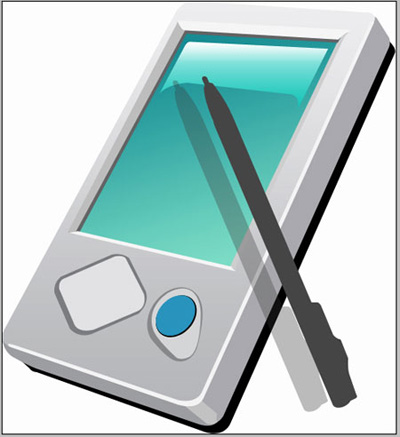
Now represent a light reflection on the pen using the instrument
and the color 979797, like the next image.
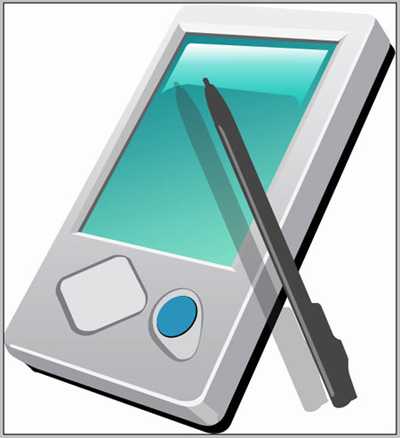
One more light reflection on the pen is possible to create with the same instrument.