
Create a new file with 450x340 px and 300 dpi.

The next instrument
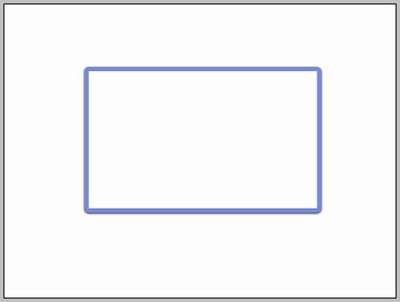
 will help us to make e rectangle with the demonstrated parameters in the next image.
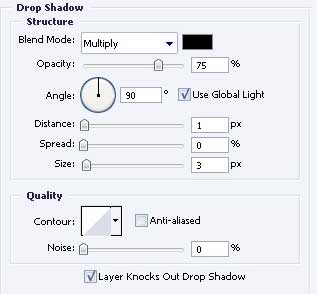
Blending Options-Drop Shadow
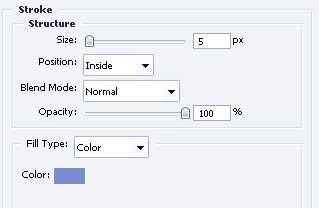
Blending Options-Stroke
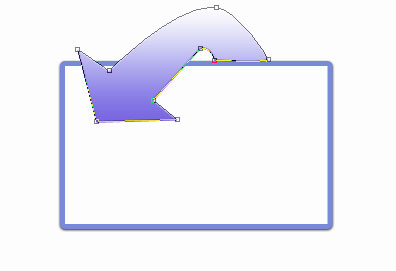
Take the following tool
 to represent a picture with the sizes from below.
Blending Options-Drop Shadow
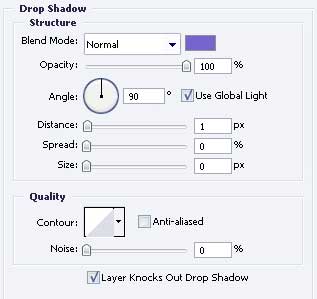
Blending Options-Bevel and Emboss
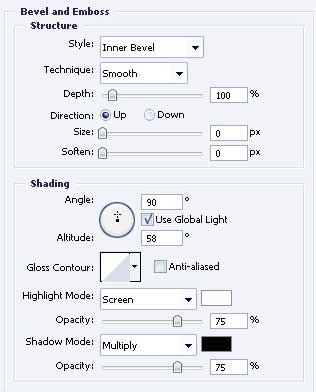
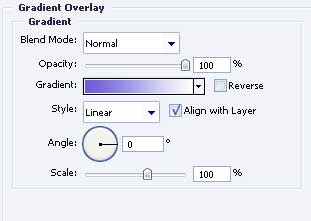
Blending Options-Gradient Overlay
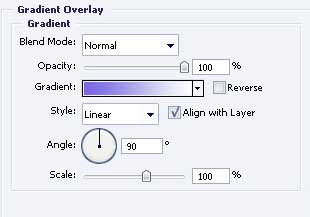
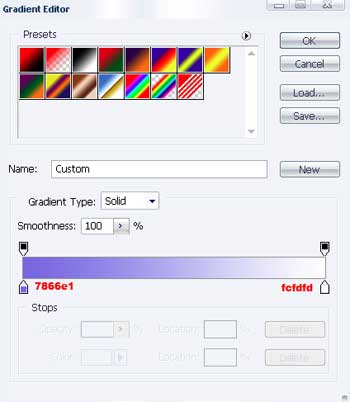
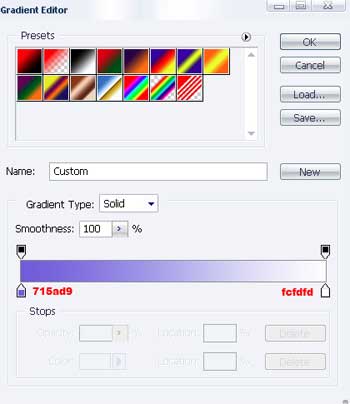
Gradient's parameters.
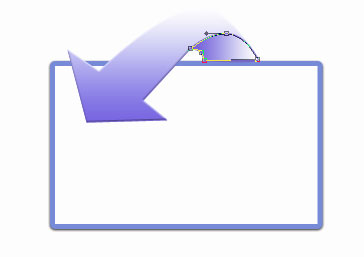
Take the previous instrument to make a figure with the shown sizes next image.
Blending Options-Gradient Overlay
Gradient's parameters.
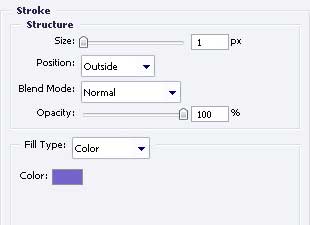
Blending Options-Stroke
For your convenience, merge all the layers that compose the pointer and its shadow in a group. Copy the recently made group and apply Free Transform option to turn it around. Parameter Blending Options-Drop Shadow corrects it and place the shadow the way it is done in the next image.

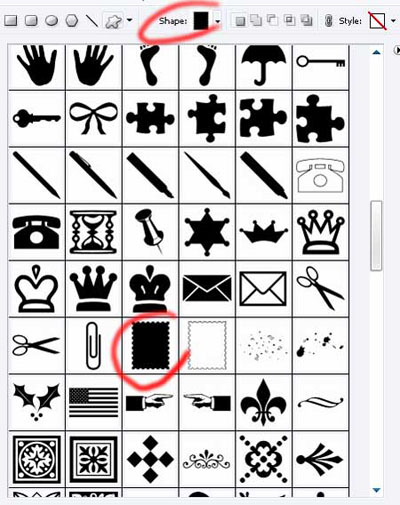
The next instrument
 is useful in choosing the correct cliché, like in the next table.
Paint it in 687CEF.

The final result!
