Create a new file having 450x470px and 300 dpi. Using the next instrument
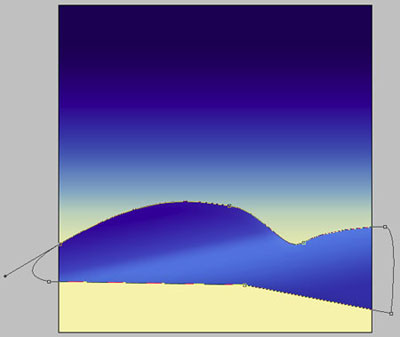
 , outline the zone, like it is demonstrated below, applying the same parameters.
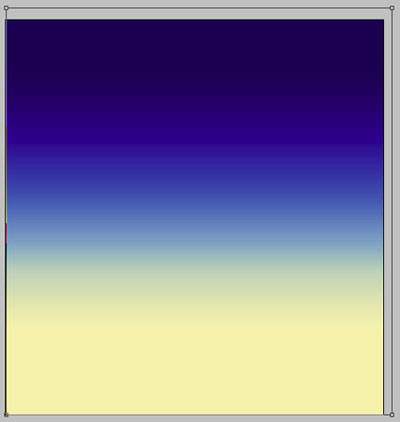
Blending Options-Gradient Overlay
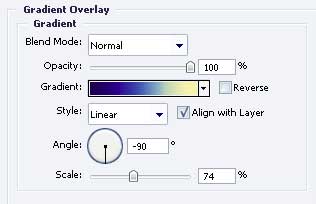
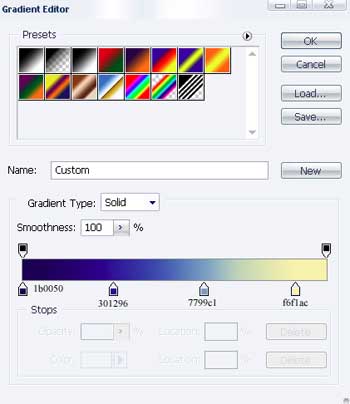
Gradient's parameters.
Take the previous instrument also
and represent the same picture like the next one.
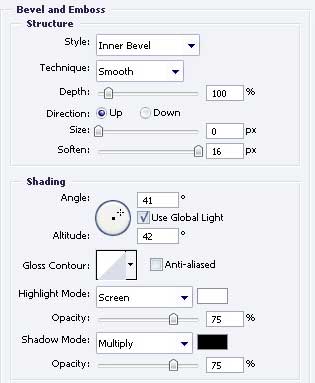
Blending Options-Bevel and Emboss
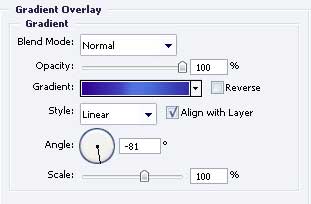
Blending Options-Gradient Overlay
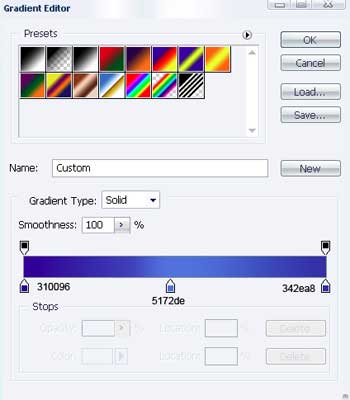
Gradient's parameters.
Applying the last instrument, it's possible to draw a figure like the next one.
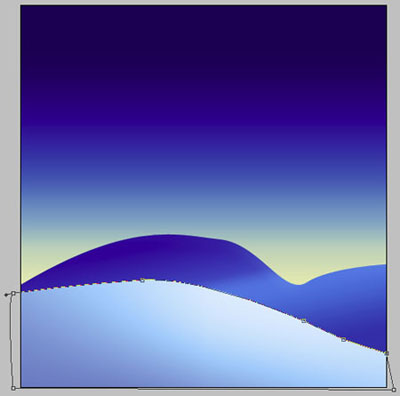
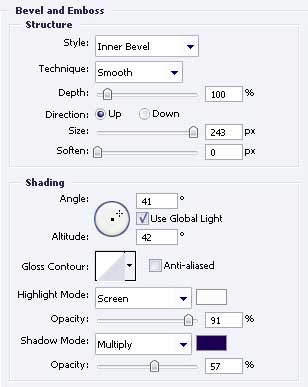
Blending Options-Bevel and Emboss
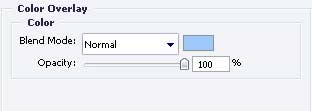
Blending Options-Color Overlay
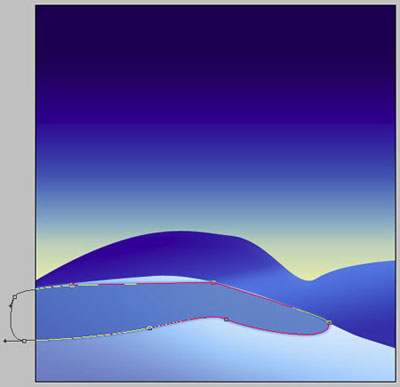
Use the next tool
to represent one more picture, like the next one.
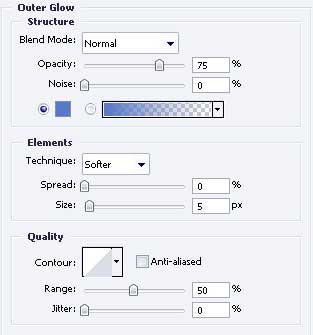
Blending Options-Outer Glow
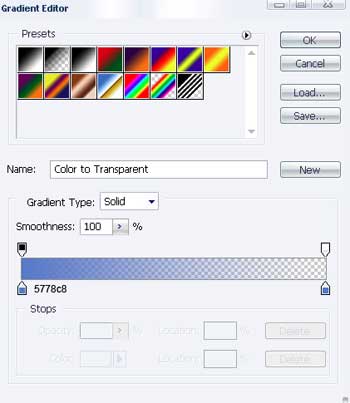
Gradient's parameters.
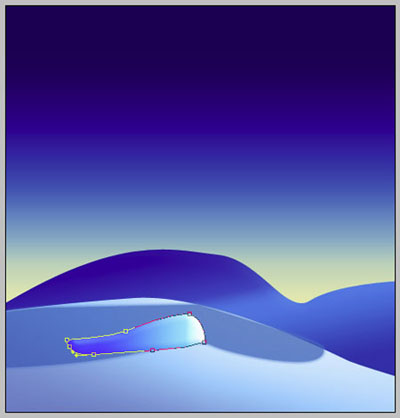
Take the already known instrument to picture one more figure, like it is shown next image.
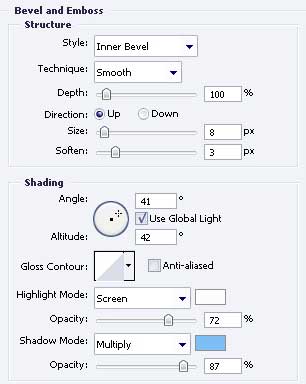
Blending Options-Bevel and Emboss
Blending Options-Gradient Overlay
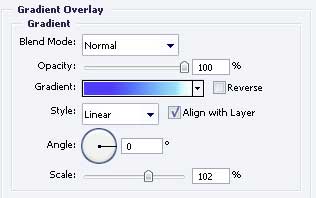
Gradient's parameters.
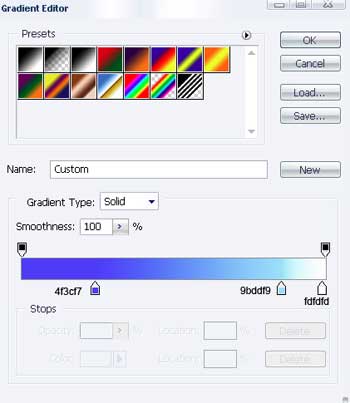
Using this tool
, insert another figure with the indicated sizes.
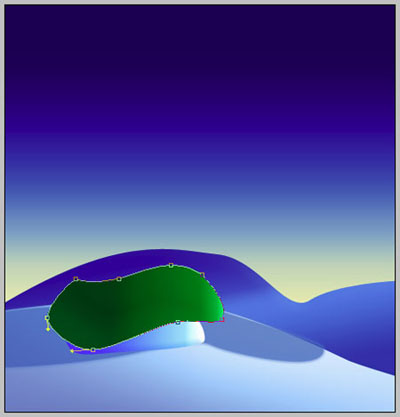
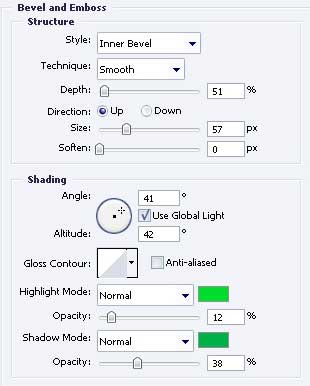
Blending Options-Bevel and Emboss
Blending Options-Gradient Overlay
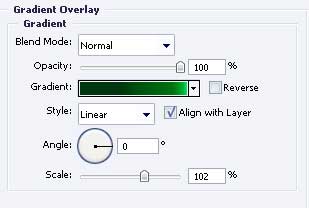
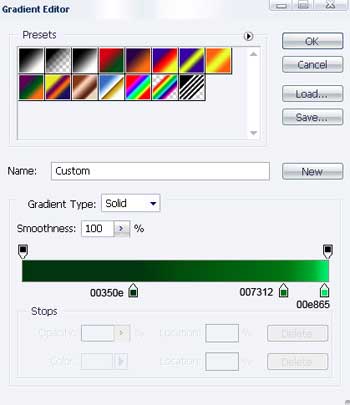
Gradient's parameters.
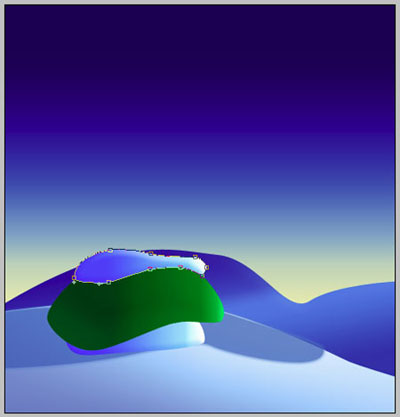
The same instrument and one more figure.
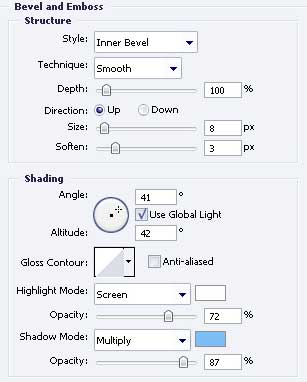
Blending Options-Bevel and Emboss
Blending Options-Gradient Overlay
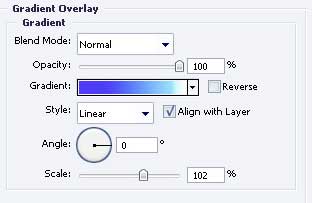
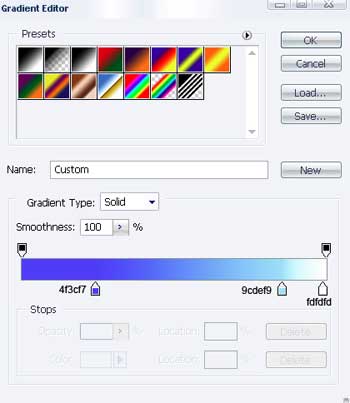
Gradient's parameters.
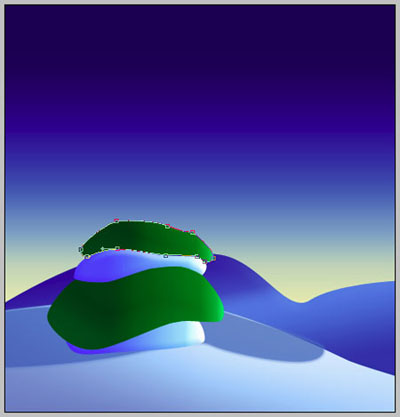
Take the same instrument and picture one more figure, but the parameters must be the next:
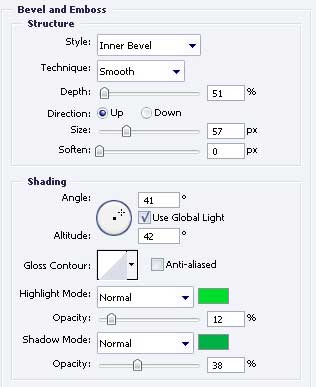
Blending Options-Bevel and Emboss
Blending Options-Gradient Overlay
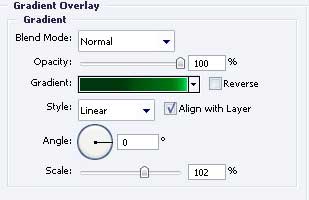
Gradient's parameters.
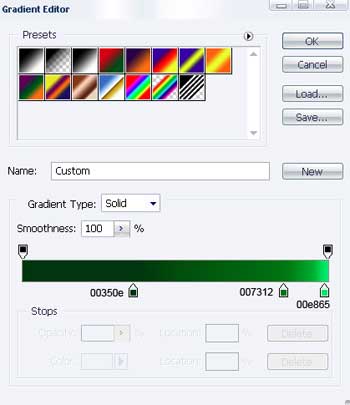
Use the same instrument
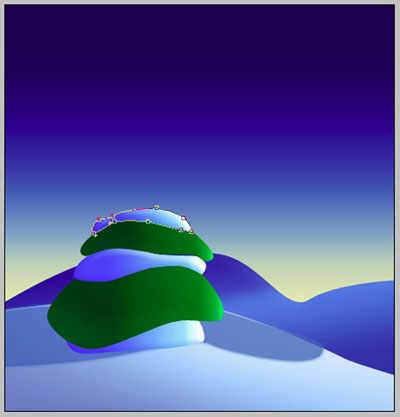
and draw another figure with the shown sizes in the next image.
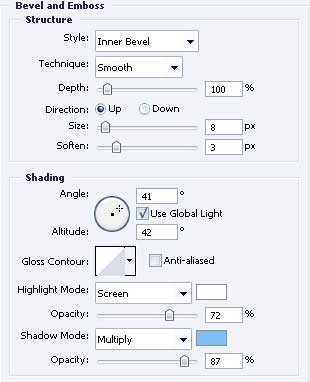
Blending Options-Bevel and Emboss
Blending Options-Gradient Overlay
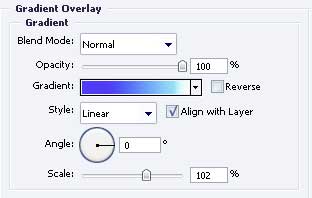
Gradient's parameters.
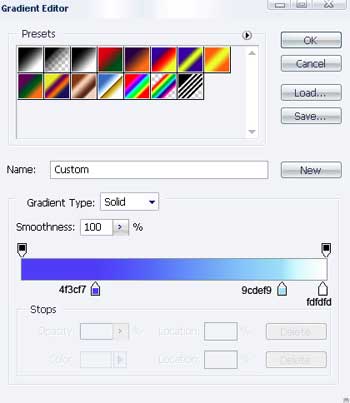
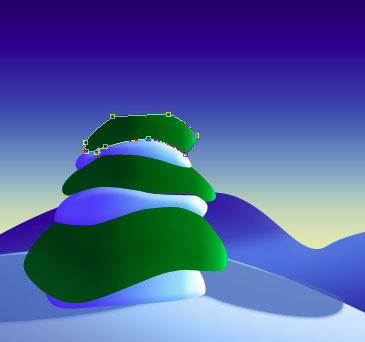
The same instrument and another picture.
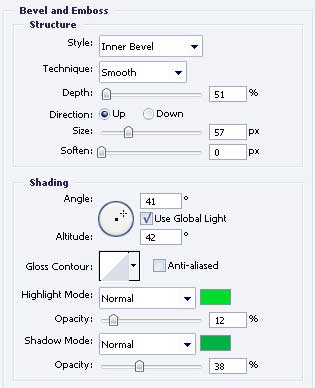
Blending Options-Bevel and Emboss
Blending Options-Gradient Overlay
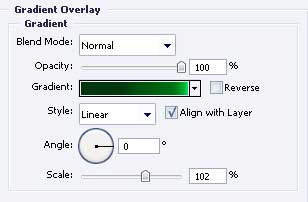
Gradient's parameters.
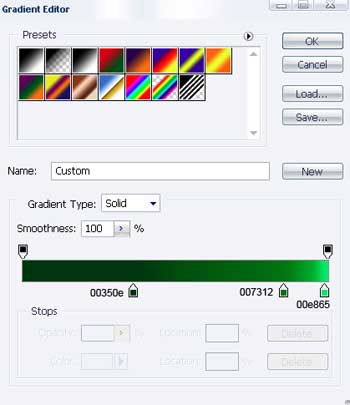
One more picture represented by the usual instrument
.
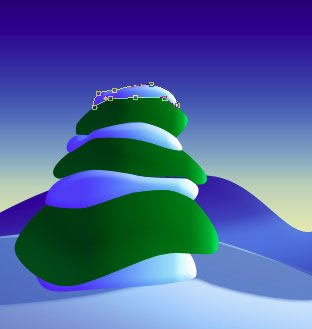
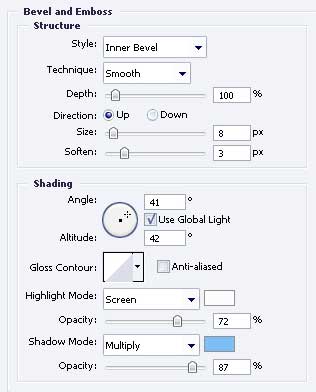
Blending Options-Bevel and Emboss
Blending Options-Gradient Overlay