Step 1.
Create a new 450X300 pixels document. Compose a stamp text and rasterize this layer. Now create a new layer and choose a Rectangular Marquee Tool, make a selection and fill it with the blue colour. Then apply Select > Modify > Contract (5 Pixels) and press DELETE, apply Select > Deselect. Press Ctrl+E to combine two layers.

Step 2.
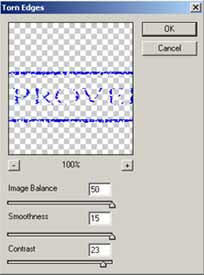
Apply Filter > Sketch > Torn Edges with the following settings:
Step 3.
Choose an Eraser Tool with a diameter 9 pixels and opacity 60% and make an arbitrary cuts.

Step 4.
Now apply Edit > Free Transform (Ctrl+T) and turn it to the right or to the left. And that's it.