Step 1.
Create a new Document with the size 300X300. Press 'D' to reset your colors.
Step 2.
Choose the Brush Tool and draw lines like the image below (pic.1).

Step 3.
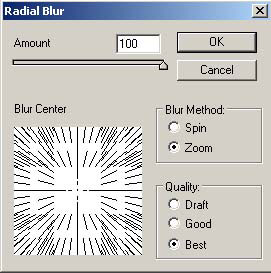
Apply Filter > Blur > Radial Blur and use the following settings:(pic.2,3)

Step 4.
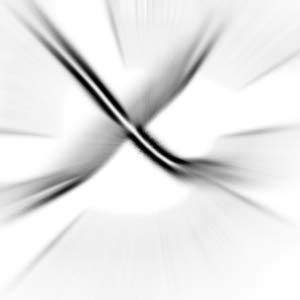
Apply Filter > Stylize > Find Edges and then repeat step 3.
Step 5.
Press CTRL + I and draw the white X in the middle of the image by the Brush Tool.

Step 6.
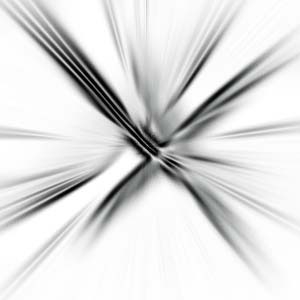
And then repeat step 3 again; apply Filter > Stylize > Find Edges, and repeat step 3 once again.
Step 7.
Now press CTRL+I, and then CTRL+U and add some colour. In my case I used Hue:221, Saturation:63, Lightness:10. And that's it.