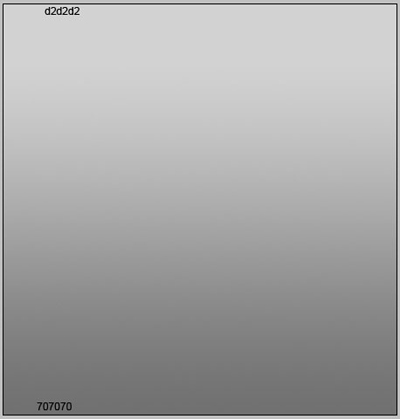
Open a new file with 450x470px and 300 dpi. Using the next instrument  , insert the background also (the colors' codes are indicated).
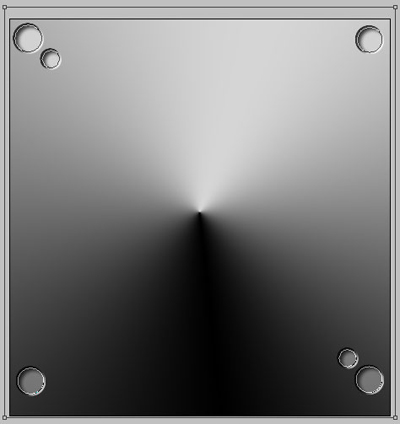
Take the next tool  to mark out the same places like in the picture below. Apply the same sizes. After that choose the next tool
  , holding on the Alt button and create several openings, like in the next image.
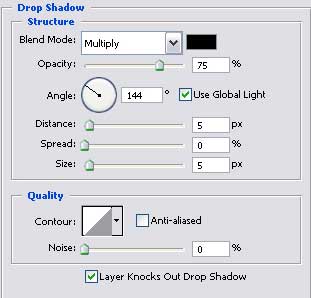
Blending Options-Drop Shadow
Blending Options-Bevel and Emboss

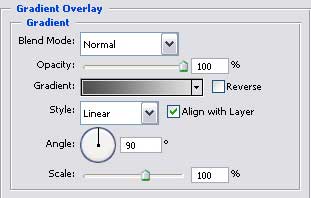
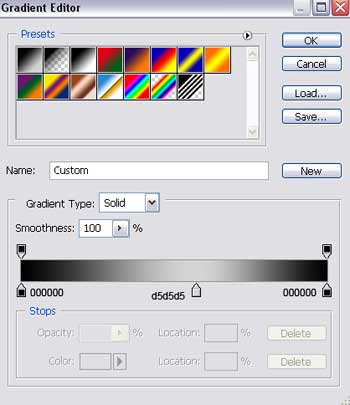
Blending Options-Gradient Overlay
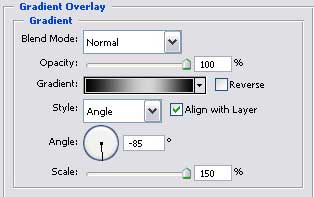
Gradient's parameters.
Take the following instrument to insert a circle that must have the sizes form the lower image. Then choose the same tool and keeping pressed the Alt button, picture an opening also, like it is demonstrated next step.

Blending Options-Drop Shadow
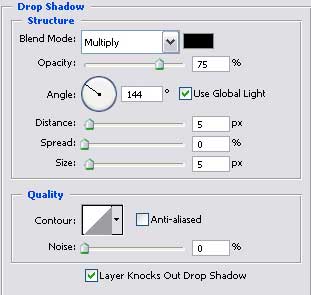
Blending Options-Bevel and Emboss
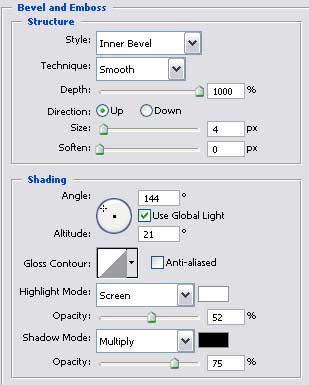
Blending Options-Gradient Overlay
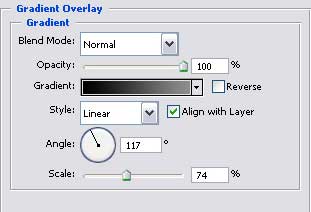
Gradient's parameters.
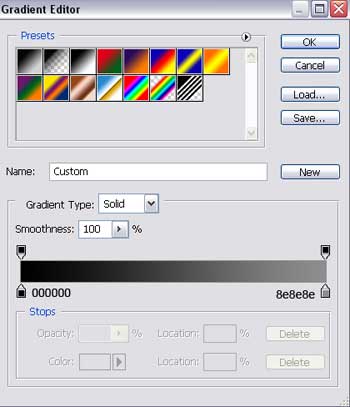
Copy this new made layer and make use immediately of Free Transform option to minimize it. Then choose the next tool and press on Shift button to represent a rectangle inside it, the same way it is shown next picture.
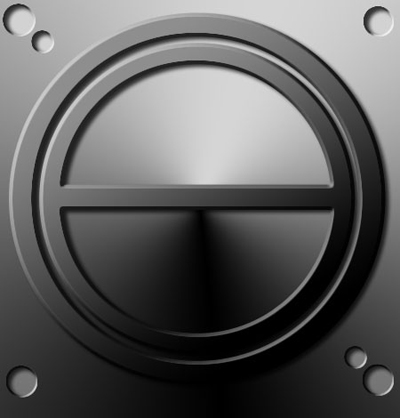
Apply the following tool to represent a circle with the parameters form below. Choose again the same tool, but this time press on Alt button to represent an opening like the next one.

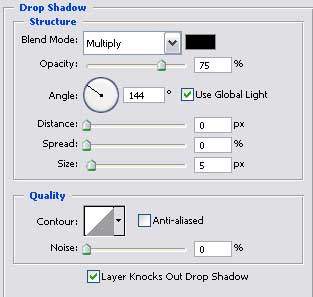
Blending Options-Drop Shadow
Blending Options-Bevel and Emboss
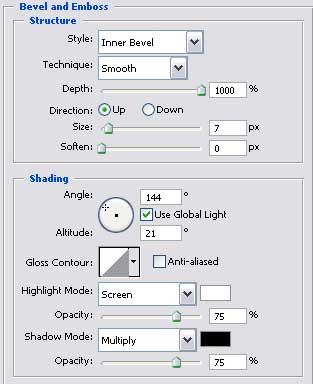
Blending Options-Gradient Overlay
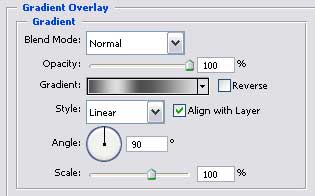
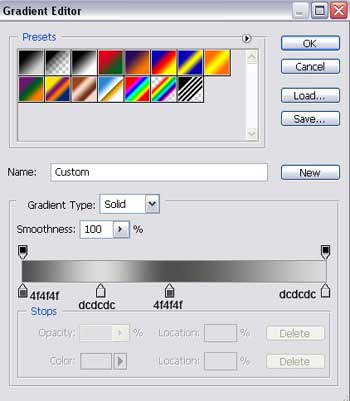
Gradient's parameters.
Apply the last instrument to picture a circle with the sizes shown next step.

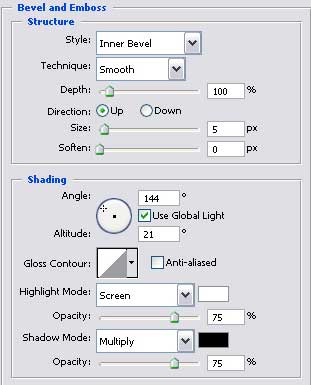
Blending Options-Bevel and Emboss
Blending Options-Gradient Overlay
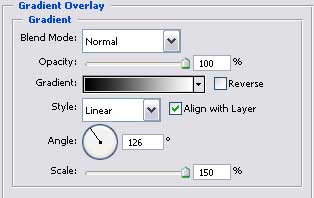
Gradient's parameters.
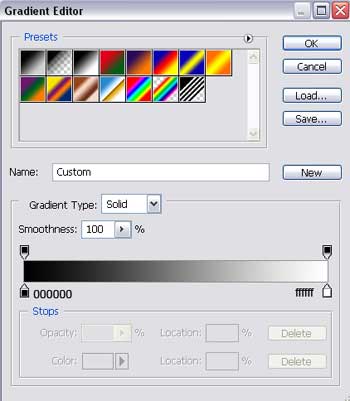
Copy this new represented layer and place it out the same way it is done below.

Make use of a new instrument now  to create the next element of our composition. It must have the parameters form the next image.
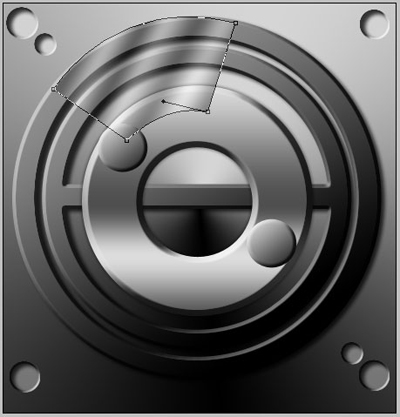
The Opacity must be of 30% on the layers.
Blending Options-Gradient Overlay
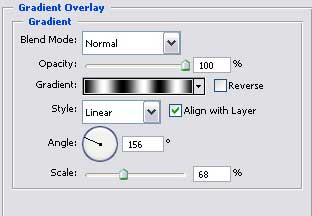
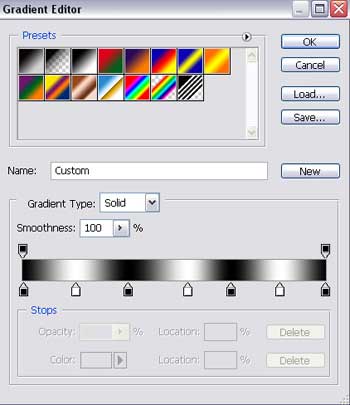
Gradient's parameters.
Copy the new made layer and apply Free Transform selection to turn it around. Place it like exactly like the picture fromm below shows it.

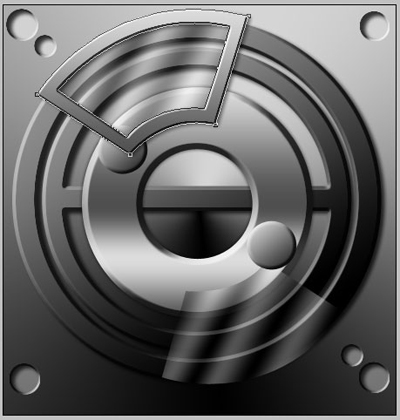
Using the next tool , insert the next figure of the composition, keeping the same shown sizes.
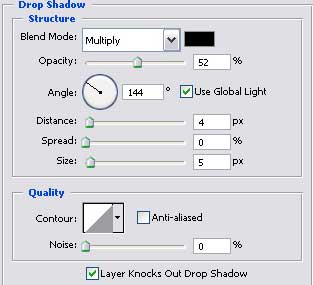
Blending Options-Drop Shadow
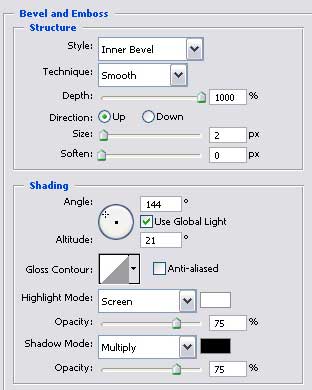
Blending Options-Bevel and Emboss
Blending Options-Gradient Overlay