

Create a new file with 345x345 px and 72 dpi. Using the shown instrument  , picture a figure, which radius must be of 40px.
The parameters are included in the Blending Options, you may see below.
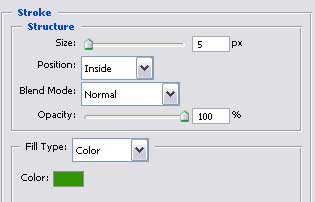
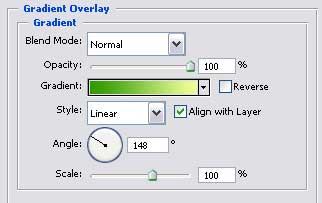
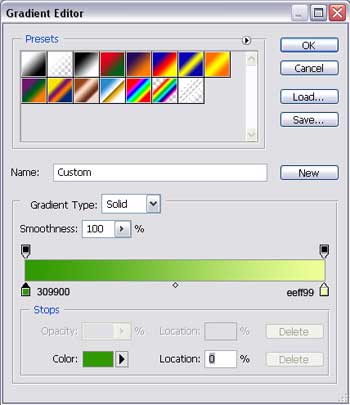
You must get the next one:
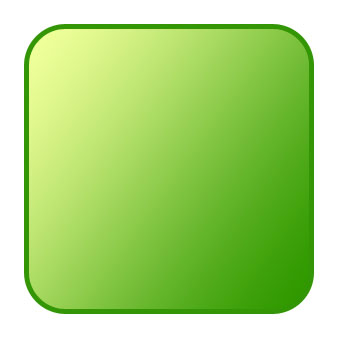
Create next step a lot of circles, having different Stroke option, applying the instrument  .
.
Fill 0% on the layers' window. The color's code must be 2D9700.
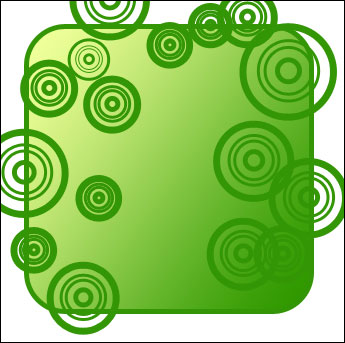
Create now a new layer. Choose the next instrument  to paint out in white everything that is situated outside the picture's frame.
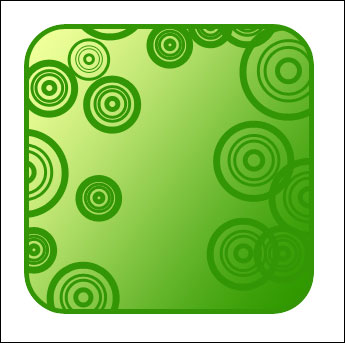
Apply the indicated tool  to represent next figure.

Blending Options' parameters are indicated below.
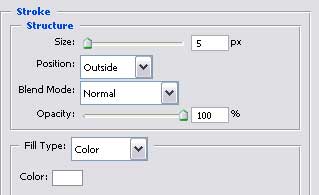
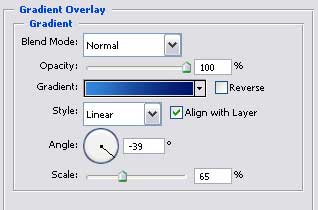
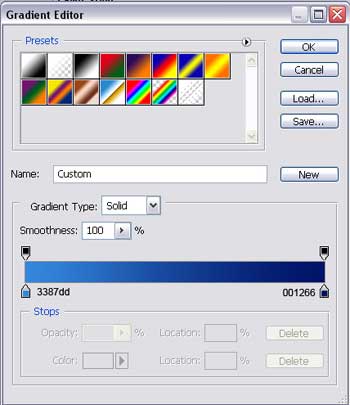
Take again the last instrument to draw another figure, like next picture shows it.
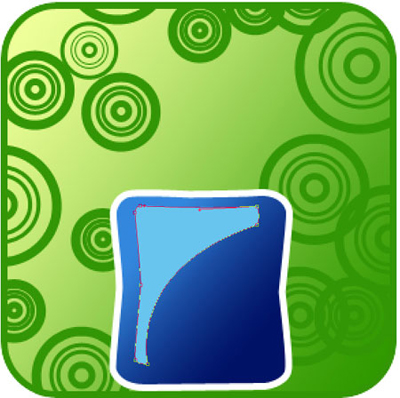
The color's code must be 68C5EE
The same instrument can be helpful in representing the next picture.
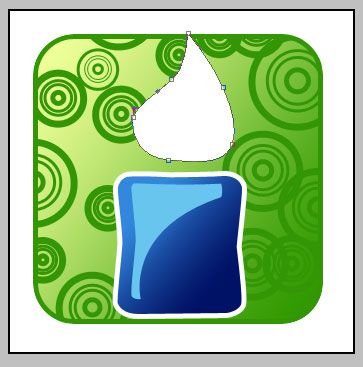
Copy and minimize it proportionally. Don't'forget about Blending Options' parameters. They are indicated next step.
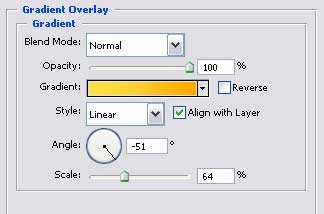
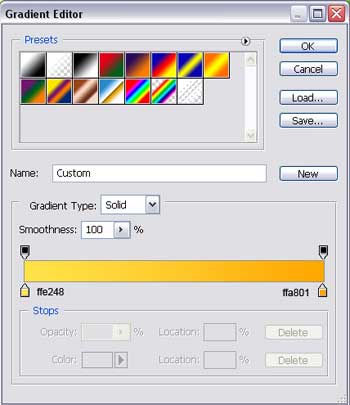
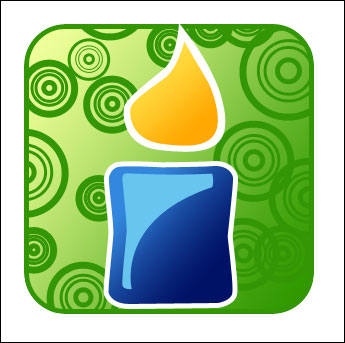
Pass to using another instrument for drawing an oval with the parameters shown next image.

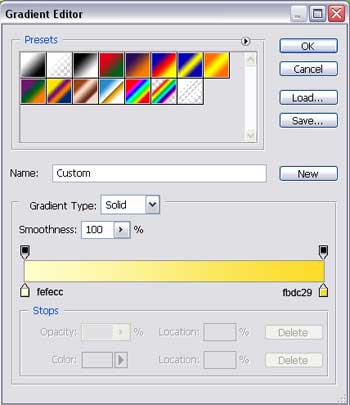
The next element may be pictured out, applying the already known instrument .
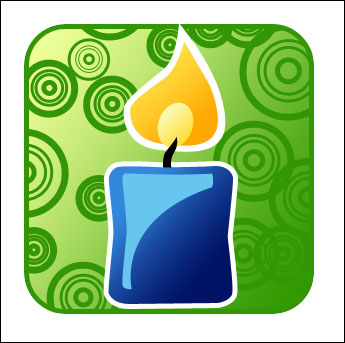
Use the same instrument to represent a twisting stripe with the color code 012265.

Make the same way the second one. It must have the next color – FBD601.
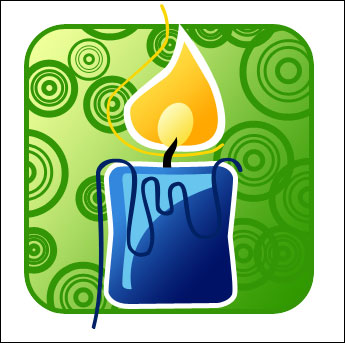
The final result!
