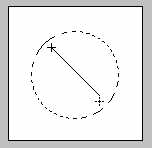
1. Make a new layer, select Ellpitical Marquee Tool, hold down the Shift key and draw a cirlce. Select the radial gradient tool, set your foreground color to white, and background to red. Drag it as shown above, from top to bottom, horizontally.
2. Now hold down the Alt key (Mac: Option Key) and draw another circle to the left top of your shphere, to subract it from the selection.
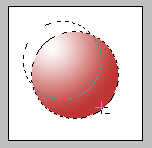
3. Here is what your selection should look like after you subtract the circle from the selection in step 2.
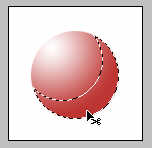
4. Make a new layer. Fill your selection with white color. Press Ctrl+D to deselect the selection.
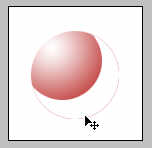
5. To give it a smooth look, go to Filter>Blur>Guassian Blur, enter about 8.0 for the value and press OK. (note: the blur amount may depend on the size of the image, so adjust it for the desired effect).
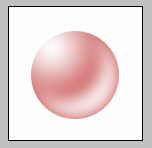
You can use this sphere to make cool looking buttons or bullets for the web site: