

Create a Web Photo Gallery in Photoshop! Let's start
1. Open Adobe Photoshop
2. Click on File > Automate and select Web Photo Gallery
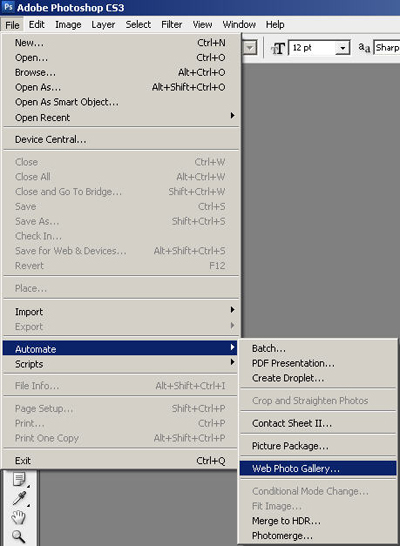
And this will open
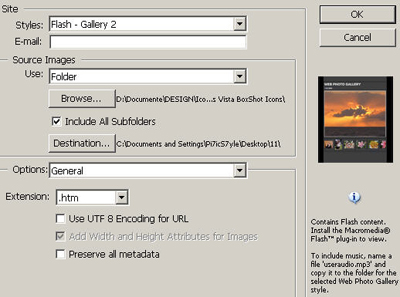
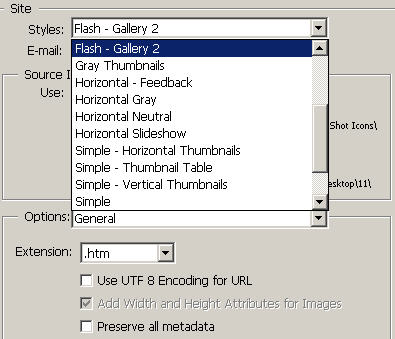
3. Select the format style of Web Photo Gallery
you can put your e-mail in the e-mail field
4. Select the source of images
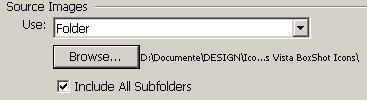
and Destination of results

5. Click on Option and chose from the list what do you want to edit
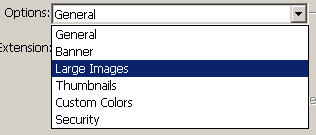
- General
- Banner
- Larger Images
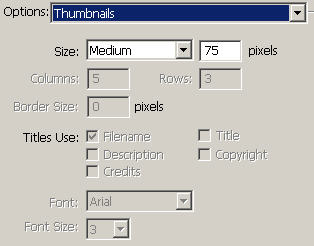
- Thumbnails
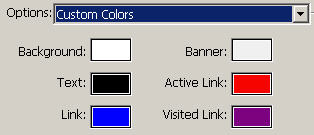
- Custom Color
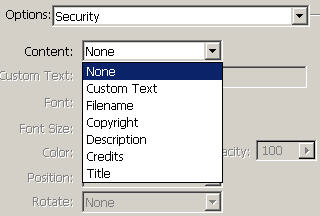
- Security
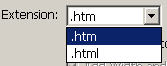
General: Choose your output file extension
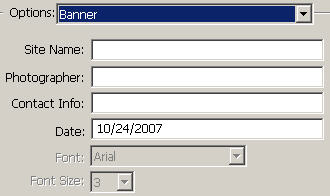
Banner: Write your name, Photographer, Contact information and the date
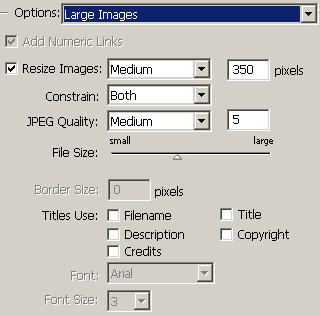
Large Images: Chose the size or resize your Images
Thumbnails: Choose the size of thumbnails, how many columns and rows to create, border size, etc
Custom Colors: Here you set the color of background, title, banner, link, active link and visited link
Security: Here is option for copyright, content, etc
6. Now click OK and Photoshop will be create the Web Photo Gallery
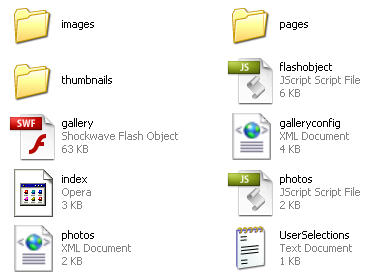
7. Go to your output folder and there is the files of your gallery, click on index to see the results!
Thank you!
