

Create a new document, create new layer, use Rectangular Marquee to make a selection, fill color like this:

Blending Options this layer:
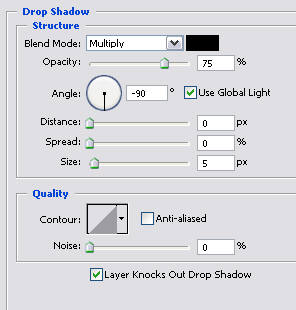
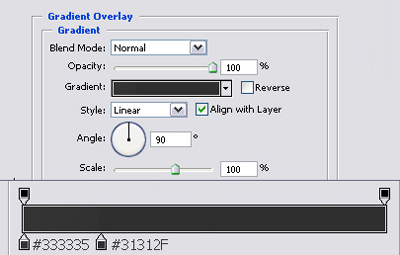
You will get the result:

Create a new layer, use Rectangular Marquee Tool to make a selection then fill color like the pictures below:

Fill color #444444:

Make a selection and fill it with black color:

Make a selection then fill it with color: #181818

You will get some lines like this:

Create a new layer, use Rectangular Marquee to make selection then fill it with color like the picture below:
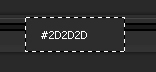
Blending Option this layer:
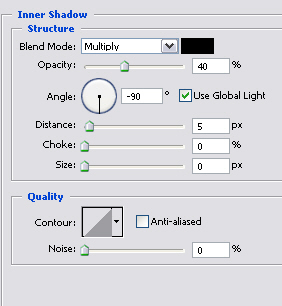
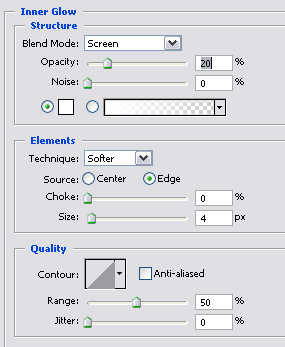
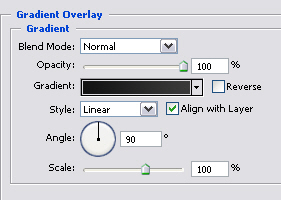
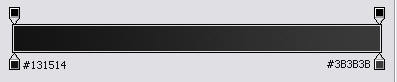
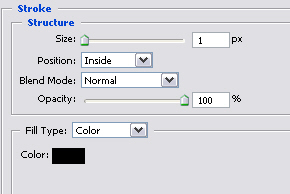
You will get the result:
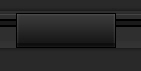
Create a new layer, make selection, fill it with white color, adjust Opacity 10%
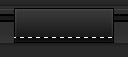
You will get:
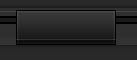
Create a new layer, zoom out right angle and left angle of button, make selection, fill white color, Opacity 50%
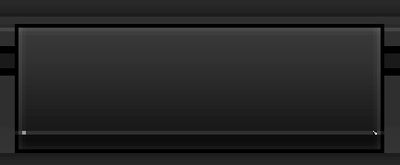
You will get:
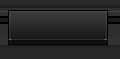
Merge all layers, duplicate button then sort them like this:

Create a new layer, make selection like the picture below:

Use Linear Gradient (black color) draw from top to bottom:

Create a new layer, make selection then fill it with #3D3D3D color:

You will get the result:

Add some text to each button:

You've already finished this tutorial, good luck ^_^
