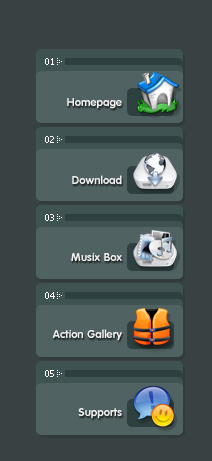
Create a new document with background #384243, create a new layer, use Rounded Rectangle Tool to make a selection like this:
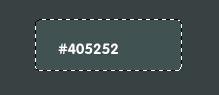
Hold the selected part and drag it down and fill color like the picture below:
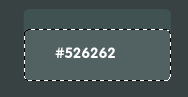
Continue to hold the selected part, create a new layer, drag it up a bit, fill it with color #304040, drag it down about 4px then press Delete:
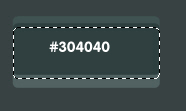
Use Rectangular Marquee Tool to make a selection like the picture below then press Delete
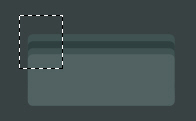
You will get:

Create a new layer, use Rounded Rectangle Tool to make selection then fill color like this:
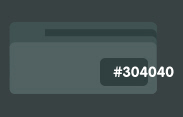
Merge all layers, add some text and icon to each button