


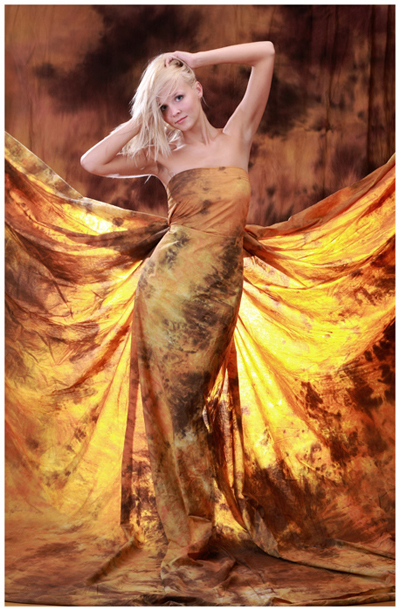
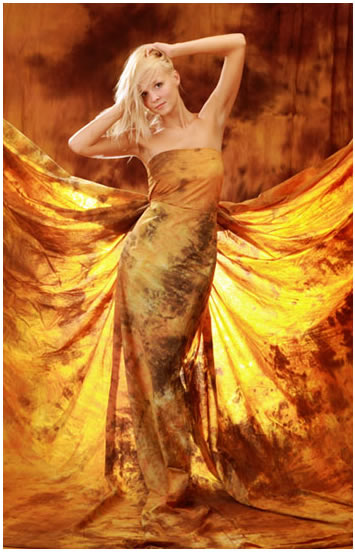
Open this photo:
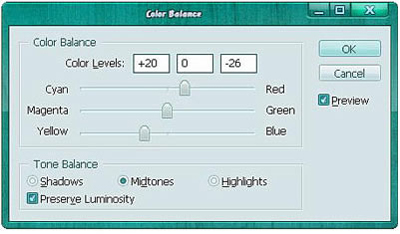
Press Ctrl+B to open Color Balance, set something like this:
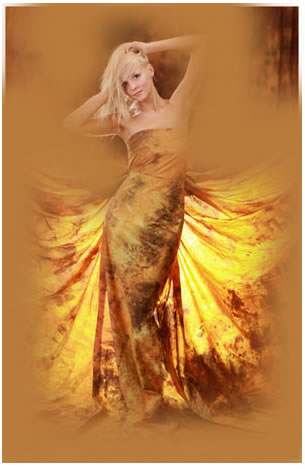
Pick brush tool, set soft brush 150px, color #B97B3C, draw on the photo like this:
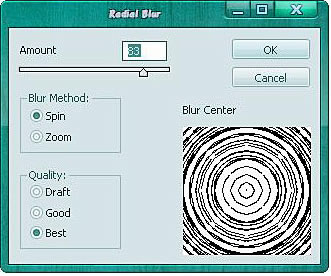
Go to Filter -> Blur -> Radial Blur:
Change blend mode: Soft light, you will get:
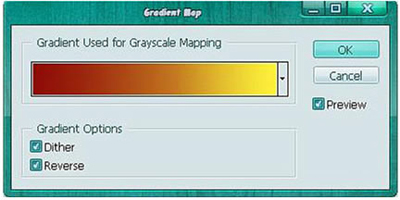
Open Gradient Map on the bar, mode: soft light, opacity: 20%, Color: #FFF33A and #8D0A07:
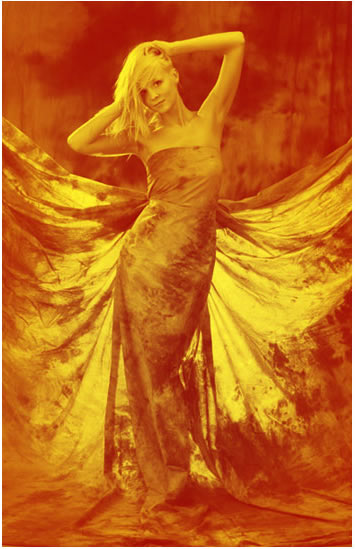
Apply gradient map to the photo, you will get:
Set foreground: #AA2709 and background: #FFFFFF

Create a new layer, Filter -> Render -> Cloud
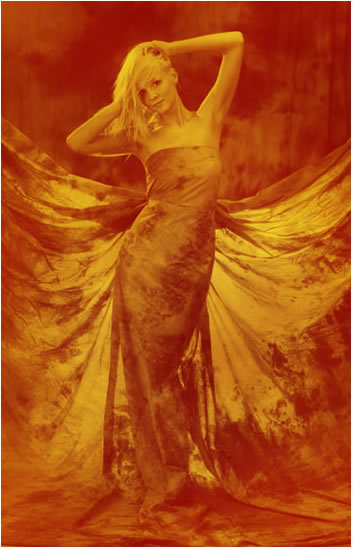
Blend mode: Multiply, Opacity 70%
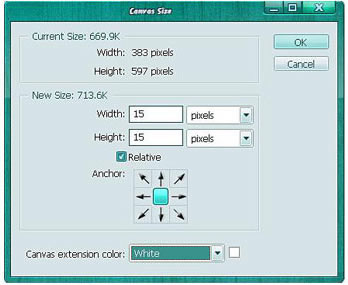
Go to Edit -> Cavans site
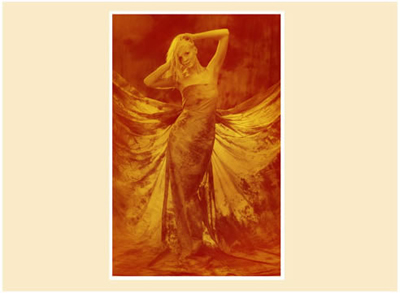
Create a new document (873x642 px) with background color #FEAAC8, move the lady to this new document:
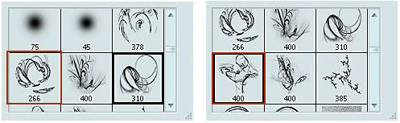
Open Brush tool then pick these brushes:
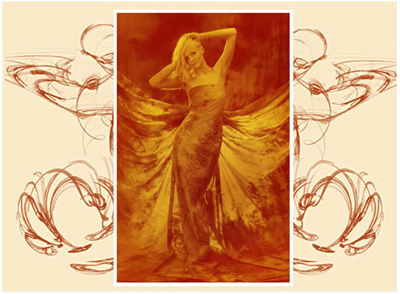
Apply brushes to background (the color of brushes: #A62E07)
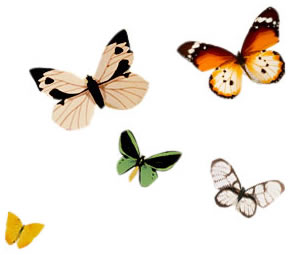
Use butterfly stock to apply to background:
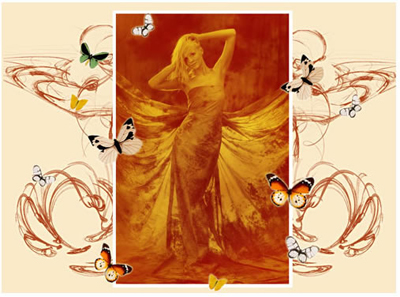
Create new layer, set soft brush 30px, black color, paint around the picture like this:
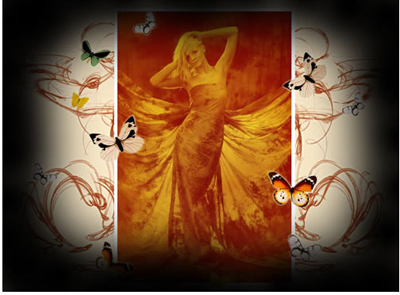
Continue to pick this brush:
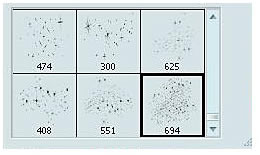
Apply stars brush to the picture (Opacity 70%)
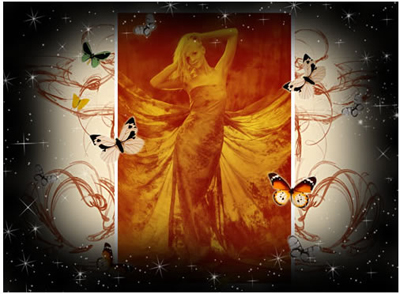
And you will get the final result:
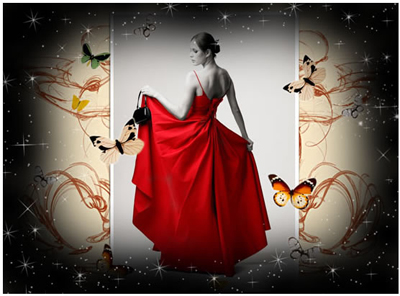
Another result:
These are the brushes needed for this tutorials, click here to download.
