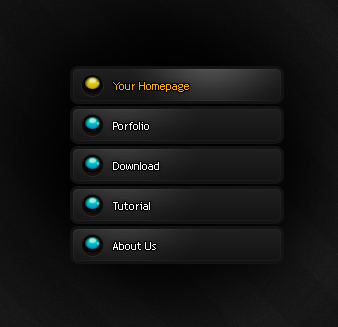
Create a new document with black background, create a new layer, use Rounded Rectangle Tool to make a selection like this:
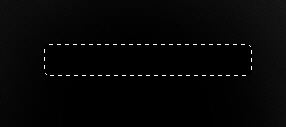
Go to Layer Style of selected part and do like this:
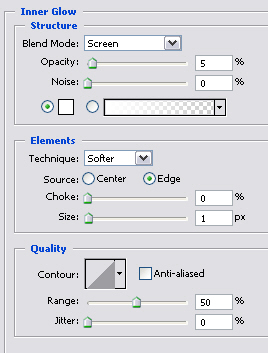
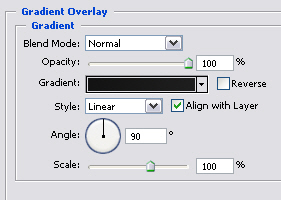
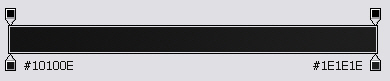
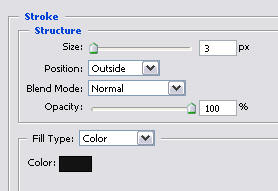
You will get:
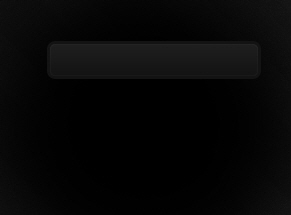
Create a new layer, hold Ctrl + click on button layer to get selection, use Linear Gradient with white color and drag like this:
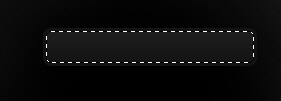
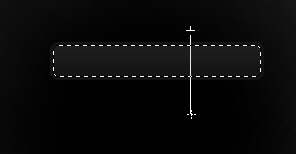
Change Blend Mode to Softlight

Create a new layer, use Sllipse Marquee Tool to make a selection, fill it with color like this:
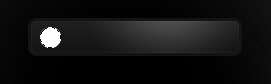
Go to Layer Style of selected part above:
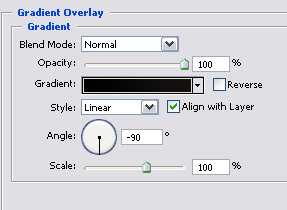

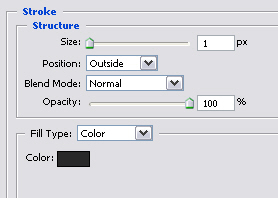
You will get:

Create a new layer, continue use Ellipse to make selection and fill it white color like this:
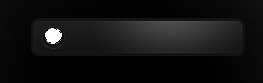
Continue go to Layer Style:
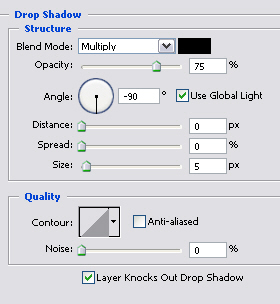
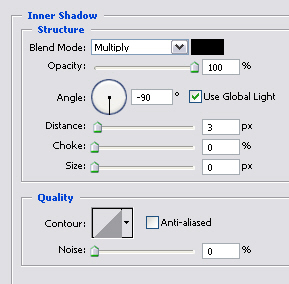
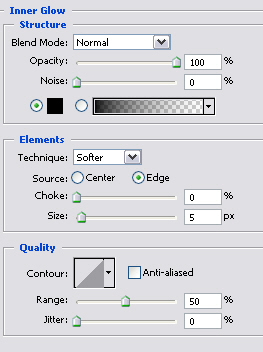
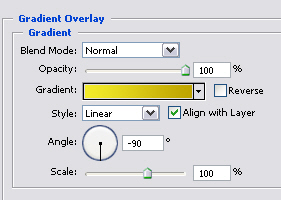
You will get:
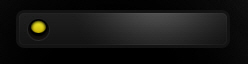
Create a new layer, zoom out button and make a selection like the picture below (adjust Opacity 40%)
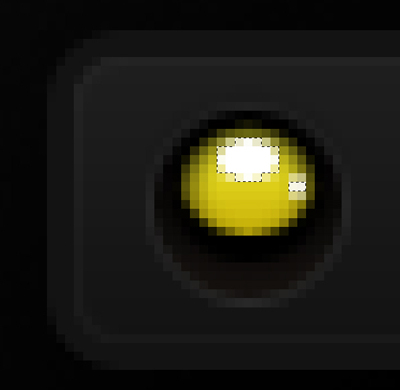
You will get the result like this:

Finally, you duplicate the button to make more buttons and add some text to each buttons.