

Step 1: Creating the Workspace:
Seems the text is going to be quite large we are going to work on a big document. So let's create a 500 x 500 document and Fill in the background with a Neutral White (#FFFFFF)
Step 2: Grab your text tool
When you have created your document work space grab your Text Tool and set the following font settings:
Font: Verdana Style:Bold Size: 125px. Make some text on your document like so:

(Be sure to center it and make sure you have a little space between each side)
Step 3: Apply some styles
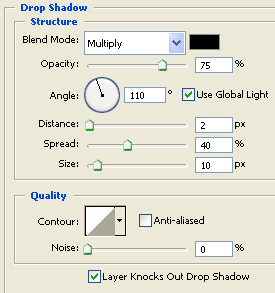
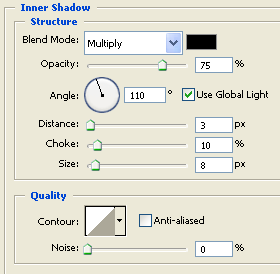
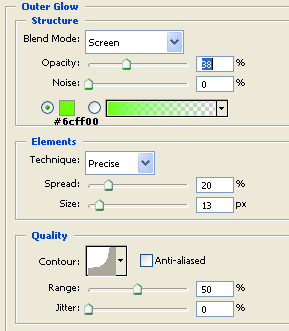
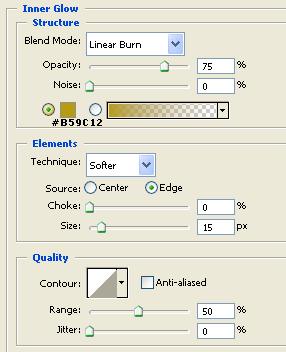
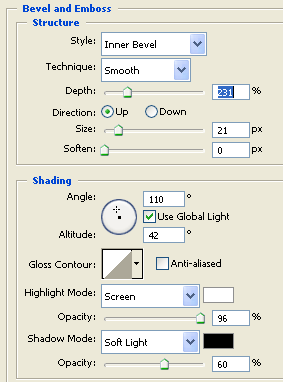
Now on the text layer right click on it and select Blending Options. Get ready to input in a lot of settings!
Drop Shadow:
Inner Shadow:
Outer Glow:
Inner Glow:
Bevel & Emboss:
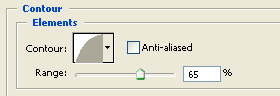
Contour:
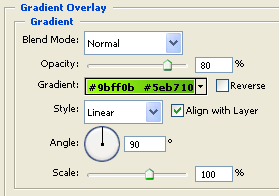
Gradient Overlay:
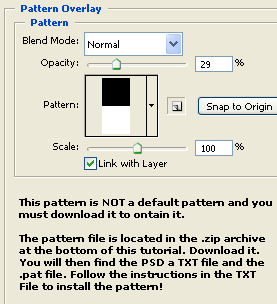
Pattern Overlay:
Stroke:
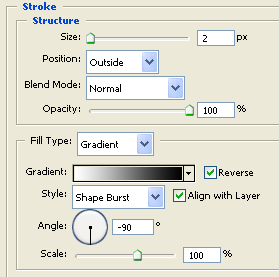
Apply all of those setting and you should end up with something like this:
The Final Result:

There we go! Perfect big bold Glossy text without doing hardly anything! You might want to add in a reflection or something like that, but that's the finished result!
