The first you open this texture.
Create a new layer, use Marquee Tool to make a rectangle selection then fill it with color #623812
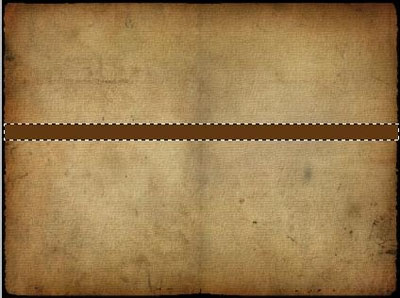
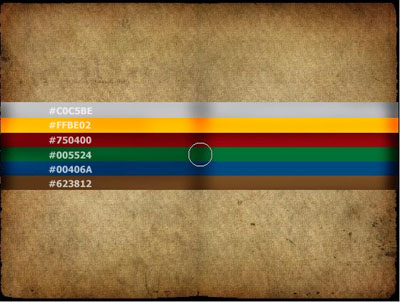
Continue to make more rectangle by duplicating that layer, and fill in different colors for each rectangle. Use Dodge Tool to make a dark area at the center of your document
Add a text you like, in this tutorial, I used "NBC" word
Now you will put other small texts into "NBC" word
The first we will try to add "GRAPHIC" word into "NBC"
You type "GRAPHIC" on new layer then move it into "NBC", now you press Ctrl+G (remember to put "GRAPHIC" layer over "NBC" layer)
Continue to repeat above step with other texts, you will get the result like this
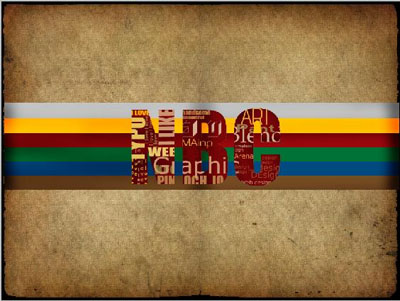
Press Shift+Ctrl+E to merge all layers, then use Marquee tool to make a rectangle selection like this:
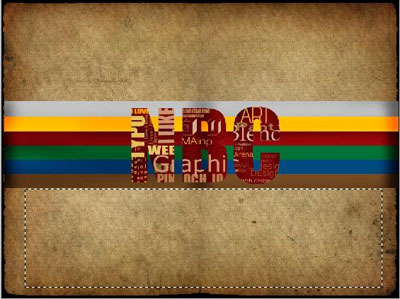
Press Ctrl+J to make a layer copy of selection, use Move tool to put the selection copy over NBC then change blend mode to Overlay
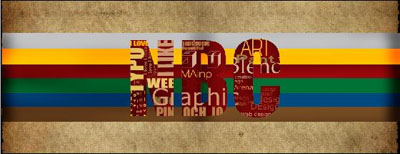
Final step, you use Dodge to make some dark areas
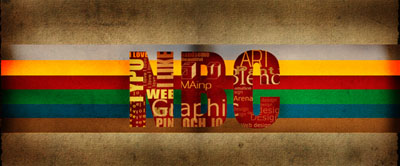
This is my final result: