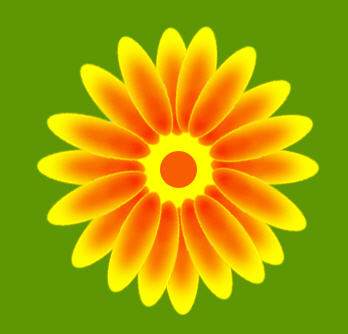
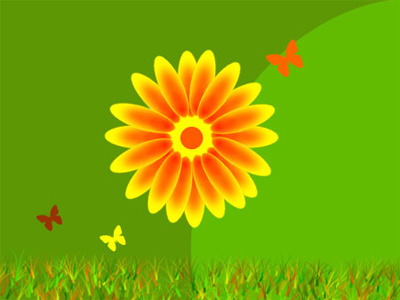
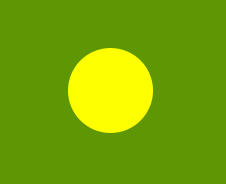
1. Start new document with 350 width and 250 height. Create New layer. Set #FFFF00 as your foreground color. Select Ellipse tool and Draw a small circle as shown below.
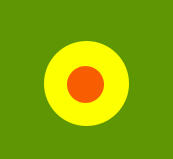
2. Create new layer and with the the ellipse tool draw another small circle in the center of the yellow circle. This time set #FF6600 as your foreground color.
3. Create another layer. Select Ellipse tool and draw and draw an oval shape for petals.
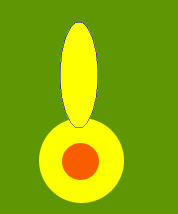
4. Duplicate petal layer. change its color to #FF6600, and move it down as shown in the picture below.
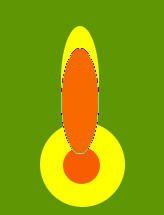
5. Now apply Gaussian Blur with Radius 9.7 Px. Select Yellow petal by clicking Ctrl+Mouse Click on the layer, then click Ctrl+Shift+I keys together,Now select Red petal and Press delete.
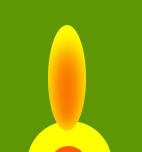
6. With the help of Burn Tool darken the lower portion of red Petal.
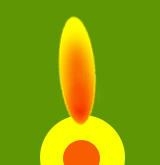
7. Merge both petals. Duplicate petals and arrange them.