In this tutorial we learn how to create a simple Picture Frame, easy and fast!

1. Open the Picture
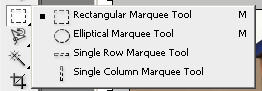
2. Select Rectangular Marquee Tool (M)
3. Make the Selection
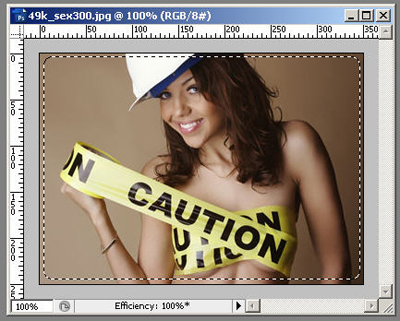
4. Now press Ctrl + Shift + I ( Inverse )
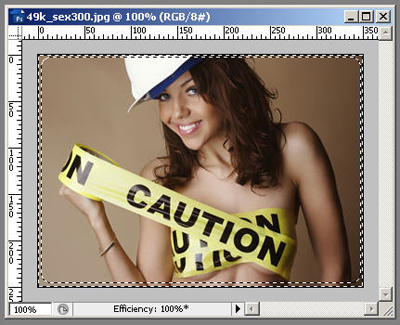
5. Now create a new Layer and edit the Selection Area creating a Frame. I use a Brush with black Color
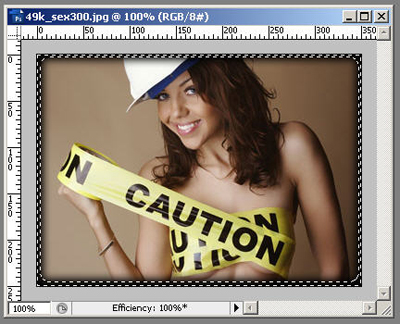
And this is the Final