

Lets begin by establishing our working environment, i have prepared a made up background for you guys so will free to use it. If you would like to create your own, feel free to do that as well.
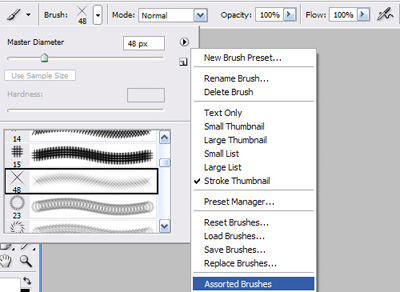
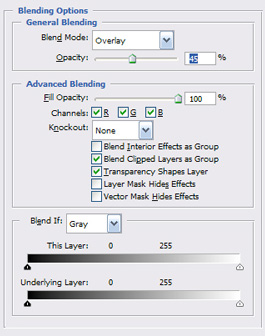
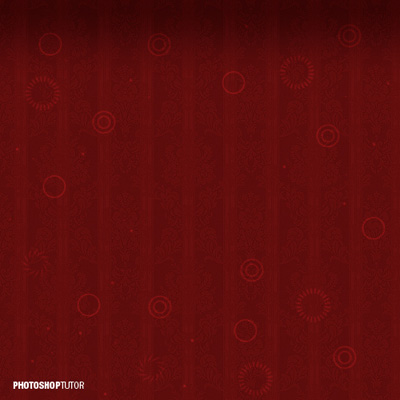
Now lets upload some brushes that we will use to light up the background a little. I have attached an image below of where you need to go to upload the Assorted Brushes, once you have them uploaded by selecting random sets place them all around. After that, apply the overlay effect that is listed below along with the results.
Overlay effect
Results
Lets add some more the dust that i used, the dust is basically a small round brush with the tip size ranging from 1-8 px. Randomizing is the best way to go as it creates a nice effect. So in the previous step we worked with a white color, select the black now and add some more of the dust then overlay with the same effect except this time drop the opacity to 25%.
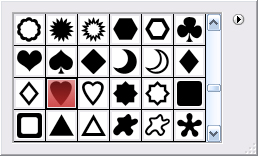
Here is where the fun part comes in. We now will begin to design the actual heart so go to your Custom Shapes and select the heart brush. I have attached a quick snapshot of which brush specifically to select.
Brush
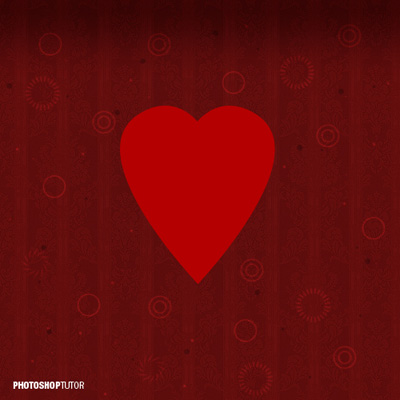
We have to add some 3D effects to make our heart look more realistic. I have listed various effects below so start applying each one of them in the order given.
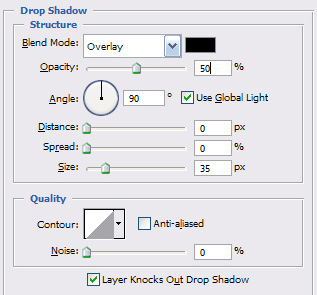
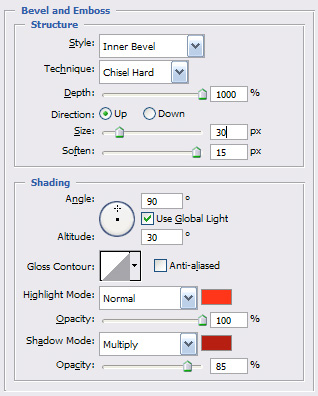
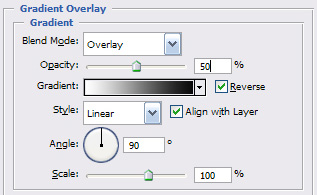
Results
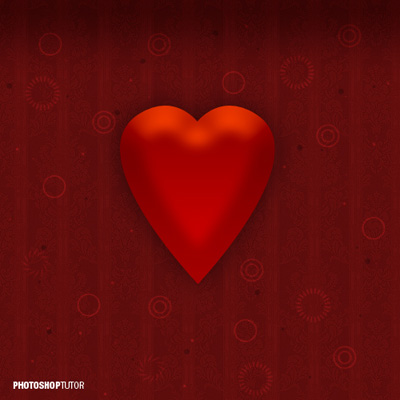
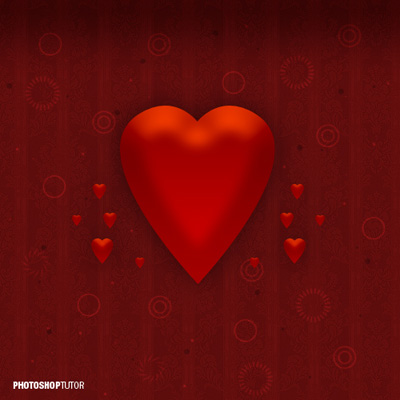
Duplicate the heart now and create various sizes all around to create the effect of sort like as "love is all around". Here is the pattern i used in creating my hearts:
Go back to your Custom Shapes and from the list, select the Ribbon and flip it vertically by going to Edit Transform - Flip Vertical. Make sure you set the background to white.
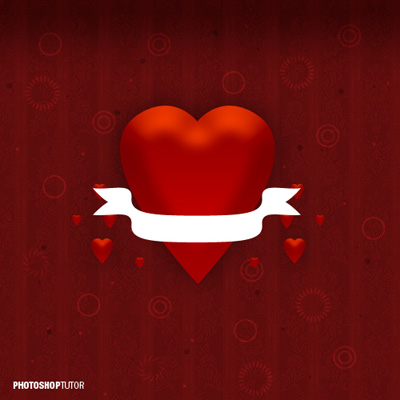
Lets apply a nice gradient overlay and drop shadows to give it more depth
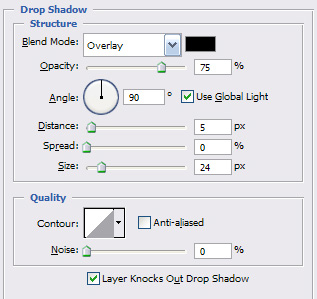
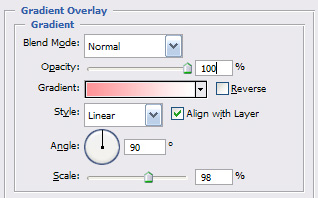
Results
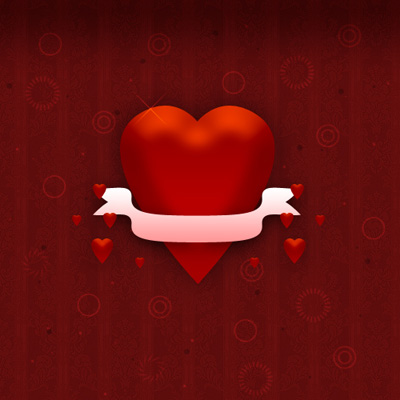
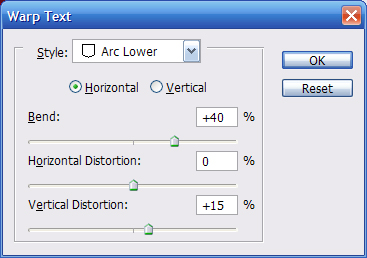
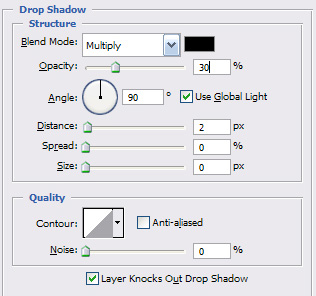
Its time to personalize your heart, you can go with the original "I love you" or anything creative that you may want your special one want to see. Below i listed what effects i used to create the warped effect. To those who might not be familiar with Warp text effects, once you have selected your text it will be second button from the right.
Results
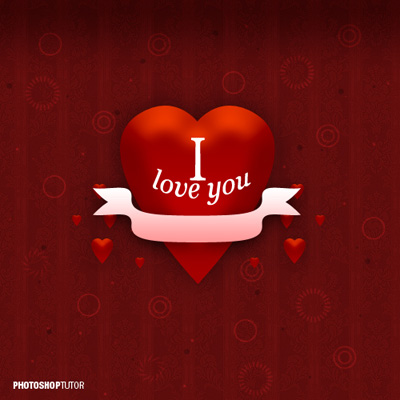
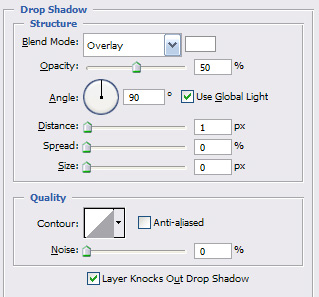
You can always add some text into the ribbon, for example i went with "You have my heart". I used the hex #b73636 for the text color and the drop shadow effect is listed below.
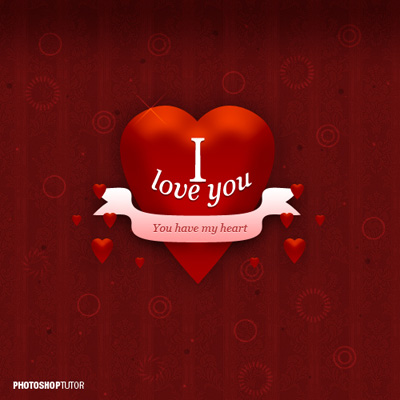
And there you have it, a quick and simple but effective card that might just melt your lovers heart.
