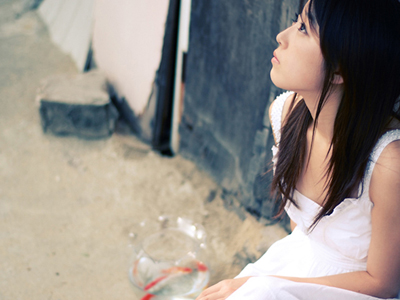
The first you open the picture below:
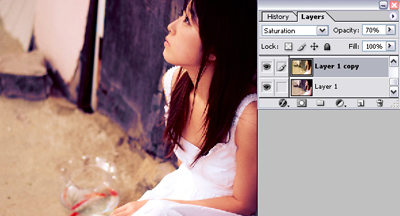
Name it is "layer 1"and Duplicate layer 1.
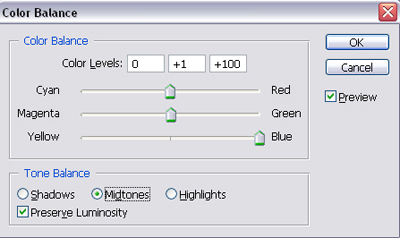
Select layer 1 and press Ctrl+B to open Color Balance.
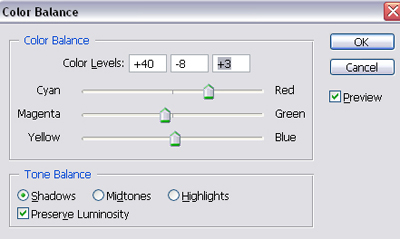
You will get:

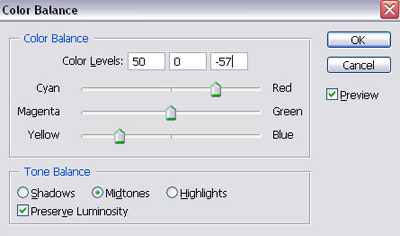
Select "layer 1 copy" and press Ctrl+B to open Color Balance.
Change blend mode of "layer 1 copy" to Saturation, Opacity 70%.
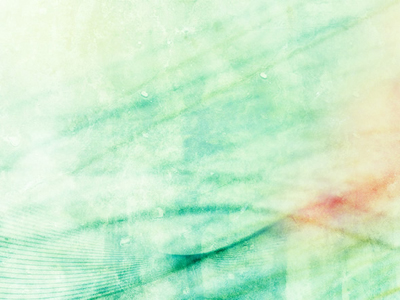
Now use this texture and press Ctrl+B.
Go to Filter -> Render -> Lighting Effects.

And you have:
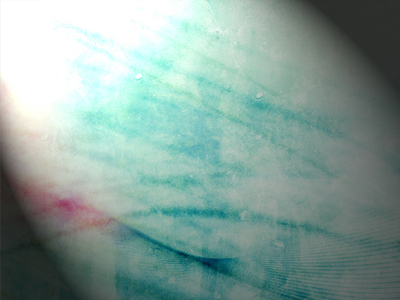
Change blend mode of texture 1 to Screen.
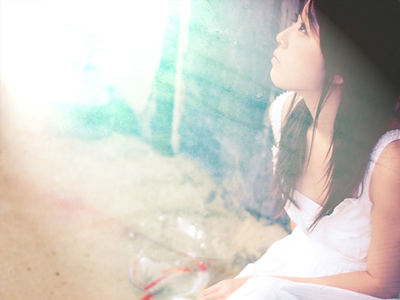
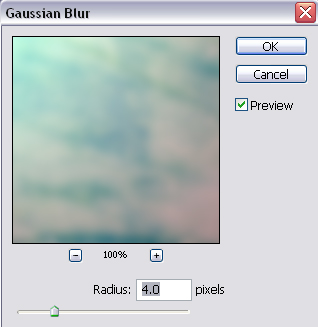
Go to Filter -> Blur -> Gaussian Blur.
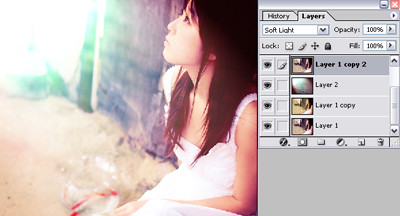
Select layer 1 and press Ctrl+J. The name of layer copy is "layer 1 copy 2". Bring it to top and change blend mode to Soft light.
Use this texture, duplicate it and rotate freely.
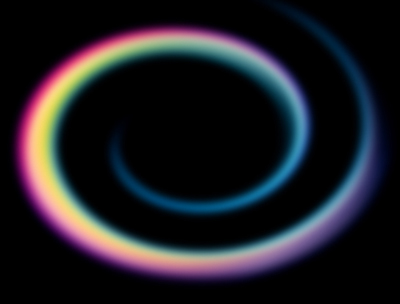
Change blend mode of this texture to Screen.
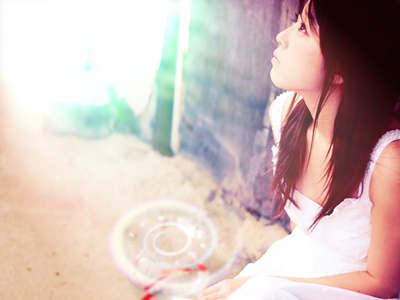
Apply this twinkling brush.
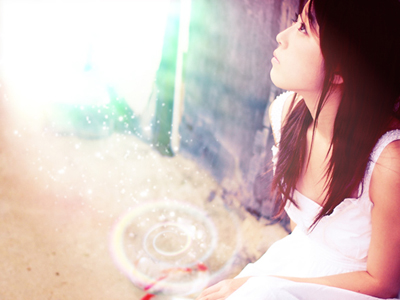
Finally, add any text you like.
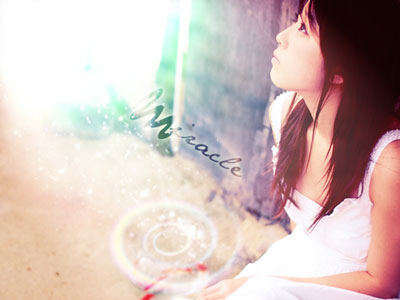
This is my final result: