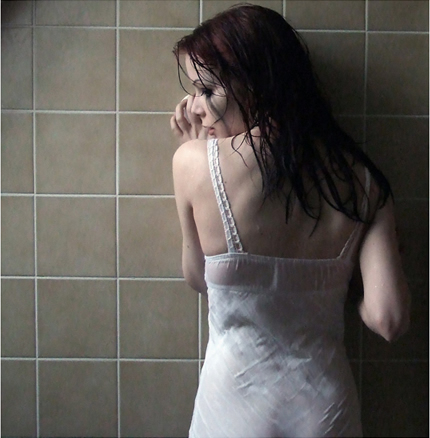
The first you open the picture below, name it is "layer 1".
Apply this texture to "layer 1".
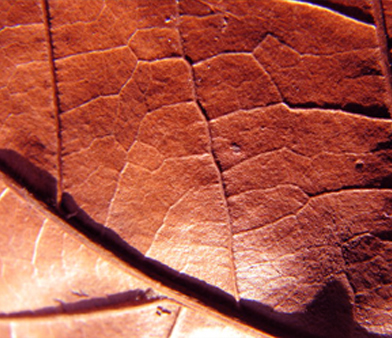
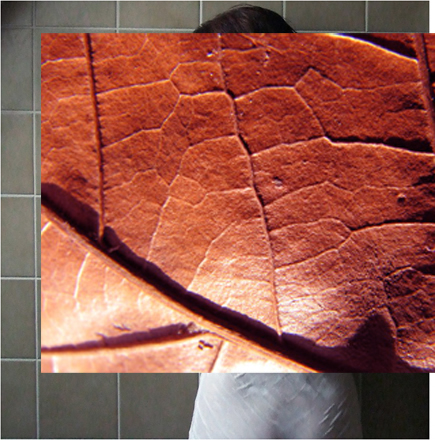
Change blend mode of this texture to Multiply.
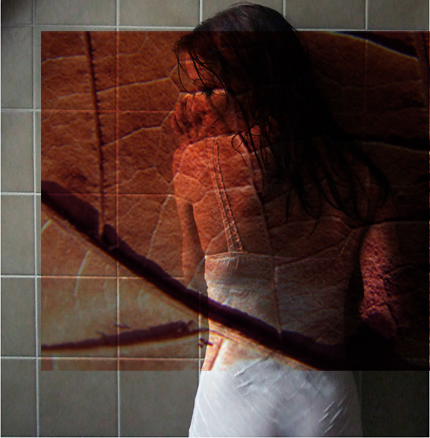
Add layer mask to this texture. Use this brush to erase some unsuitable areas as shown below:
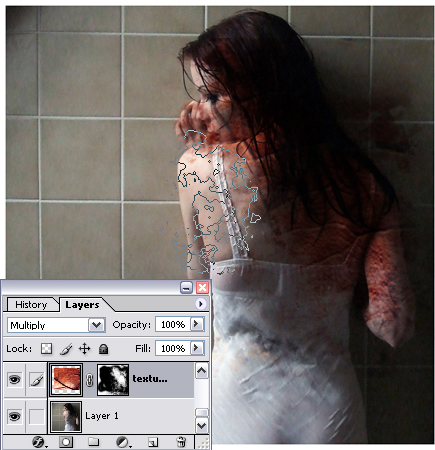
Apply this texture to your work:
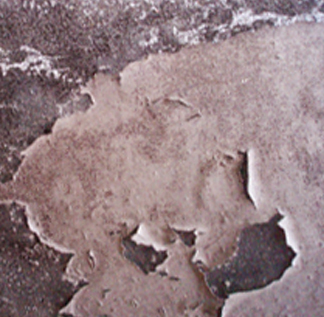
Change blend mode of the texture to Multiply.
Add layer mask to texture2. Erase some areas as shown below:
Continue to apply this texture to your work.
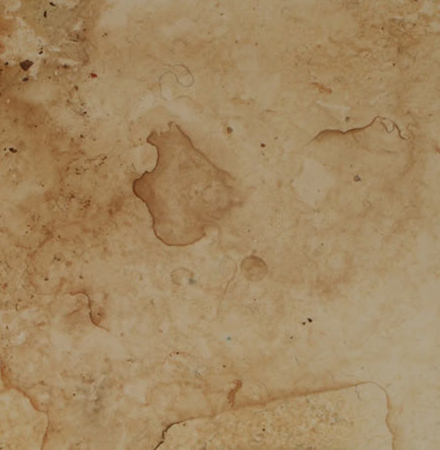
Change its blend mode to Multiply.
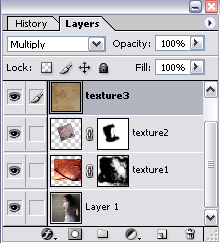
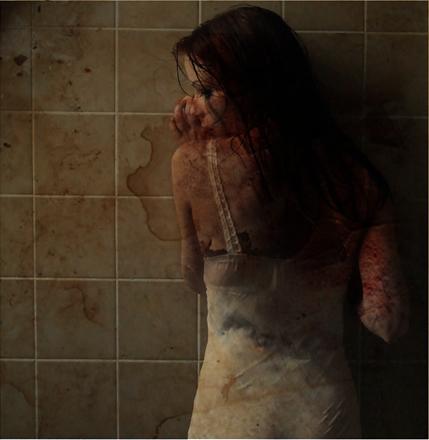
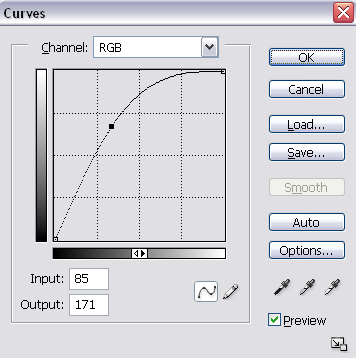
Select texture3, press Ctrl+M to open Curves and then make the picture lighter.
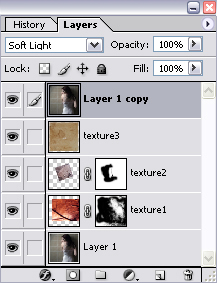
Choose "layer 1", press Ctrl+J to duplicate it.
Change blend mode of "layer 1 copy" to Soft Light, bring it to the top.
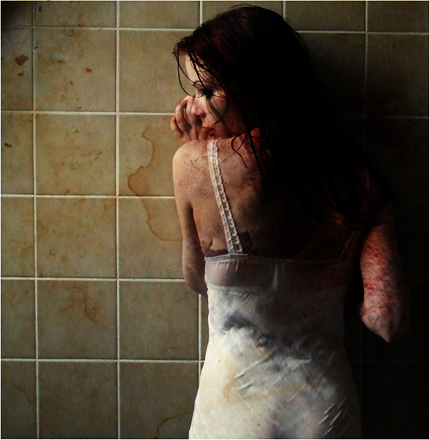
And you will get the final result: