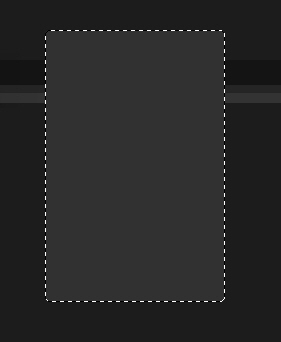
Create a new document with gray color then create a new layer, use Rounded Rectangle Tool to make a selection and fill the color: #313131.
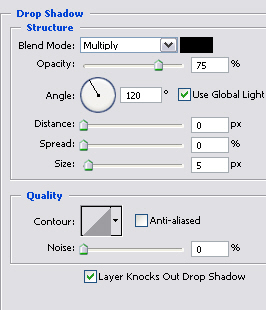
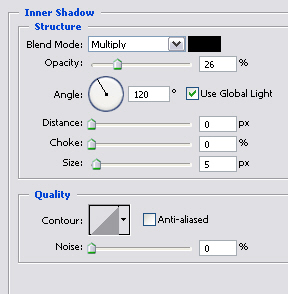
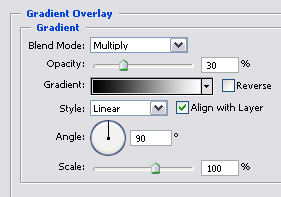
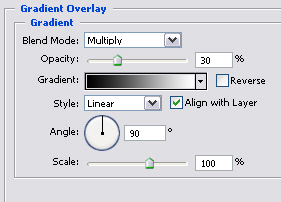
Go to Blending Option of this layer, set properties as shown below:
The result of this step:
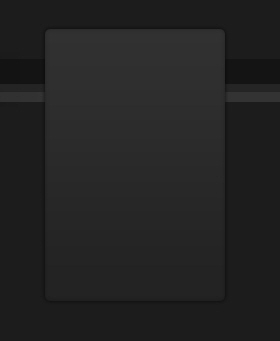
Create a new layer, use Rounded Rectangle Tool to make a selection and fill the color: #313131.
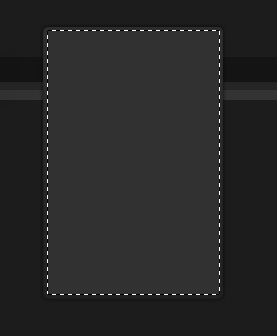
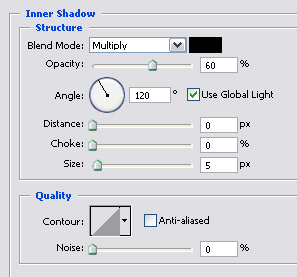
Blending Option this layer:
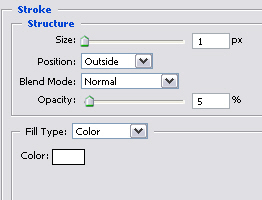
The result of this step:
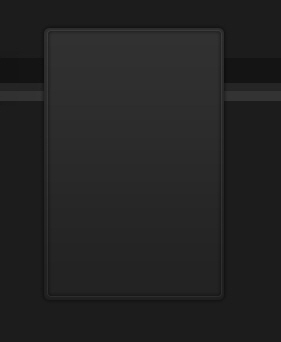
Create a new layer, use Rectangular Marquee Tool to make a selection and fill the color: #262626.
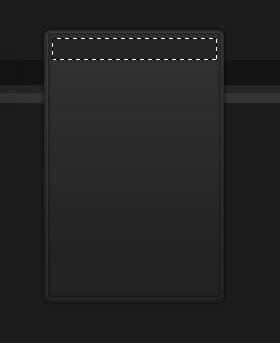
Blending Options this layer:
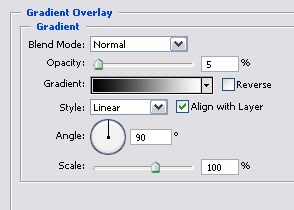
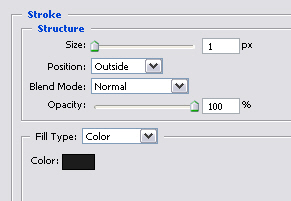
Create a new layer, use Rectangular Marquee Tool to make a selection like this, fill white color and adjust Opacity 10%.
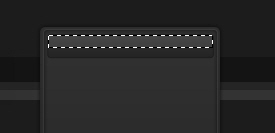
The result of this step:
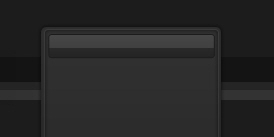
Create a new layer, make a selection, use Gradient with white color ( Radial Gradient ), drag from center of selection, adjust Opacity 30%.
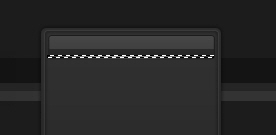
The result of this step:
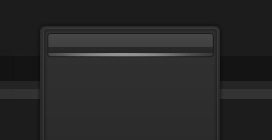
Continue to make a selection like this:
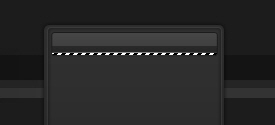
Press Ctrl+J to duplicate this layer, we have:
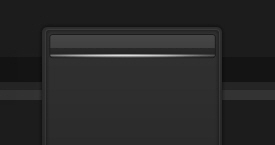
Continue to press Ctrl+J to duplicate layer, then move it to the top like the picture below:
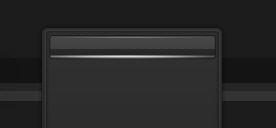
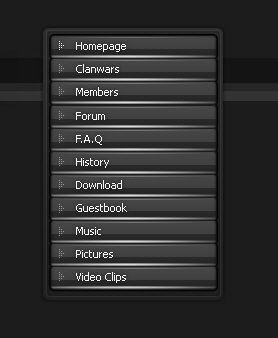
Finally you will merge all layers, duplicate the button then add some texts to each button.
The final result: