

Step 1. Create New Document with 500px x 500px Artboard Setup. Select RGB color for Color Mode. Press OK.
Step 2. Click the Type Tool or press T and type anything on the artboard. Press Ctrl+T to open the Character palette. Select all text and set to Verdana, Bold and 72pt for size.
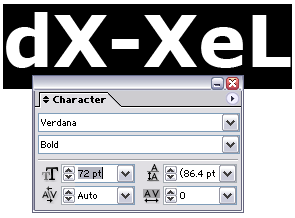
You may close the Character palette.
Step 3. Click the Selection Tool (black cursor) and select the text. Go to Object > Expand. Just press OK if you see an Expand window. You'll get something like below:

Step 4. Click the Line Segment Tool (), press Shift key and draw a horizontal line (color doesn't matter) like below:
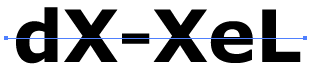
Press V, and then select both text and the line. Go to Pathfinder palette (Shift+F9) and click the Divide tool.
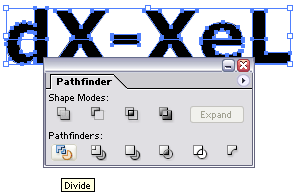
We have successfully divided the text into two parts.
Step 5. Click the Direct Selection Tool (A) and select the top part of the text. Give a red color on it using Swatches palette (Window > Swatches).
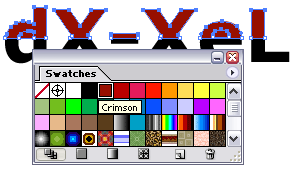
Then, select the bottom part and apply an orange color on it.
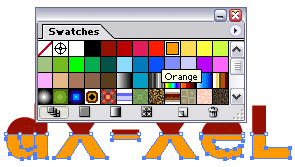
Look closely at our 'd' and 'e'. Using the Direct Selection Tool, select a filled color inside it and press Delete. You'll get something like below:

Step 6. Press V to select the text. Press Ctrl+C to copy and then Ctrl+F to paste it in front. Just right after that, go to your Swatches palette and apply the white, black gradient on it. See below:
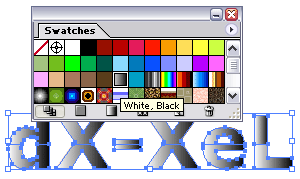
Then, go to your Transparency palette (Shift+F10), set to Screen and Opacity: 70. Press Enter.
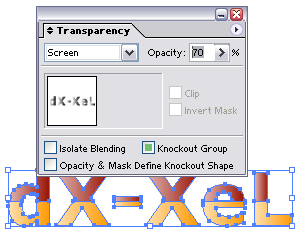
Step 7. Using your arrow keys on keyboard, move the transparent text to the right 2 times and to the bottom 2 times. Press V and select both texts, go to Effect > Stylize > Drop Shadow. Leave everything as default and press OK.
You should have something similar like below:

Step 8. While the both texts on selected, go to Effect > Warp > Wave... Set to Horizontal, Bend: 50, Distortion Horizontal:0 and Vertical:0. Press OK.
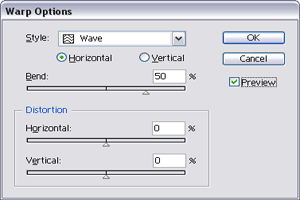
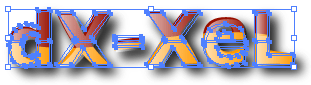
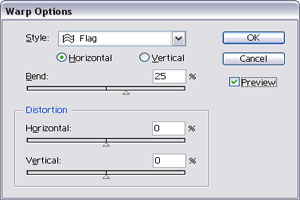
Step 9. After that, go to Effect > Warp > Flag. Just click Apply new effect if you see some popup message. Set to Horizontal, Bend: 25, Distortion Horizontal:0 and Vertical:0. Press OK.
You'll get something like this:

Wow, it looks great. Well, it's done for the wave text. Next, we gonna add some wave background image behind the text.
Step 10. Just go to any blank space on your artboard. Use the Hand Tool or press H to move the artboard to the left-right and top-bottom.
Select a Rectangle Tool or press M and click once on the artboard. Enter Width: 220px Height: 80px. Click OK.
Just right after that, go to your Swatches palette once again and apply white, black gradient on it.
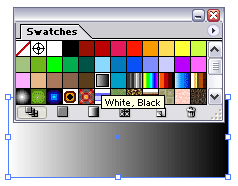
Step 11. While the Swatches palette is still on the artboard and the rectangle is on selected, go to Gradient palette (F9).
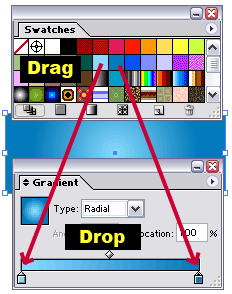
Drag the light blue color from Swatches palette and drop it to the left slider of the Gradient palette. And drag the dark blue color from Swatches palette and drop it to the right slider of the Gradient palette.
Set Gradient Type: Radial
Step 12. Just right after that go to Effect > Stylize > Drop Shadow. Press OK.
Ok, now, go to Effect > Distort & Transform > Zig Zag. Enter these value. Size: 10, Relative, Ridges per segment: 4, Point: Smooth. Press OK.
You should have something similar like this:
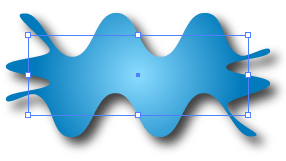
Go to Transparency palette (Shift+F10) and set Opacity: 50.
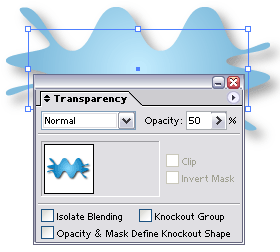
Step 13. Click the Selection Tool (V) and after that press Alt on your keyboard. Click on our new shape and drag it to the bottom to make a copy.
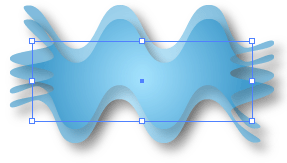
Then, go to Effect > Warp > Arc... Set to Horizontal, Bend: 25, Distortion Horizontal:0 and Vertical:0. Press OK.
You should have something similar like this:
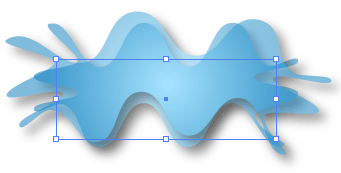
Step 14. Select both wave shapes, right click > Arrange > Send to Back or just press Ctrl+Shift+[. Move them behind our wave text and done.
Our final result:

Hmm... that's all for today and hope you enjoy this tutorial. Yeahhh!!!
