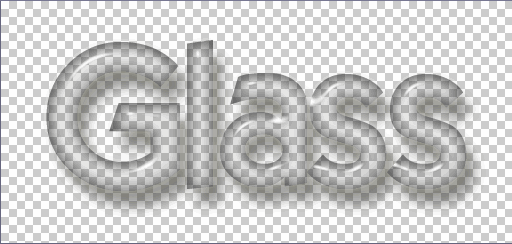
With all of the great things you can do with Photoshop, I am loving this one. I actually stumbled upon this by accident while playing around with settings, which is why I always encourage experimenting. You never know what you will find.
I will start this tutorial by creating a file with the dimensions 512 X242. We need to have some sort of background so I will make a simple gradient. I used a light shade of gray (hex#CCCCCC) for the foreground tile and a yellow (hex#FFFF66) for the background tile and pulled from bottom to top for the gradient. Feel free to use whatever colors you like, as just about any will look good.

Next we will need some text. Heavy bold fonts work best here. I chose the font "Elegance" with a font size of 200 pt.

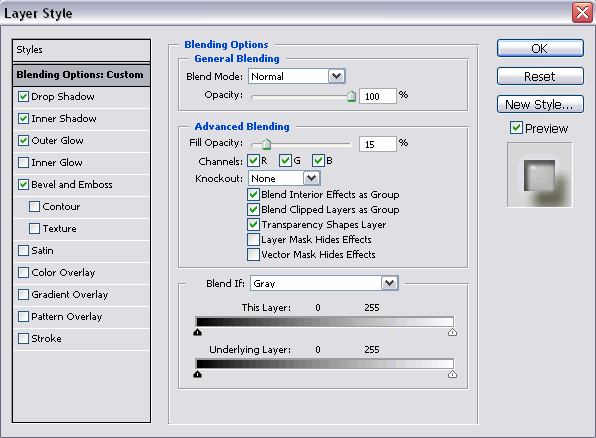
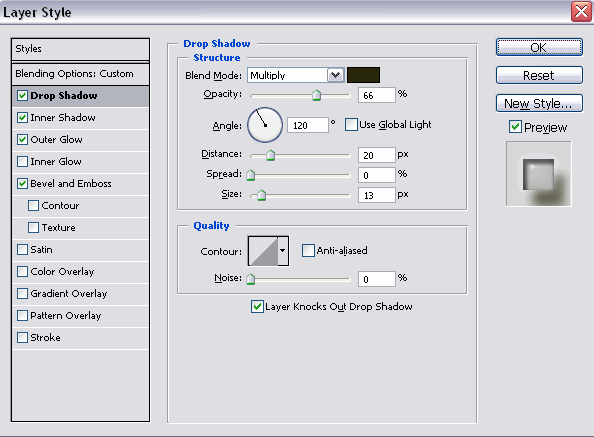
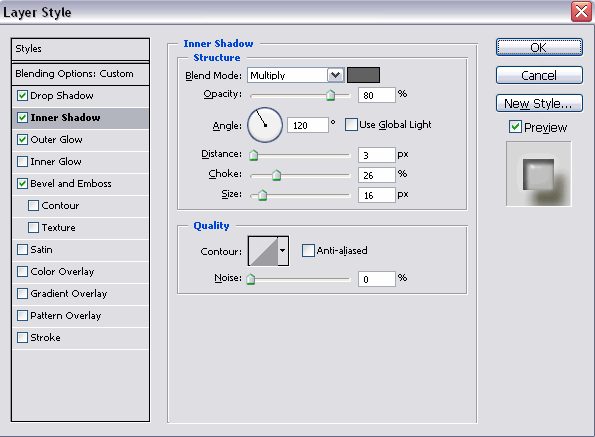
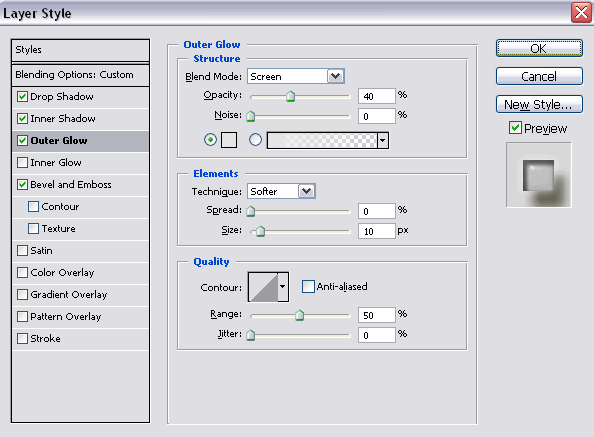
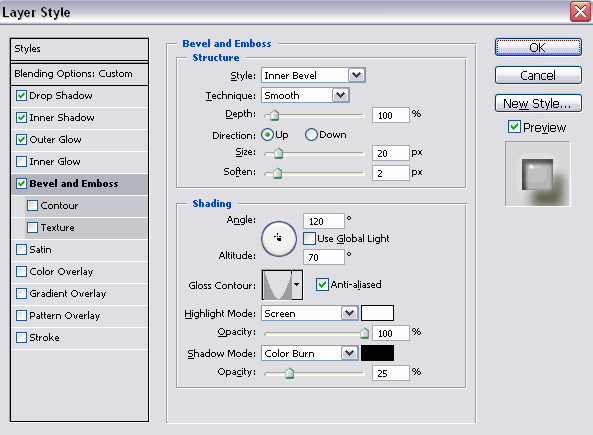
Use the following settings for Blending Options, Drop Shadow, Inner Shadow, Outer Glow and Bevel and Emboss.
With any luck at all you will end up with something that looks like this.

One of the cool things about this layer style is that it will take on the colors of whatever background you are using. A perfect example of this is to simply remove the background and you get this. Have fun!