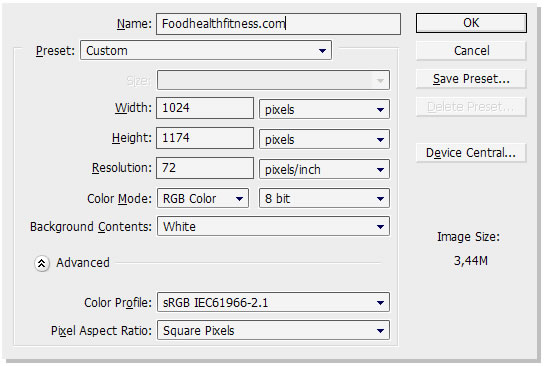
First you need a new document Ctrl+N, with the Width: 1024 pixels and the Height: 1174 pixels.
Now change the background-color to "#817b74" 
 (G)
(G)
Select the "Rectangular Marquee Tool".  Shortcut key: (M).
And hold it and drag it to make a rectangular shape, put the shape where you want to put the white. Then you copy (Ctrl+c) and paste (Ctrl+v) to get a new layer!
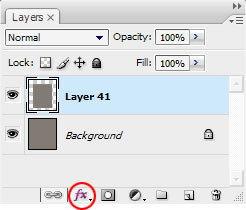
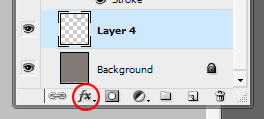
Why is not my layer white like yours? Well you need to go "FX" aka layer style. If you don't see this image press "F7″ on your keyboard!
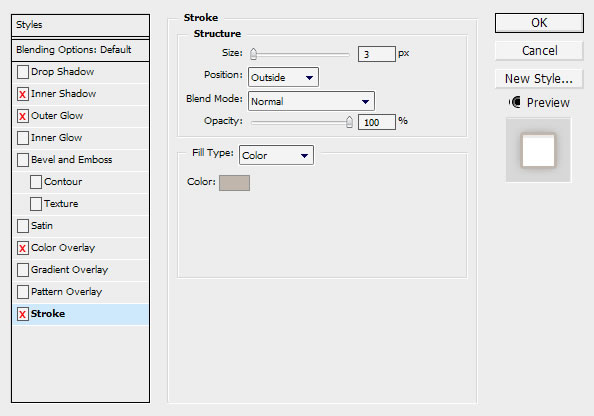
Now, select Stroke, Color overlay, Outer glow and Inner shadow and do the following!
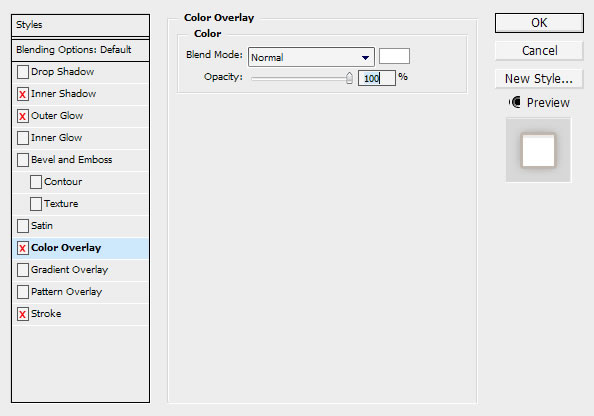
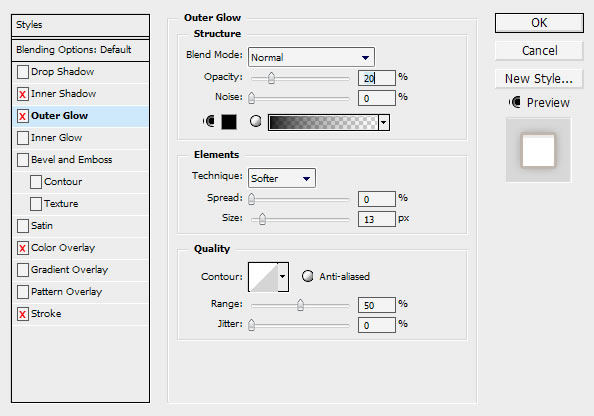
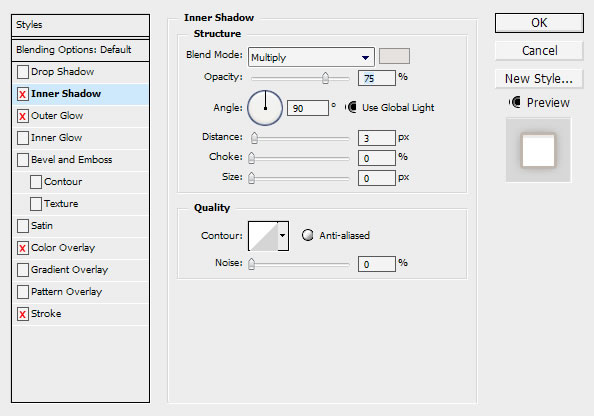
[ Download style ]
Select the rectangular marquee tool and drag it like this, remember to have the background layer selected!
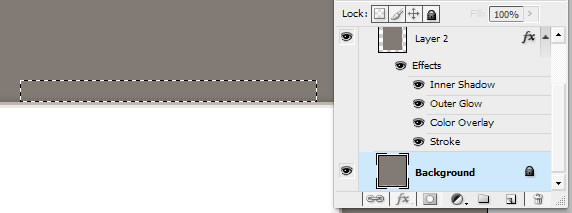
Now copy and paste, so you get the mark into a new layer, then go to FX, layer style once again!
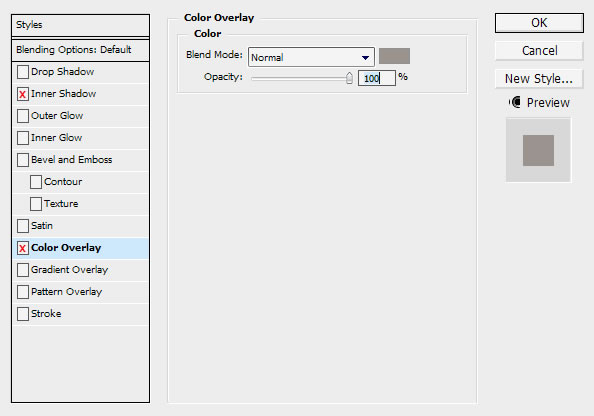
Then press "Color Overlay" (#9b948e)
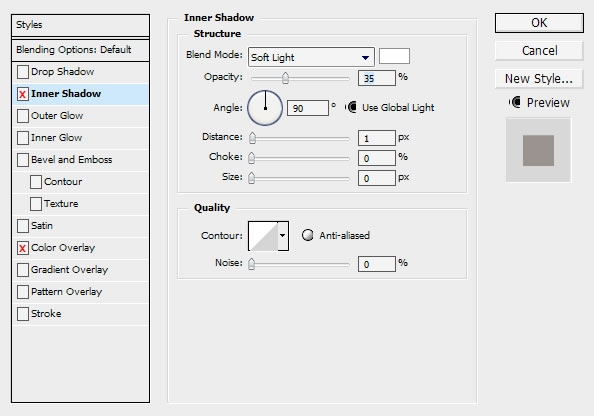
And then Inner shadow
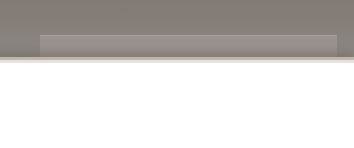
This is what it should looks now
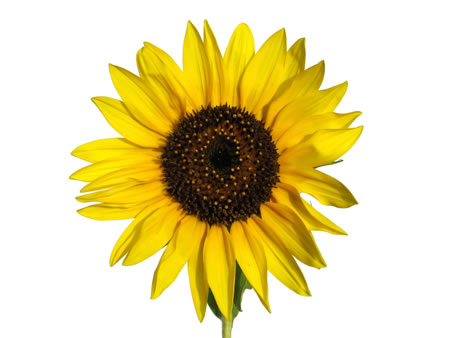
Your probably wondering how I got the flower and the note look so real? Well we call them Stock images!
What's the best way to cut out the object out of the image? Well to get the best quality on the cut I strongly recommend the pen tool.
Just to make sure, this is what you should have right now.

Select your stock image(s)