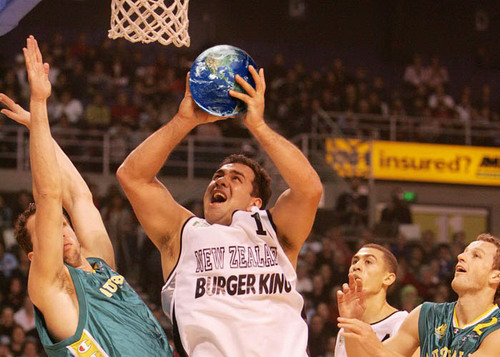
Alrighty, let's begin... Open up a Globe image...
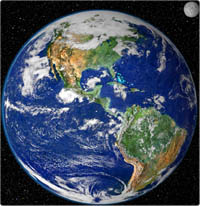
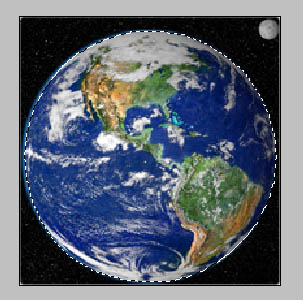
Select "Polygonal Lasso tool". Cut the globe. Ctrl+C to copy.
Open a Basketball image...
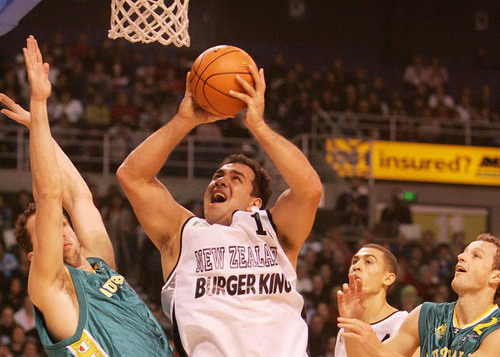
Ctrl+V to paste (new layer will be created). In Menu - Edit> Transform> Scale. Resize the globe to fit the ball
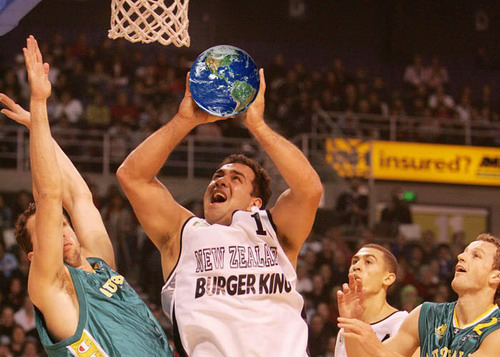
Select "Background" layer. Make "Layer 1" invisible so that you can work on "Background" layer. Select "Polygonal Lasso tool". Cut a part of the hand which folds the ball. Ctrl+C to copy.
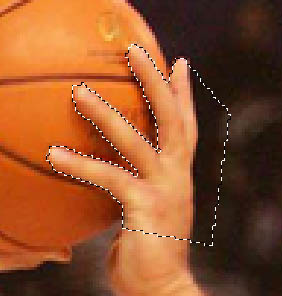
Select "Layer 1". Ctrl+V to paste (new layer will be created). Make "Layer 1" visible again. That's not all.
Select "Layer 1". Select "Brush Tool". "Mode" to "Darken". "Size" to "10px".
Give the touch ups :)
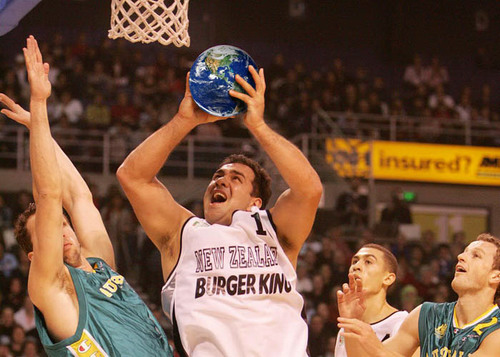
"Mode" to "Lighten"."Size" to "20px".
Give the touch ups :)