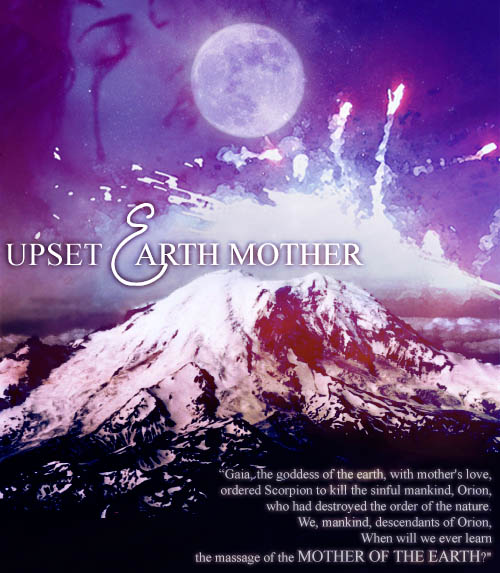
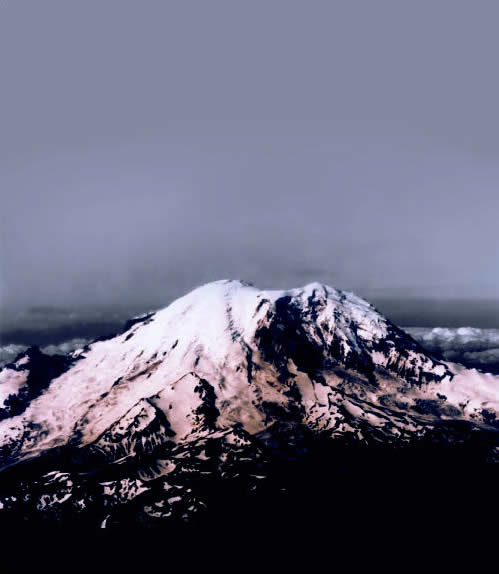
1. I choose this picture. You can find it on Google by using this keyword: "Mount Rainier"
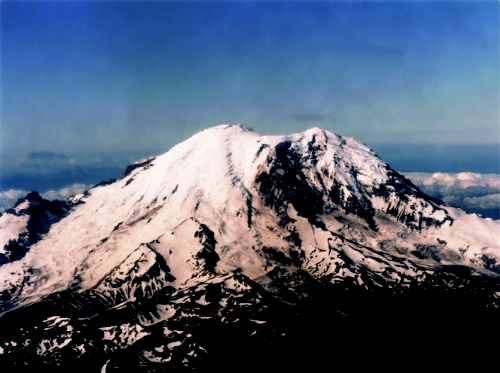
2. Duplicate the background layer. We'll work on the copy layer. Then fill the background layer with #b1b0b6. After that, we start cleaning the blue sky by using Eraser (E): Soft round brush, opacity ~ 60%, flow ~75%.
But, if you use CS3, instead of using Eraser, Color Replacement Tool will help you simplify your job.
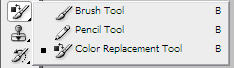
I don't know if there is Color Replacement Tool in other versions. If yes, I strongly recommend using this one. If not, that's fine, Eraser still works.
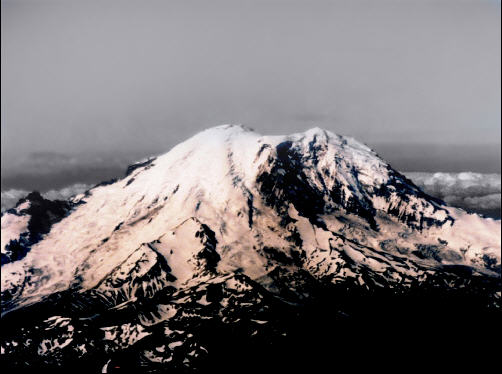
3. I need to expand this picture. So, I go to Image/Canvas Size (Alt+Ctrl+C) and set as below
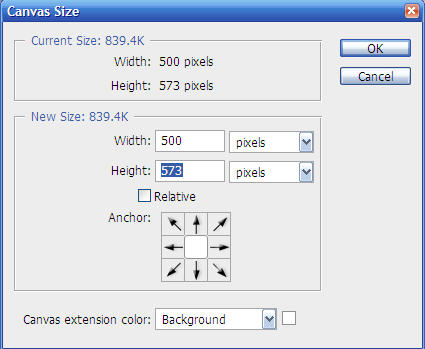
Then OK. I'll have this picture.
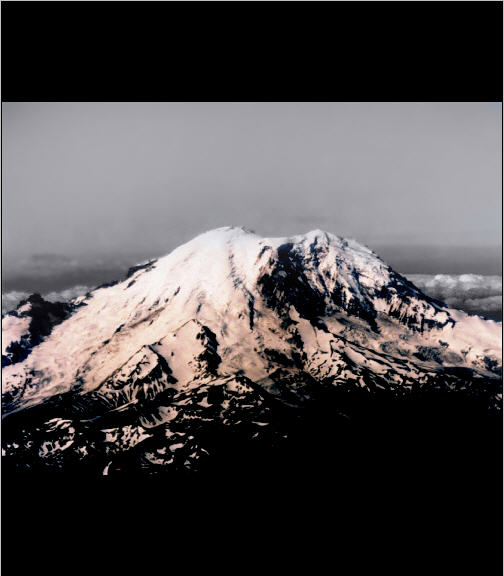
4. Use Move Tool (V) to drag picture down a little bit. Like this.
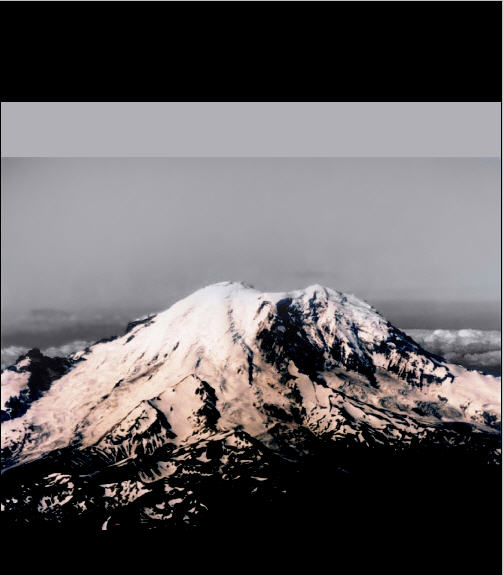
5. Create new layer. On that layer, I use Brush Tool (B) to paint the rest of the picture with #a1a0a6.
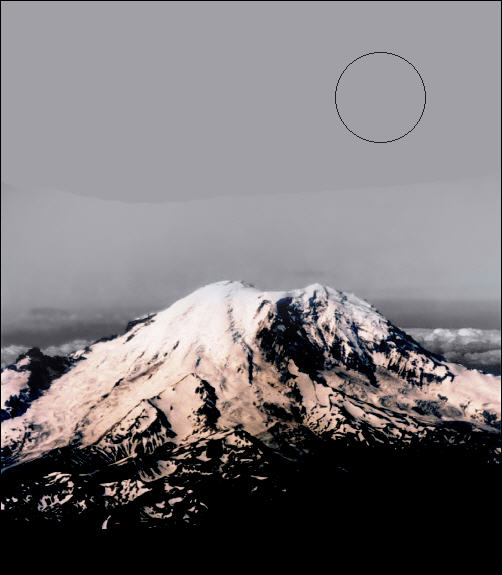
6. Merge down (Ctrl-E) Layer 1 and Layer 2.
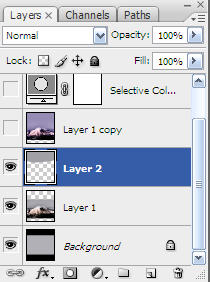
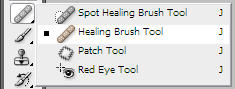
I need to merge those 2 separate parts of color. I use Healing Brush Tool (J) to merge them.
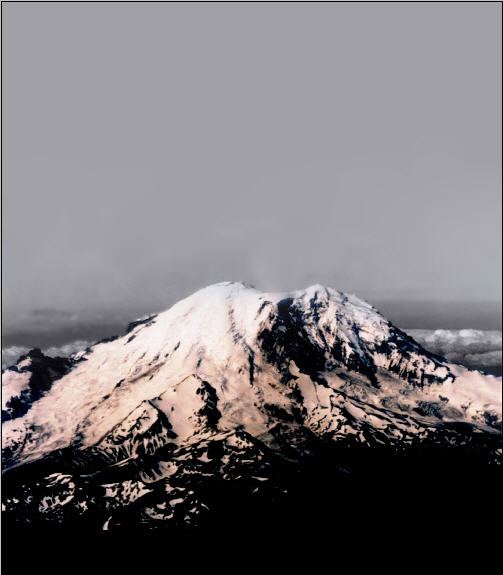
7. Now I color it by using Color Balance (Ctrl-B). Set numbers as below:
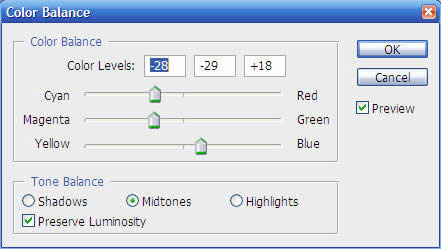
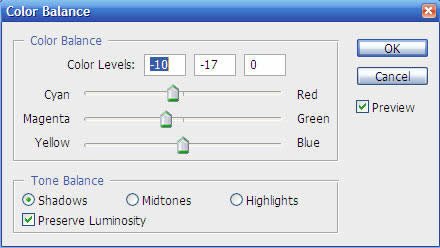
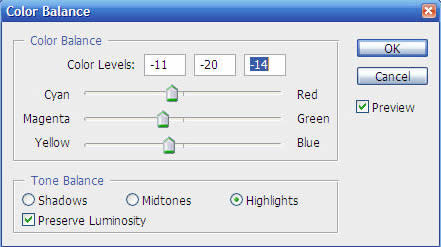
Then I'll have this:
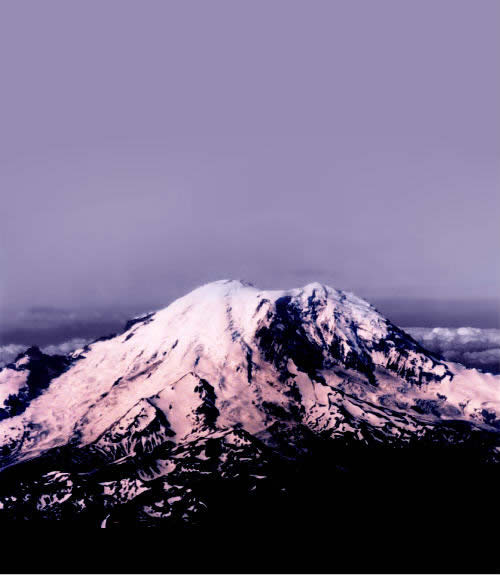
8. Now, go to Layer/New Adjustment Layer/Selective Color and set numbers as below:
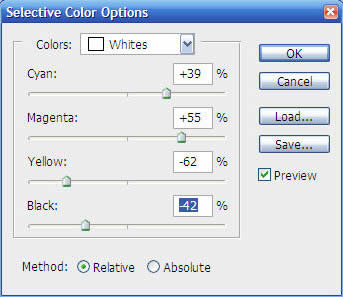
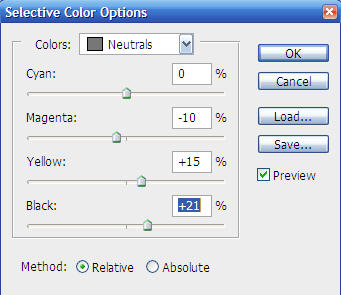
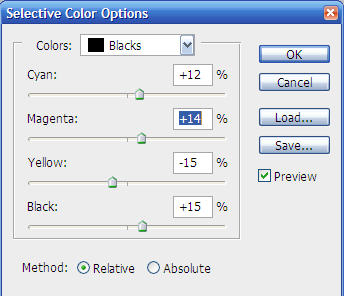
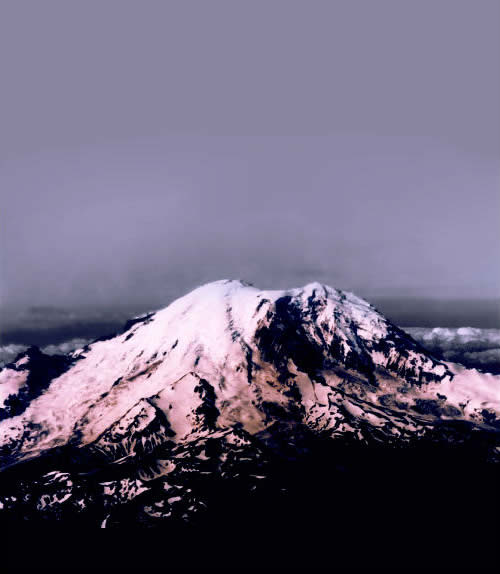
After that, my picture looks like this:
9. Go to Layer/New Adjustment Layer/Photo Filter and choose like this:
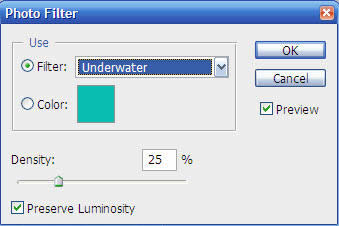
My picture:
10. It's time to make a full moon. I choose this moon.
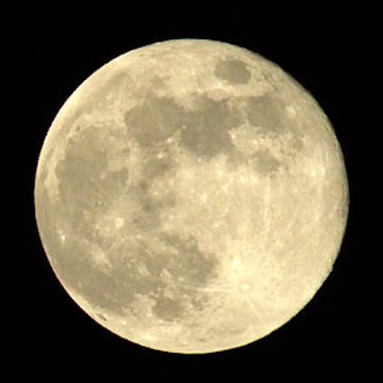
You can download it on Google by using this keyword: "full moon". Use Magic Wand Tool to select the black background. Next, hit [Delete] key on your keyboard. Now, you separated the background from the moon. Use Eraser to clean the border. Now, I have
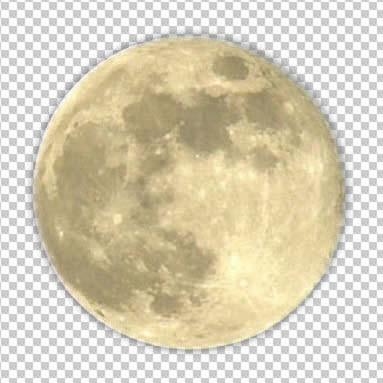
11. Drag the full moon picture to the mountain picture by using Move Tool (V).
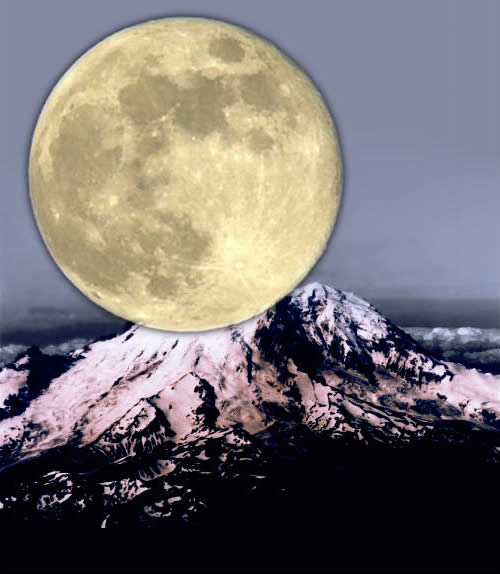
12. Use Ctrl-T or go to Edit/Free Transform to resize the moon.
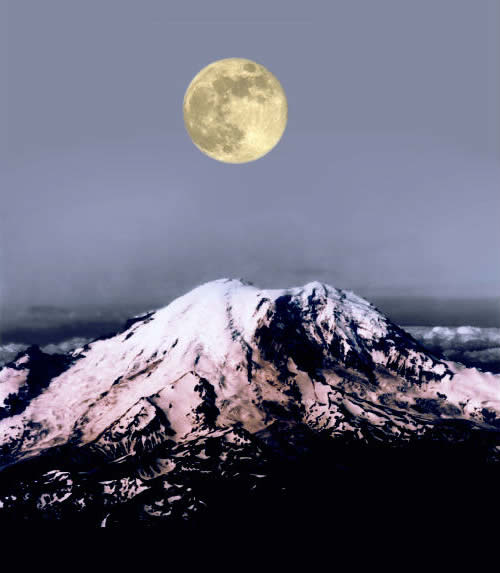
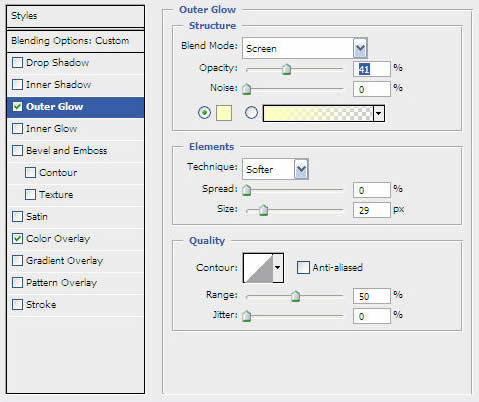
13. Then, set its blend mode to Soflight. Go to Layer/Layer Style/Outer Glow and set as below:
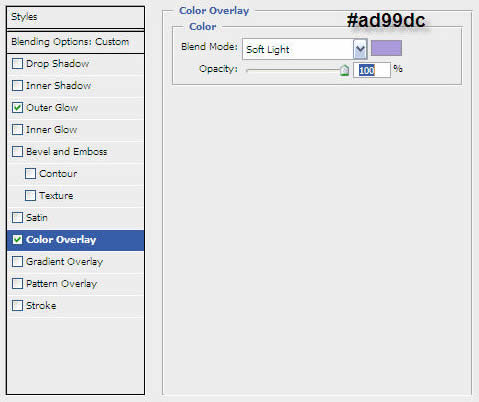
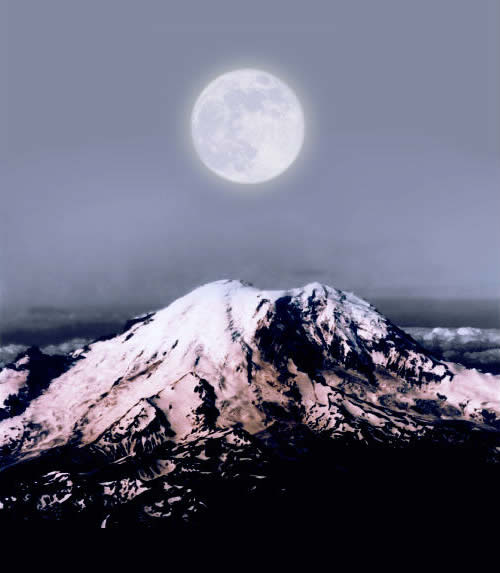
This is what I have now:
14. Create 2 new layers and fill them with #beaadb and #89ad63. Set layer (#beaadb) to Soflight, 100%. And layer (#89ad63) : Overlay, 44%.
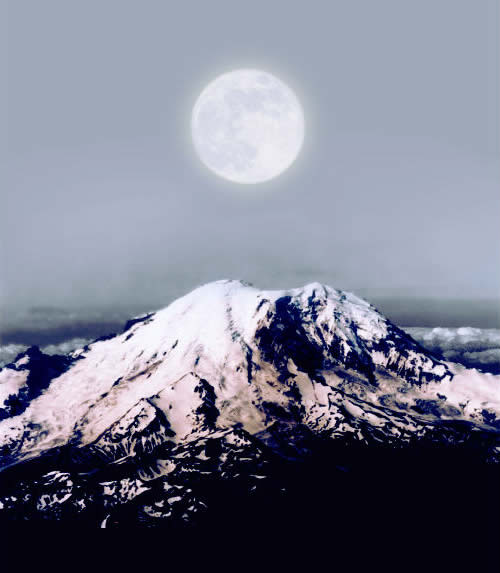
15. I apply stardust brush to make it look more glamorous.
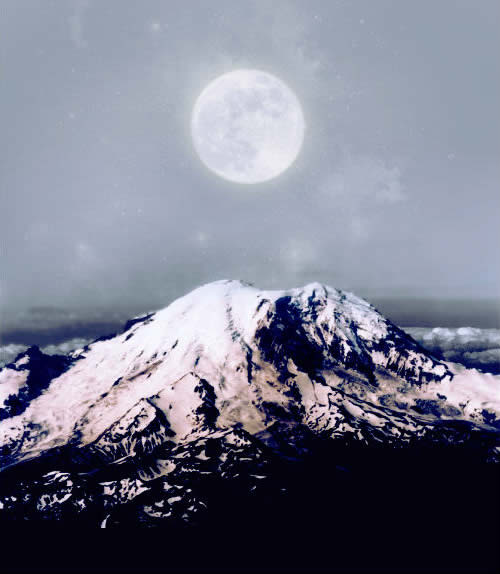
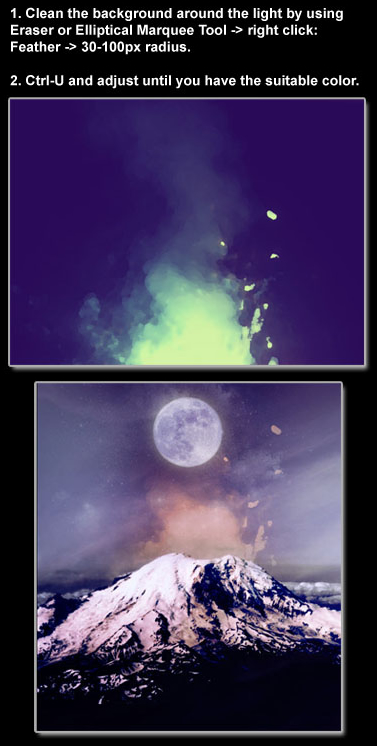
16. I also apply texture on it. Here are some of my finals.
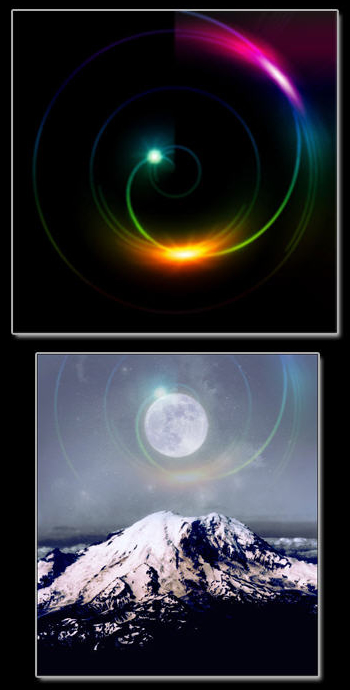
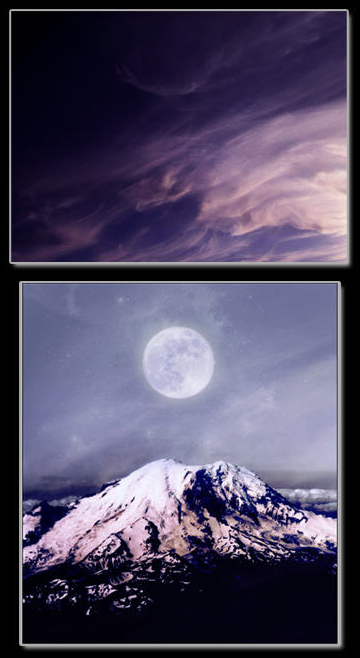
Or a volcano mountain
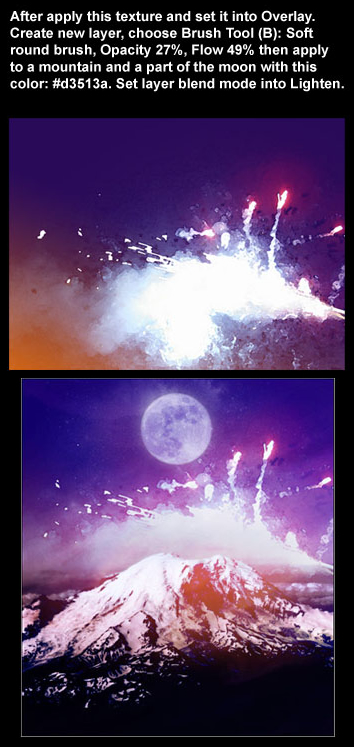
Here is my final result which I like most: Earth mother revenges.